Chart position — tracked daily by LaunchShots
Screenshot style breakdown
Sampled from 6 of Brother Mobile Connect's App Store screenshots — background, accent and theme, measured by LaunchShots (not something Apple publishes).
#ECECF4 bg
#CFCFD6
#54A454 accent
#111111 text
Screenshots
iPad screenshots


Icon palette
About this app
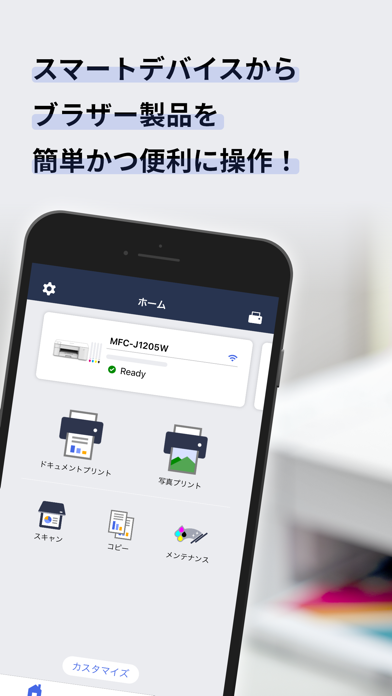
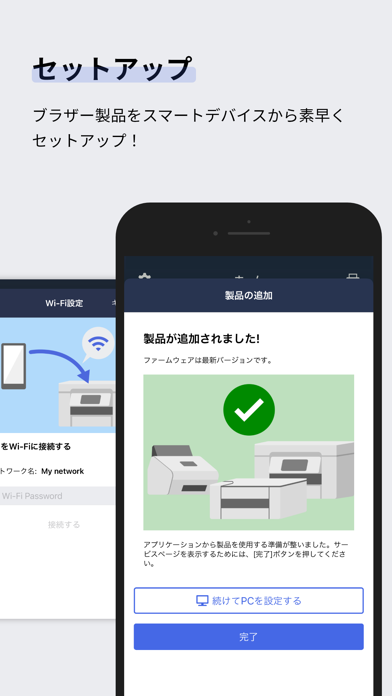
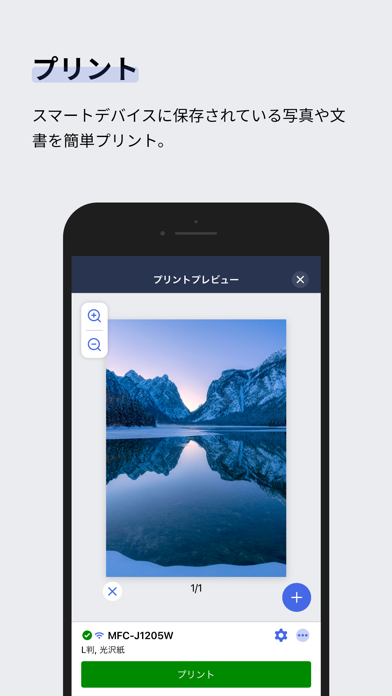
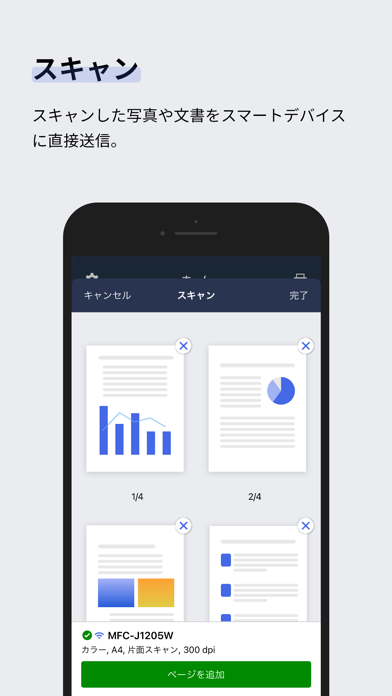
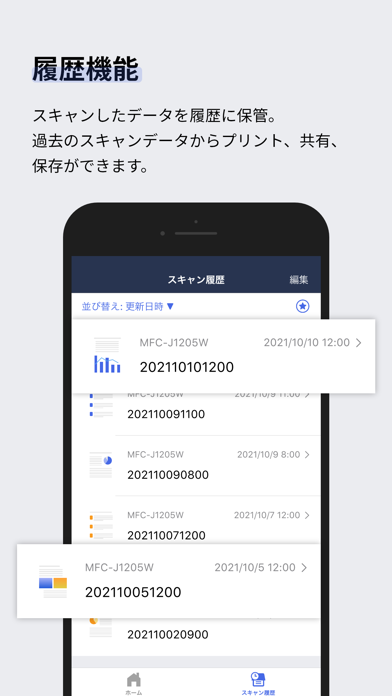
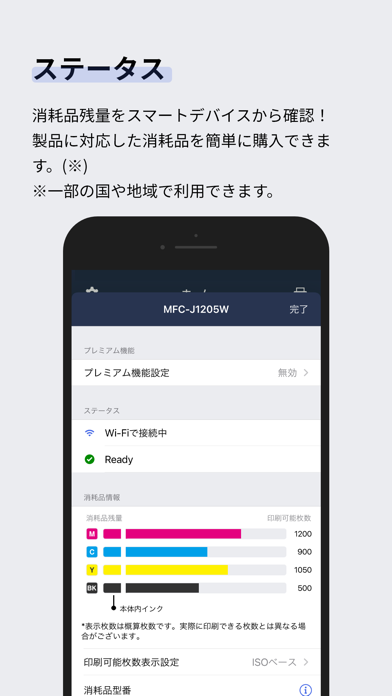
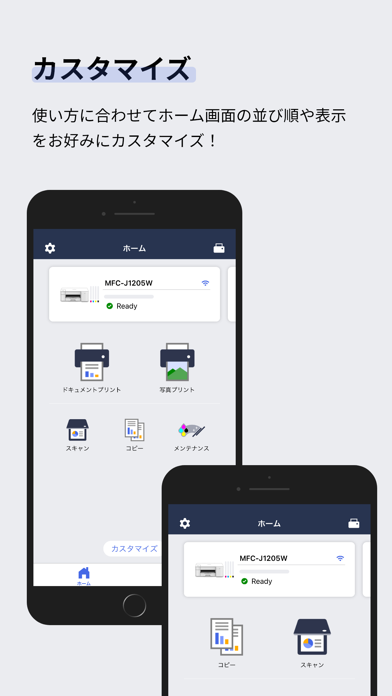
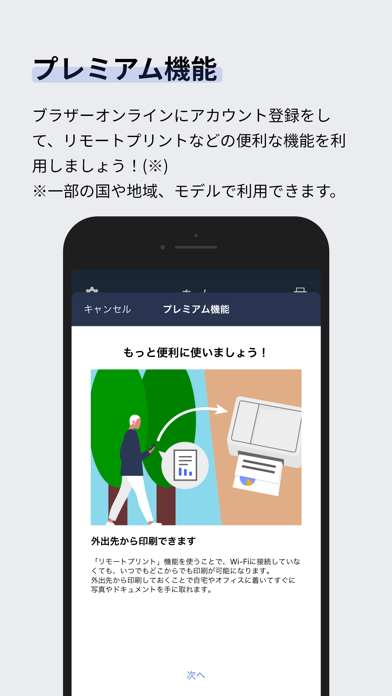
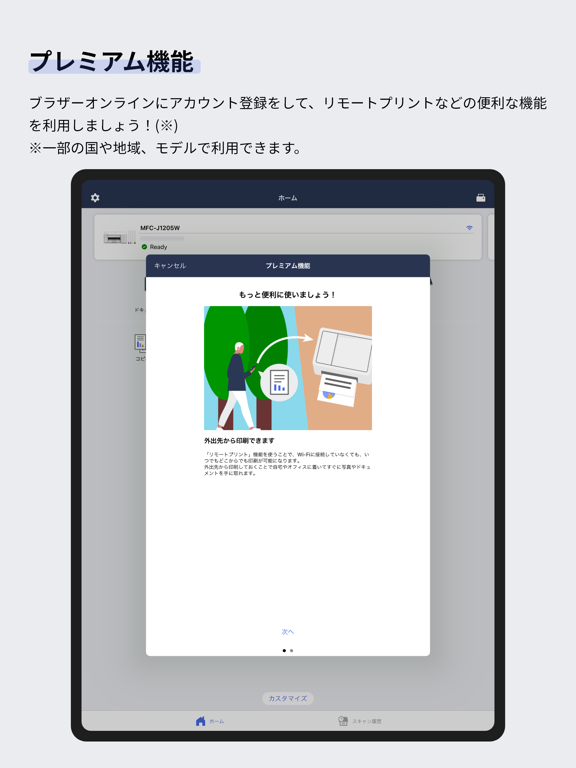
本アプリが対応している製品は、以下のウェブサイトからご確認ください。 https://support.brother.com/g/b/oscontents.aspx?ossid=4 上記以外の製品をお使いの場合はBrother iPrint&Scanをご利用ください。 Brother Mobile Connectでスマートデバイスからプリンターを簡単かつ便利に操作! 基本的なプリント・スキャン・コピーだけではなく、製品の管理や自分の使い方に合わせたカスタマイズ機能をご利用できます。 【主な機能】 ー セットアップ お手持ちのスマートデバイスからプリンターを簡単にセットアップできます。 ー プリント スマートデバイスに保存されている写真や文書をプリントできます。 プリント前に写真をトリミングできます。 ー スキャン スキャンした写真や文書をスマートデバイスに直接送信できます。(PDF/JPEG形式) ー コピー スマートデバイスからコピーの設定や実行ができます。 ー 履歴機能 スキャンしたデータを履歴に保管することで、履歴から過去に使用したデータをプリント・共有・保存できます。 ー 製品の管理 気になる消耗…
App details
What you can learn from Brother Mobile Connect
Every shipping app on the App Store has gone through the same decisions you're working through right now: which screenshot goes first, what caption sits over it, which device frame to show, what color the background should be. The 16 screenshots above are Brother Mobile Connect's answers to those questions — they're public, they're real, and they made it through Apple's review.
What the numbers say: Brother Mobile Connect runs a light set with one background colour (#ECECF4) carried across every screenshot — the listing reads as a single poster when the shots sit side by side in search results. The accent colour we picked up, #54A454, is the one to reuse for badges, arrows and highlighted words if you borrow this look. Hit Use this style to open the editor with these exact colours and drop your own screenshot in.
Notice the first screenshot in particular. It's the one users see in search results and on the product page, and it's where most apps spend their best caption and tightest design. Look at the proportion of background to phone, where the text sits, what one thing the image is trying to communicate.
Want to see how other Utilities apps approach the same problem? Browse more Utilities apps in the showcase.
Take what works into your own screenshots
Open LaunchShots and design your App Store & Google Play screenshots — pick a device frame, drop captions, ship in minutes. Free, in your browser.
Open the screenshot editor →Apps with a similar look
Closest background + accent colours among the listings we've analysed — useful when you want to see the same palette handled by a different team.