Chart position — tracked daily by LaunchShots
Screenshot style breakdown
Sampled from 6 of vFlat Scan - PDF Scanner's App Store screenshots — background, accent and theme, measured by LaunchShots (not something Apple publishes).
#041C14 bg
#273B34
#44DCBC accent
#FFFFFF text
Screenshots


iPad screenshots




Icon palette
About this app
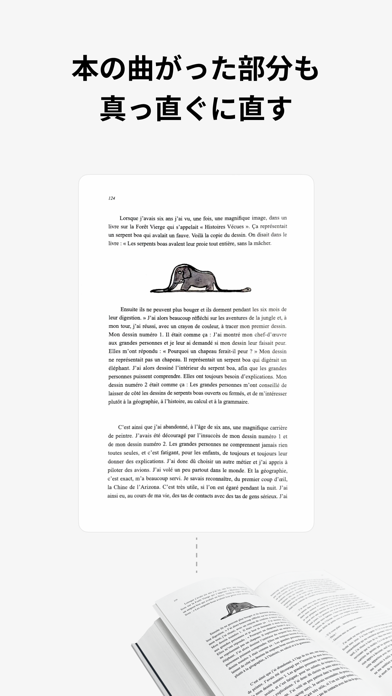
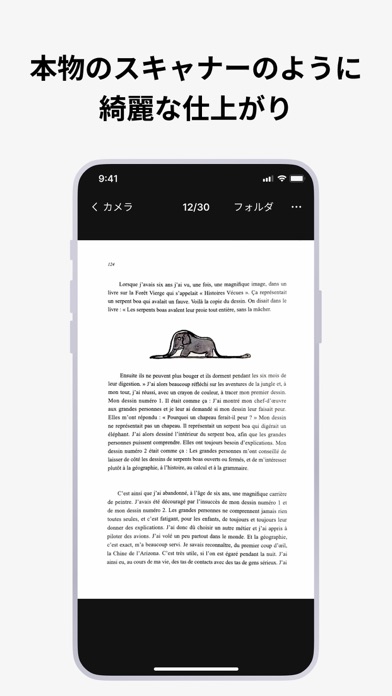
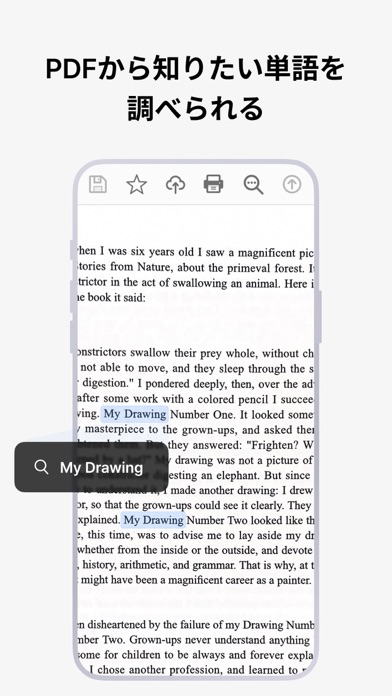
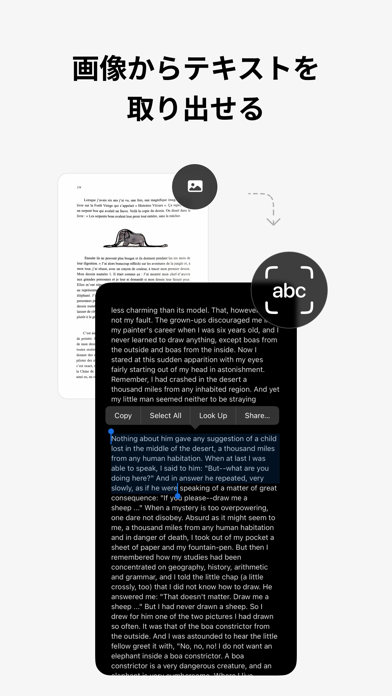
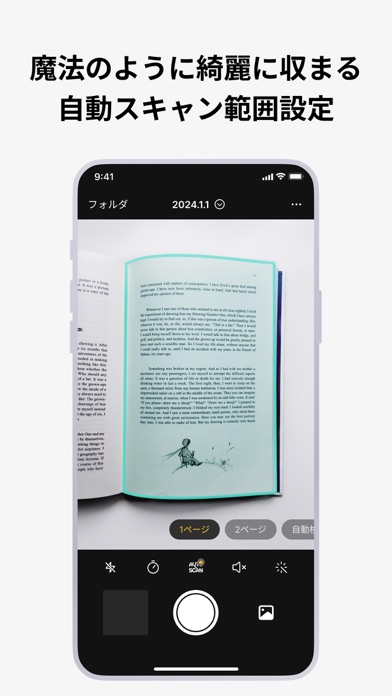
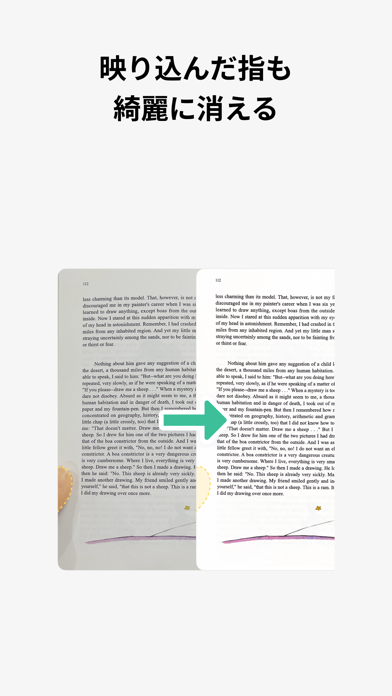
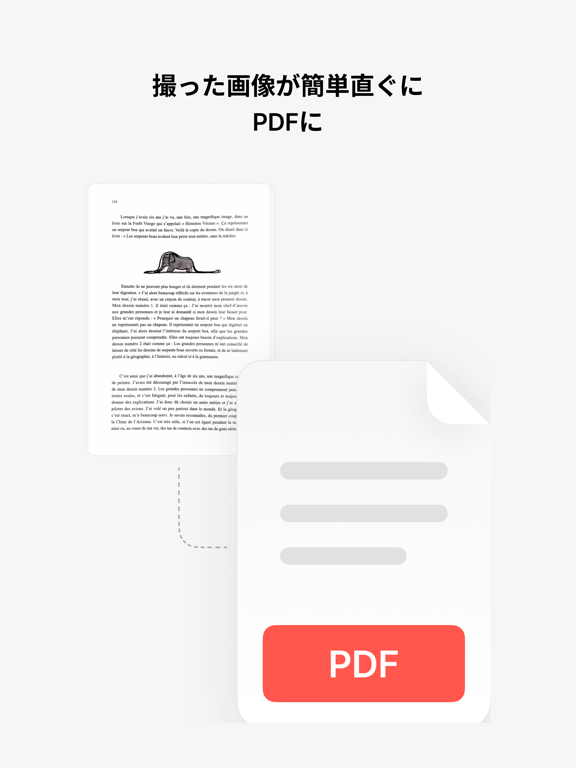
vFlat(Vフラット)の主な機能 1。スキャンエリアの自動認識 スキャンする文書や本のページの周りを自動的に認識して切り取ります。撮影後に手動補正をする必要なく、どの角度でもスッキリとしたスキャン結果が得られます。 2。自動撮影 毎度撮影ボタンを押すことなく、スキャン対象を認識して自動的に撮影します。何百枚の本や多数の書類を撮影するときは、より速く簡単にスキャンできます。 3。曲面補正 本のページの曲がった曲面を自動的にきちんと補正します。本を切断することなく、プロの本スキャナーで撮影したようにスキャンします。 4。2ページ撮影 開いた本の左右2ページを一度に撮影し、自動的に分割して保存できます。厚い本をスキャンするときも素早くに結果を得られます。 5。無料の文字認識(OCR) 文字認識機能により、スキャンした画像を無料でテキストに変換できます。変換したテキストをコピーして、友達や同僚に簡単に共有できます。 6。さまざまな形式にエクスポート(PDF、JPG、TXT) スキャンした画像をPDFファイル、画像ファイル(JPG…
App details
What you can learn from vFlat Scan - PDF Scanner
Every shipping app on the App Store has gone through the same decisions you're working through right now: which screenshot goes first, what caption sits over it, which device frame to show, what color the background should be. The 18 screenshots above are vFlat Scan - PDF Scanner's answers to those questions — they're public, they're real, and they made it through Apple's review.
What the numbers say: vFlat Scan - PDF Scanner runs a mixed light-and-dark set where the background shifts from screenshot to screenshot (first shot #041C14) — each image has to stand on its own, so the captions carry more of the story. The accent colour we picked up, #44DCBC, is the one to reuse for badges, arrows and highlighted words if you borrow this look. Hit Use this style to open the editor with these exact colours and drop your own screenshot in.
Notice the first screenshot in particular. It's the one users see in search results and on the product page, and it's where most apps spend their best caption and tightest design. Look at the proportion of background to phone, where the text sits, what one thing the image is trying to communicate.
Want to see how other Productivity apps approach the same problem? Browse more Productivity apps in the showcase.
Take what works into your own screenshots
Open LaunchShots and design your App Store & Google Play screenshots — pick a device frame, drop captions, ship in minutes. Free, in your browser.
Open the screenshot editor →Apps with a similar look
Closest background + accent colours among the listings we've analysed — useful when you want to see the same palette handled by a different team.