Chart position — tracked daily by LaunchShots
Screenshot style breakdown
Sampled from 6 of Web Inspector's App Store screenshots — background, accent and theme, measured by LaunchShots (not something Apple publishes).
#242424 bg
#424242
#FCDC24 accent
#FFFFFF text
Screenshots

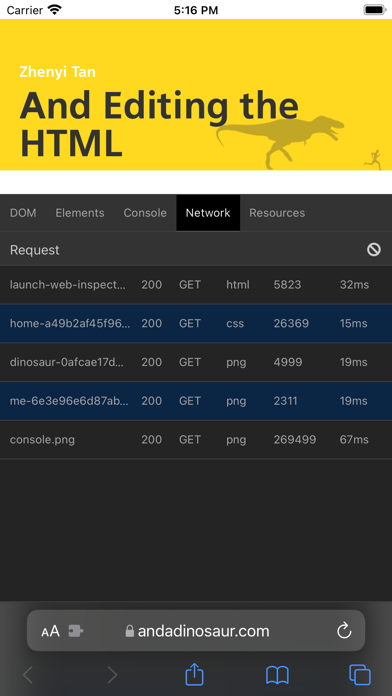
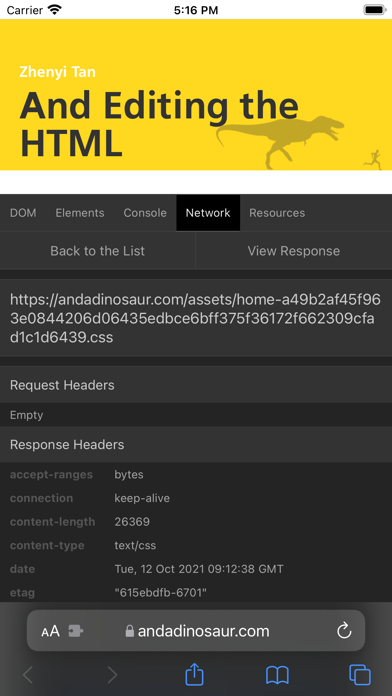
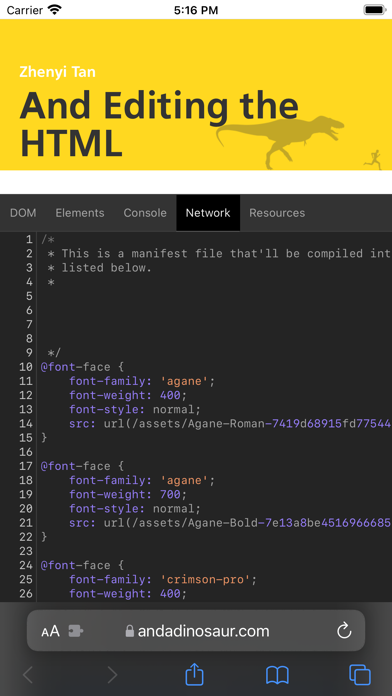

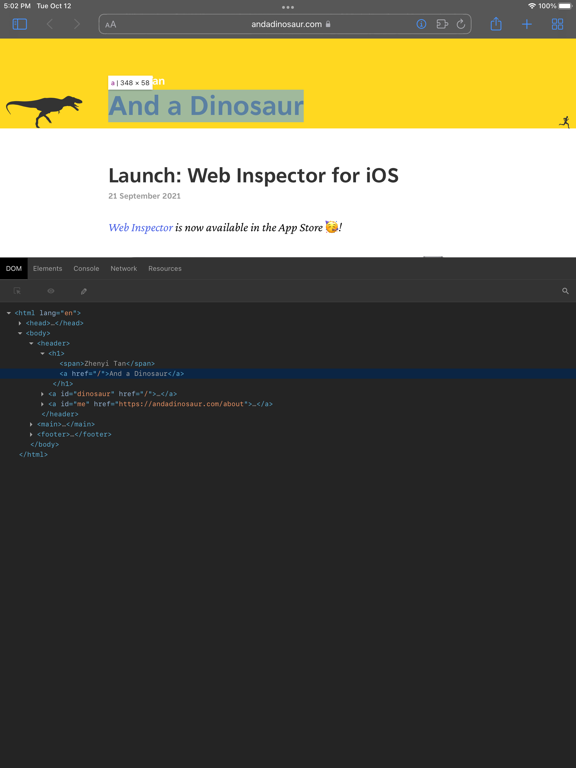
iPad screenshots
Icon palette
About this app
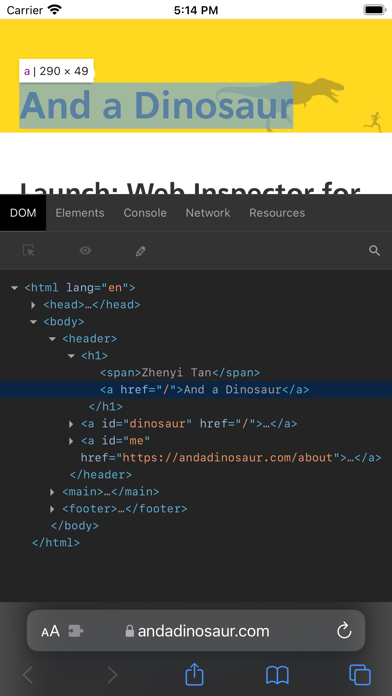
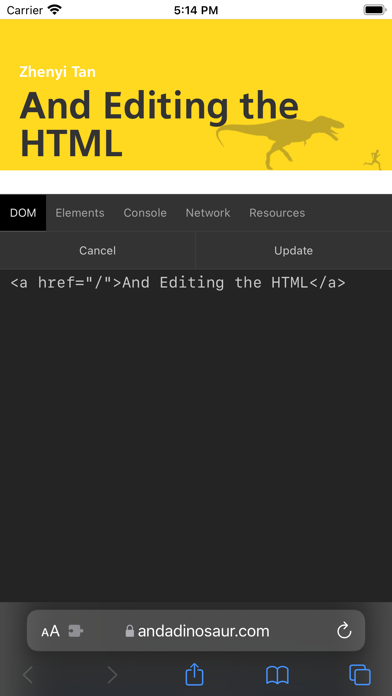
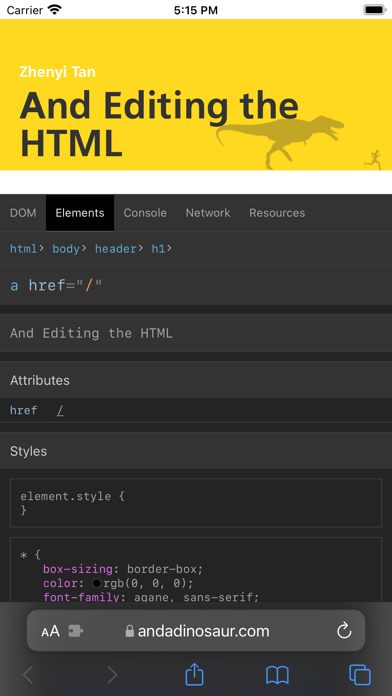
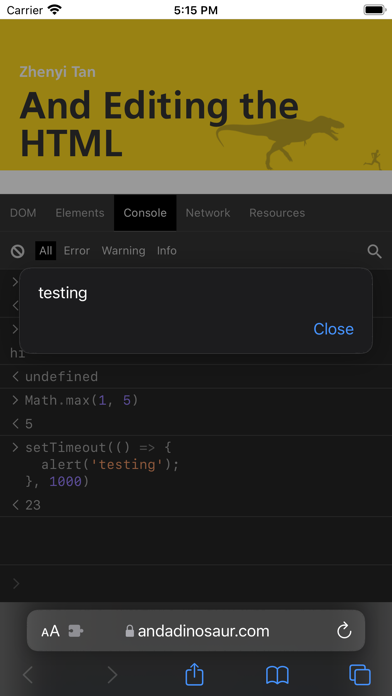
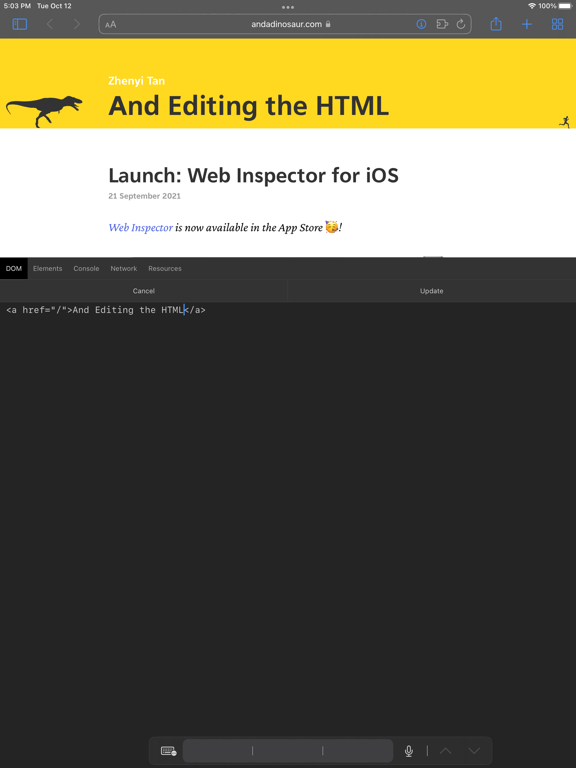
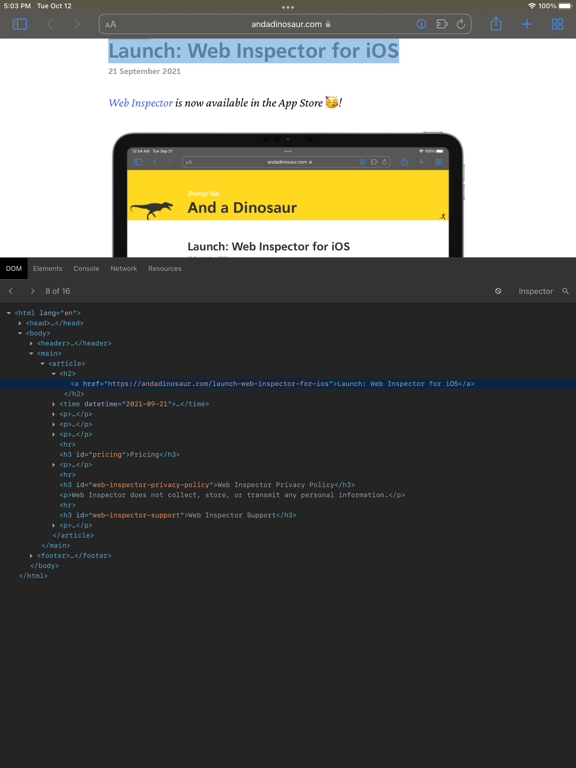
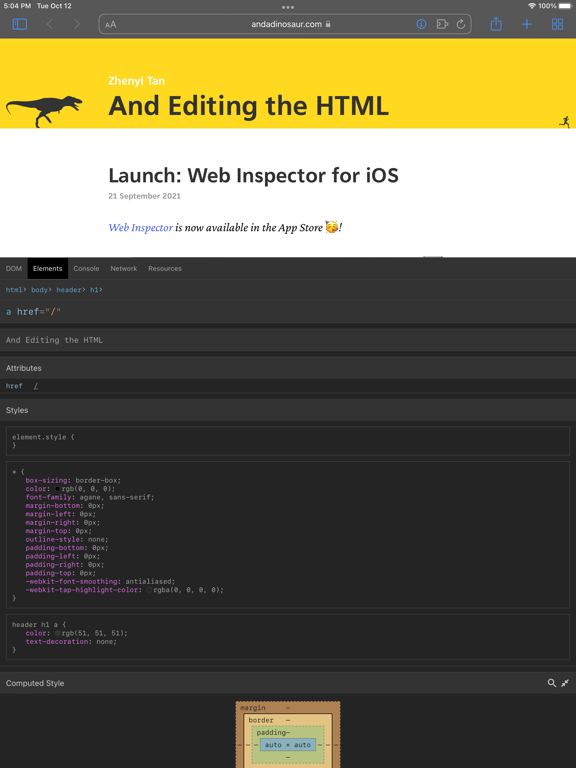
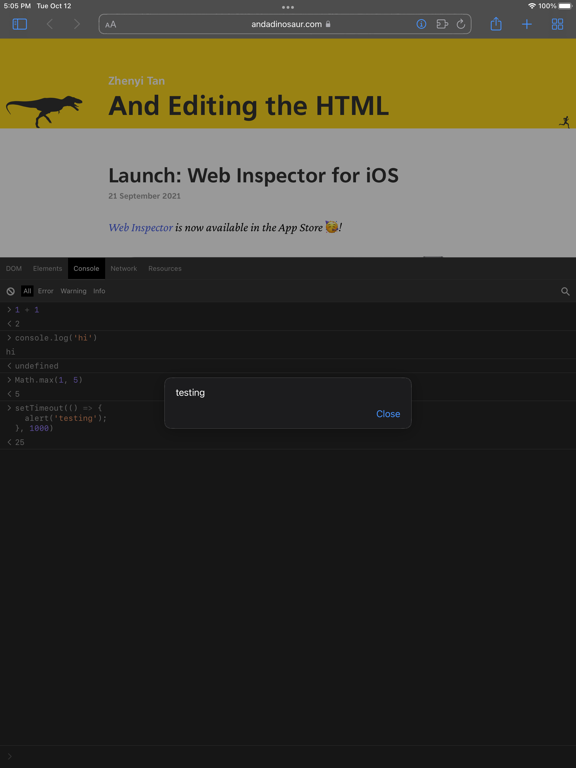
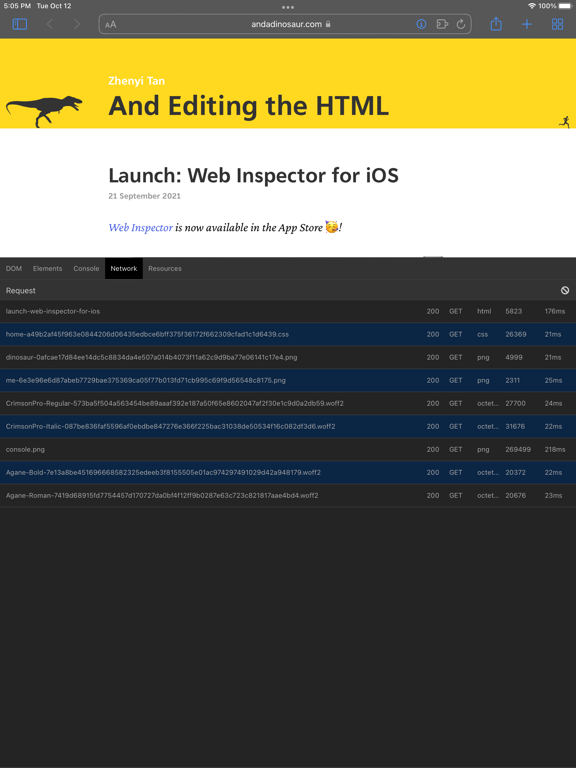
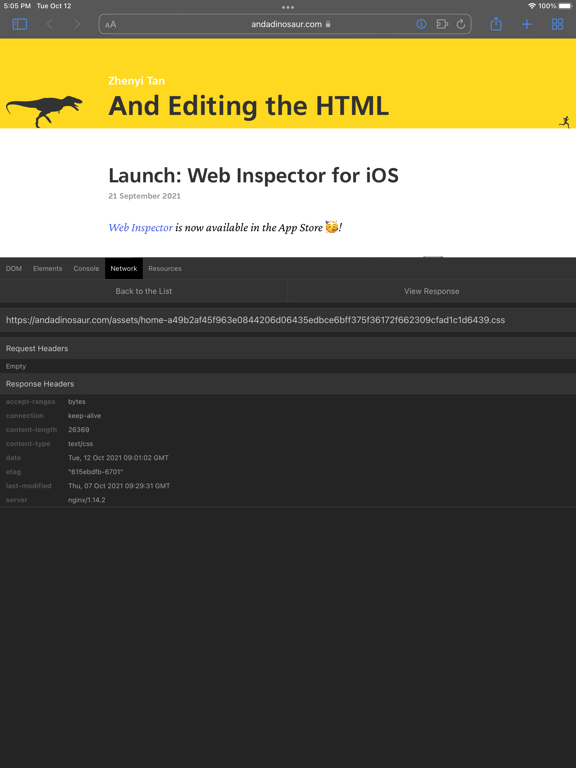
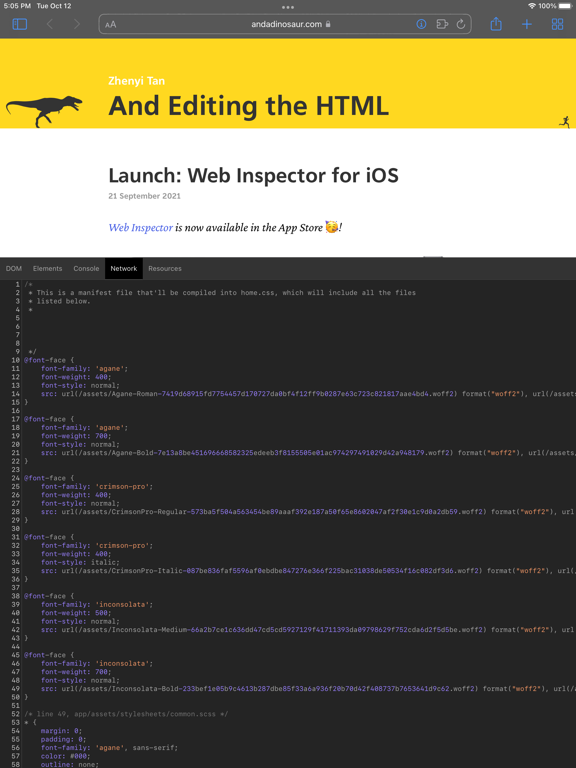
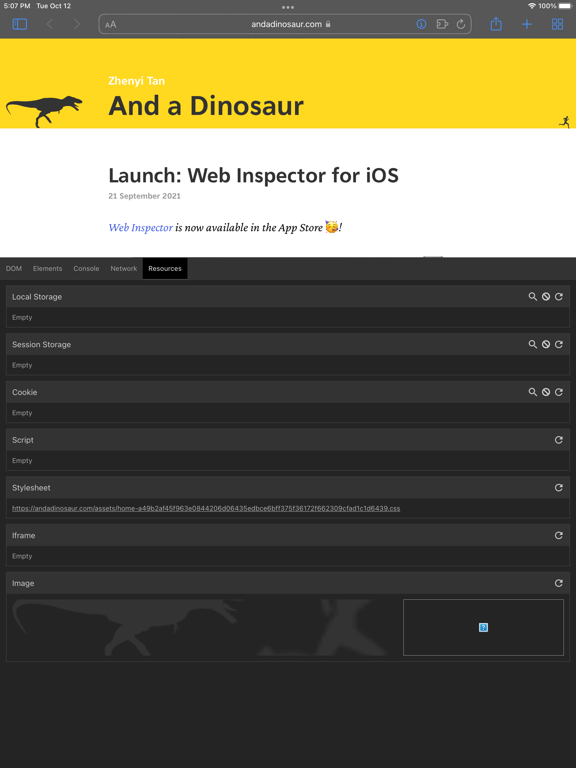
Web Inspector expands Safari on iPhone and iPad with a set of web development tools: Elements: Browse the DOM tree and tap elements on the page to inspect them. View node details, styles, and computed values. Search the DOM, edit an element's HTML, and copy or delete nodes. Console: Type JavaScript commands to debug, modify, and get information about your webpage. Sources: Read the webpage's source with syntax highlighting. Network: See a list of network requests made by the webpage, with headers and responses. Filter requests, or copy one as a cURL command. Resources: Find details about the data stored by a webpage, such as cookies, local storage, and session storage. Tip: If you tap the Web Inspector button and nothing happens, reload the page once..
App details
What you can learn from Web Inspector
Every shipping app on the App Store has gone through the same decisions you're working through right now: which screenshot goes first, what caption sits over it, which device frame to show, what color the background should be. The 18 screenshots above are Web Inspector's answers to those questions — they're public, they're real, and they made it through Apple's review.
What the numbers say: Web Inspector runs a mixed light-and-dark set where the background shifts from screenshot to screenshot (first shot #242424) — each image has to stand on its own, so the captions carry more of the story. The accent colour we picked up, #FCDC24, is the one to reuse for badges, arrows and highlighted words if you borrow this look. Hit Use this style to open the editor with these exact colours and drop your own screenshot in.
Notice the first screenshot in particular. It's the one users see in search results and on the product page, and it's where most apps spend their best caption and tightest design. Look at the proportion of background to phone, where the text sits, what one thing the image is trying to communicate.
Want to see how other Developer Tools apps approach the same problem? Browse more Developer Tools apps in the showcase.
Take what works into your own screenshots
Open LaunchShots and design your App Store & Google Play screenshots — pick a device frame, drop captions, ship in minutes. Free, in your browser.
Open the screenshot editor →Apps with a similar look
Closest background + accent colours among the listings we've analysed — useful when you want to see the same palette handled by a different team.