Chart position — tracked daily by LaunchShots
Screenshot changes — detected by LaunchShots
Screenshot style breakdown
Sampled from 6 of QRコード&バーコードリーダー-安心スキャン's App Store screenshots — background, accent and theme, measured by LaunchShots (not something Apple publishes).
#FCFCFC bg
#DDDDDD
#C4AC64 accent
#111111 text
Screenshots


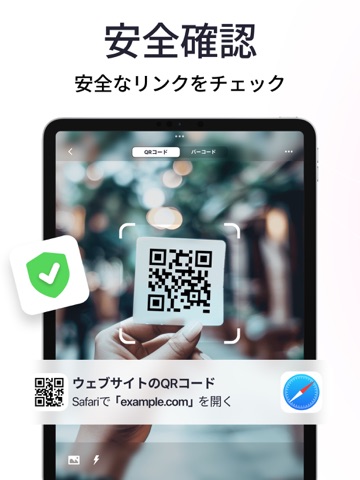
iPad screenshots



Icon palette
About this app
iPhoneを強力なQRコードおよびバーコードスキャナーに変身させましょう。どんなQRコードやバーコードでも簡単にスキャンして、すぐに情報にアクセスできます。 私たちのQRスキャナーは、最も効率的で信頼性の高いスキャン体験を提供するように設計されています。ショッピング中、価格をチェックしている時、情報にアクセスする時など、私たちのアプリは簡単かつ便利に使用できます。今すぐダウンロードして、最高のQRコードおよびバーコードスキャン技術を体験してください! 瞬時にスキャン。超高速のスキャン速度を体験し、QRコードやバーコードを一瞬でスキャンできます。待ち時間なしで、すぐに結果を得られます。 今日、私たちのQRコードおよびバーコードスキャナーをダウンロードして、シームレスで効率的かつ安全なスキャン体験をお楽しみください。遅くて信頼性の低いスキャナーにさようならを言い、瞬時の結果と簡単な情報アクセスにこんにちはを言いましょう。 利用規約:https://qrscanner.pro/terms プライバシーポリシー:https://qrscanner.pro/pol…
App details
What you can learn from QRコード&バーコードリーダー-安心スキャン
Every shipping app on the App Store has gone through the same decisions you're working through right now: which screenshot goes first, what caption sits over it, which device frame to show, what color the background should be. The 12 screenshots above are QRコード&バーコードリーダー-安心スキャン's answers to those questions — they're public, they're real, and they made it through Apple's review.
What the numbers say: QRコード&バーコードリーダー-安心スキャン runs a light set with one background colour (#FCFCFC) carried across every screenshot — the listing reads as a single poster when the shots sit side by side in search results. The accent colour we picked up, #C4AC64, is the one to reuse for badges, arrows and highlighted words if you borrow this look. Hit Use this style to open the editor with these exact colours and drop your own screenshot in.
Notice the first screenshot in particular. It's the one users see in search results and on the product page, and it's where most apps spend their best caption and tightest design. Look at the proportion of background to phone, where the text sits, what one thing the image is trying to communicate.
Want to see how other Utilities apps approach the same problem? Browse more Utilities apps in the showcase.
Take what works into your own screenshots
Open LaunchShots and design your App Store & Google Play screenshots — pick a device frame, drop captions, ship in minutes. Free, in your browser.
Open the screenshot editor →Apps with a similar look
Closest background + accent colours among the listings we've analysed — useful when you want to see the same palette handled by a different team.