Chart position — tracked daily by LaunchShots
Screenshot changes — detected by LaunchShots
Screenshot style breakdown
Sampled from 6 of Simify eSIMs: Travel Connected's App Store screenshots — background, accent and theme, measured by LaunchShots (not something Apple publishes).
#FCF4B4 bg
#DDD69E
#F45C04 accent
#111111 text
Screenshots
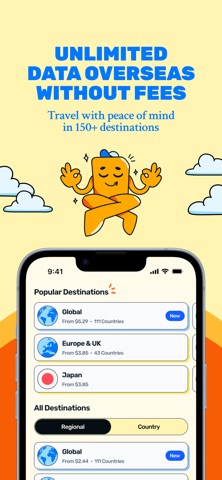

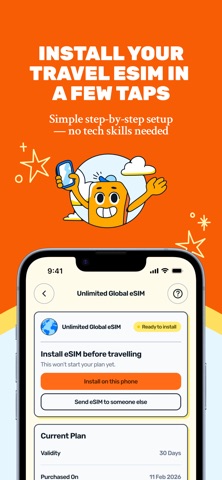

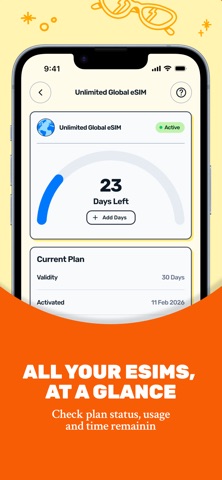

Icon palette
About this app
Simify eSIMs: Travel Connected Join 1,000,000+ travellers who trust Simify to stay online anywhere in the world. Whether you're exploring Europe, island hopping in Bali, or road-tripping across the USA, Simify gives you instant access to fast, reliable mobile data — with no roaming fees or hidden charges. What is an eSIM? An eSIM is a digital SIM card built into your phone. No physical SIM swap needed — just purchase your plan in the app and install it instantly. You're ready to go in minutes. Why choose Simify? 150+ countries and territories — one eSIM, wherever you're headed Instant in-app installation, no QR code needed Transparent prepaid pricing — no contracts, no hidden fees Free device compatibility check before you buy Manage multiple eSIMs in one place Trusted by 1,000,000+ travellers, rated 4.8 on Trustpilot How it works: 1. Open the app and choose your destination …
App details
What you can learn from Simify eSIMs: Travel Connected
Every shipping app on the App Store has gone through the same decisions you're working through right now: which screenshot goes first, what caption sits over it, which device frame to show, what color the background should be. The 6 screenshots above are Simify eSIMs: Travel Connected's answers to those questions — they're public, they're real, and they made it through Apple's review.
What the numbers say: Simify eSIMs: Travel Connected runs a mixed light-and-dark set where the background shifts from screenshot to screenshot (first shot #FCF4B4) — each image has to stand on its own, so the captions carry more of the story. The accent colour we picked up, #F45C04, is the one to reuse for badges, arrows and highlighted words if you borrow this look. Hit Use this style to open the editor with these exact colours and drop your own screenshot in.
Notice the first screenshot in particular. It's the one users see in search results and on the product page, and it's where most apps spend their best caption and tightest design. Look at the proportion of background to phone, where the text sits, what one thing the image is trying to communicate.
Want to see how other Travel apps approach the same problem? Browse more Travel apps in the showcase.
Take what works into your own screenshots
Open LaunchShots and design your App Store & Google Play screenshots — pick a device frame, drop captions, ship in minutes. Free, in your browser.
Open the screenshot editor →Apps with a similar look
Closest background + accent colours among the listings we've analysed — useful when you want to see the same palette handled by a different team.