Screenshots
Icon palette
About this app
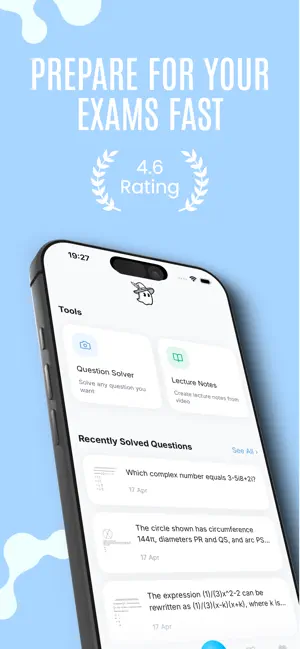
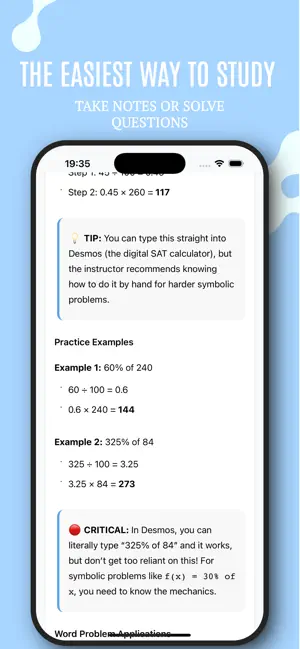
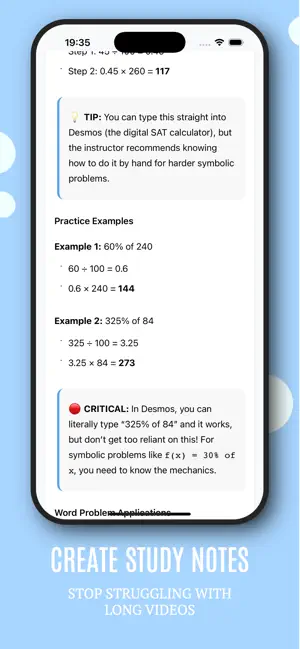
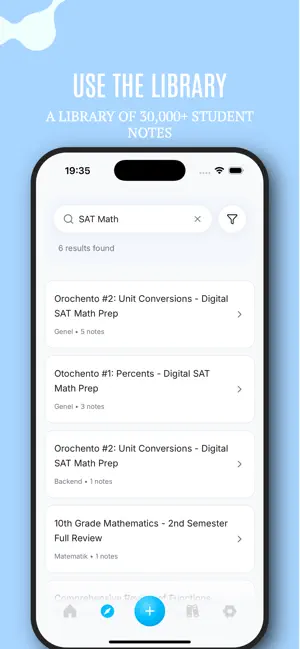
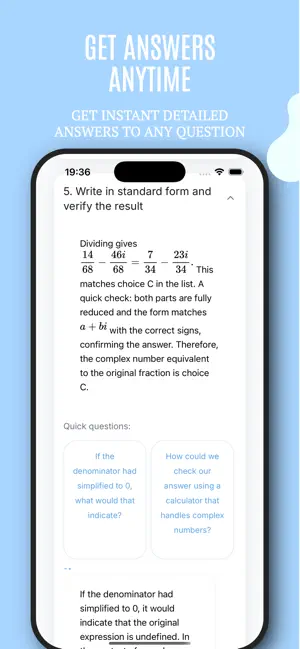
Ozard Exam Assistant is an AI-powered question solver and study notes analysis app designed for students preparing for exams. Upload a photo of a question, see step-by-step solutions, organize your study notes in one place, analyze them, and generate mini tests to study more efficiently. Exam preparation across all subjects — especially Mathematics — is now simpler, more structured, and more effective. Stuck on a question while studying? Upload a photo of any question you can’t solve. The question solver provides clear, step-by-step solutions, helping you understand not just the answer, but the reasoning behind it. Solve math problems, practice test questions, mock exams, and questions from other subjects to identify your weak areas before the exam. Analyze your notes and create mini tests In addition to photo-based question solving, Ozard Exam Assistant allows you to save and anal…
App details
What you can learn from Ozard: AI Study Companion
Every shipping app on the App Store has gone through the same decisions you're working through right now: which screenshot goes first, what caption sits over it, which device frame to show, what color the background should be. The 5 screenshots above are Ozard: AI Study Companion's answers to those questions — they're public, they're real, and they made it through Apple's review.
Notice the first screenshot in particular. It's the one users see in search results and on the product page, and it's where most apps spend their best caption and tightest design. Look at the proportion of background to phone, where the text sits, what one thing the image is trying to communicate.
Want to see how other Education apps approach the same problem? Browse more Education apps in the showcase.
Take what works into your own screenshots
Open LaunchShots and design your App Store & Google Play screenshots — pick a device frame, drop captions, ship in minutes. Free, in your browser.
Open the screenshot editor →