Chart position — tracked daily by LaunchShots
Screenshot style breakdown
Sampled from 4 of Word Jam - Screw Puzzle's App Store screenshots — background, accent and theme, measured by LaunchShots (not something Apple publishes).
#E4B484 bg
#C89E74
#846C54 accent
#111111 text
Screenshots


iPad screenshots


Icon palette
About this app
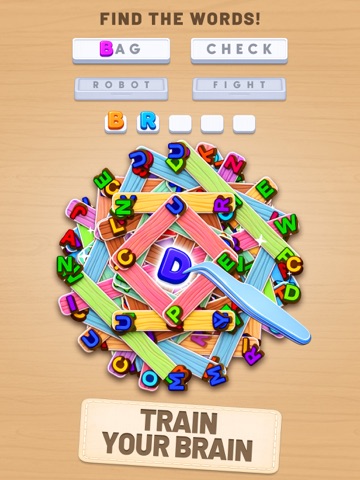
Get ready to twist, turn, and spell your way to victory in Word Jam – Screw Puzzle! This dynamic new word–physics hybrid challenges your mind with a fresh blend of vocabulary mastery and mechanical strategy. How to Play Analyze: Study the target word and locate the letters hidden across layered mechanical boards. Twist: Tap to remove screws, trigger chain reactions, and use physics to shift panels out of your way. Collect: Gather each letter in the correct order to complete the word and clear the level. Survive: Stay organized! Prevent layers from stacking too high and enjoy the satisfying “Victory Wave” as the boards collapse. Why You’ll Love Word Jam – Screw Puzzle • Dynamic Multi-Layer Frames: Begin with two layers and unlock up to four as puzzles grow more complex. • Tactile Physics Engine: Feel every movement with realistic board sway, collisions, and high-quality haptic feedback…
App details
What you can learn from Word Jam - Screw Puzzle
Every shipping app on the App Store has gone through the same decisions you're working through right now: which screenshot goes first, what caption sits over it, which device frame to show, what color the background should be. The 8 screenshots above are Word Jam - Screw Puzzle's answers to those questions — they're public, they're real, and they made it through Apple's review.
What the numbers say: Word Jam - Screw Puzzle runs a light set with one background colour (#E4B484) carried across every screenshot — the listing reads as a single poster when the shots sit side by side in search results. The accent colour we picked up, #846C54, is the one to reuse for badges, arrows and highlighted words if you borrow this look. Hit Use this style to open the editor with these exact colours and drop your own screenshot in.
Notice the first screenshot in particular. It's the one users see in search results and on the product page, and it's where most apps spend their best caption and tightest design. Look at the proportion of background to phone, where the text sits, what one thing the image is trying to communicate.
Want to see how other Games apps approach the same problem? Browse more Games apps in the showcase.
Take what works into your own screenshots
Open LaunchShots and design your App Store & Google Play screenshots — pick a device frame, drop captions, ship in minutes. Free, in your browser.
Open the screenshot editor →Apps with a similar look
Closest background + accent colours among the listings we've analysed — useful when you want to see the same palette handled by a different team.