Screenshot style breakdown
Sampled from 5 of CodeMote: Mobile Vibe Coding's App Store screenshots — background, accent and theme, measured by LaunchShots (not something Apple publishes).
#FCFCFC bg
#DDDDDD
#BC8464 accent
#111111 text
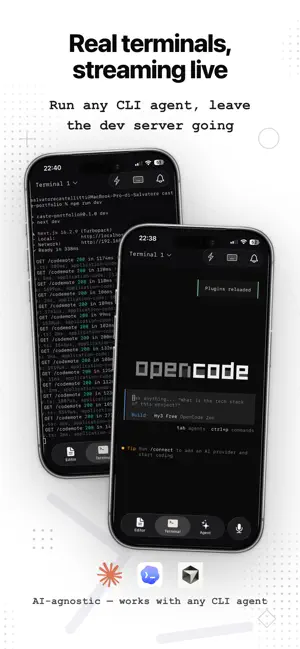
- #1Real terminals, streaming live Run any CLI agent, leave
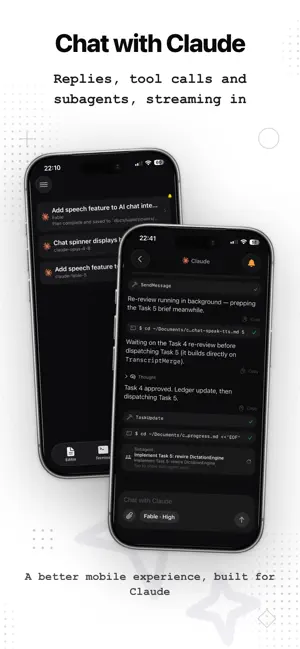
- #2Chat with Claude Replies, tool calls and subagents, streaming in
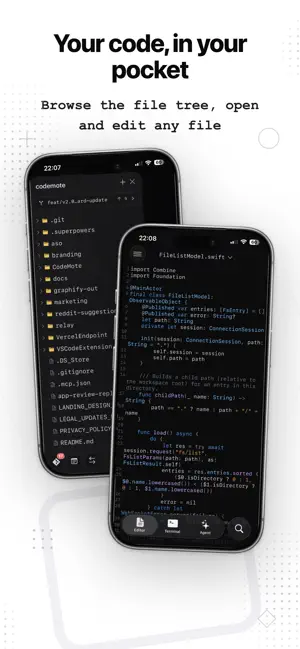
- #3Your code, in your pocket Browse the file tree, open
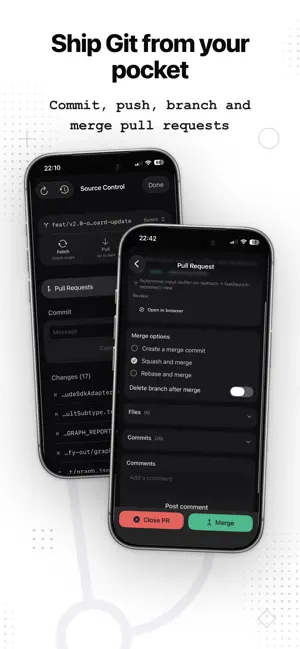
- #4Ship Git from your pocket Commit, push, branch and
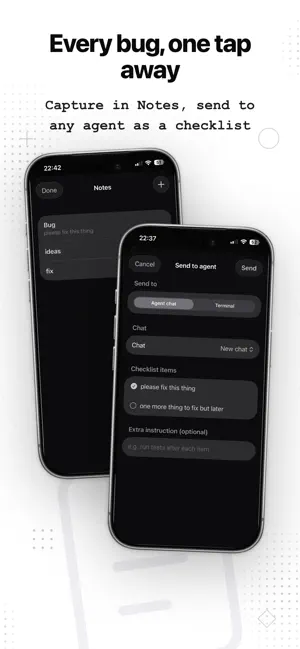
- #5Every bug, one tap away Capture in Notes, send to
Captions read from the screenshots (OCR, may contain small errors): 5 headlines, 9.6 words on average (longest 10), 40% speak to "you".
Screenshots
Icon palette
About this app
CodeMote macht aus Ihrem iPhone und iPad eine echte Verbindung zu Ihrem Entwicklungsrechner. Koppeln Sie in Sekunden und nutzen Sie dann Ihre Terminals, verwalten Sie Git und steuern Sie KI-Coding-Agents - von überall. Das ist kein abgespeckter mobiler Editor. CodeMote verbindet sich mit der kompletten Workstation, die Sie bereits eingerichtet haben: Ihre echte Umgebung, Ihre echten Tools und Ihre echten Projekte in der Hosentasche. Funktioniert mit Ihrem vorhandenen VS-Code-Setup. DAS KÖNNEN SIE TUN - Live-Terminals - echte Shells auf Ihrem Rechner; Sitzungen überleben den Wechsel in den Hintergrund und verbinden sich sofort neu. - Git integriert - Status, Diff, Commit, Push, Branches und vollständige Historie, ganz ohne Zugangsdaten auf dem Telefon. - KI-Coding unterwegs - starten und steuern Sie KI-Coding-Agents, während Sie nicht am Schreibtisch sind. - Mehrere Workspaces - wechse…
App details
What you can learn from CodeMote: Mobile Vibe Coding
Every shipping app on the App Store has gone through the same decisions you're working through right now: which screenshot goes first, what caption sits over it, which device frame to show, what color the background should be. The 5 screenshots above are CodeMote: Mobile Vibe Coding's answers to those questions — they're public, they're real, and they made it through Apple's review.
What the numbers say: CodeMote: Mobile Vibe Coding runs a light set with one background colour (#FCFCFC) carried across every screenshot — the listing reads as a single poster when the shots sit side by side in search results. The accent colour we picked up, #BC8464, is the one to reuse for badges, arrows and highlighted words if you borrow this look. Hit Use this style to open the editor with these exact colours and drop your own screenshot in.
Notice the first screenshot in particular. It's the one users see in search results and on the product page, and it's where most apps spend their best caption and tightest design. Look at the proportion of background to phone, where the text sits, what one thing the image is trying to communicate.
Want to see how other Developer Tools apps approach the same problem? Browse more Developer Tools apps in the showcase.
Take what works into your own screenshots
Open LaunchShots and design your App Store & Google Play screenshots — pick a device frame, drop captions, ship in minutes. Free, in your browser.
Open the screenshot editor →Apps with a similar look
Closest background + accent colours among the listings we've analysed — useful when you want to see the same palette handled by a different team.