Chart position — tracked daily by LaunchShots
Screenshot style breakdown
Sampled from 6 of Jurevo's App Store screenshots — background, accent and theme, measured by LaunchShots (not something Apple publishes).
#FCF4F4 bg
#DDD6D6
#F40CF4 accent
#111111 text
Screenshots




Icon palette
About this app
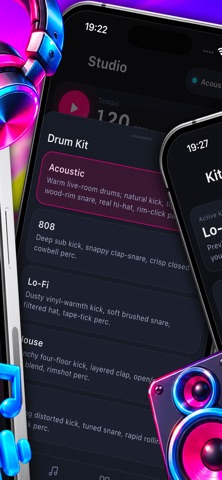
Jurevo is a pocket drum machine and step sequencer built for beat-makers of every level. Tap the 16-step grid to place hits across kick, snare, hi-hat, and perc rows, then press play and hear your pattern sweep to life in real time. Dial in your sound with five curated drum kits — warm Acoustic, deep 808, dusty Lo-Fi, punchy House, and rolling Trap — then fine-tune the vibe with BPM and swing controls. Mute or solo any row mid-session to isolate sounds and sculpt the perfect groove. Save your favorite beats to your personal library and pick them back up whenever inspiration strikes. Head to the Learn section to load and remix classic patterns from hip-hop, electronic, and beyond — a hands-on way to study what makes a great groove tick. Whether you're sketching an idea on the go or laying the rhythmic foundation for your next track, Jurevo keeps the creative flow moving.
App details
What you can learn from Jurevo
Every shipping app on the App Store has gone through the same decisions you're working through right now: which screenshot goes first, what caption sits over it, which device frame to show, what color the background should be. The 8 screenshots above are Jurevo's answers to those questions — they're public, they're real, and they made it through Apple's review.
What the numbers say: Jurevo runs a mixed light-and-dark set where the background shifts from screenshot to screenshot (first shot #FCF4F4) — each image has to stand on its own, so the captions carry more of the story. The accent colour we picked up, #F40CF4, is the one to reuse for badges, arrows and highlighted words if you borrow this look. Hit Use this style to open the editor with these exact colours and drop your own screenshot in.
Notice the first screenshot in particular. It's the one users see in search results and on the product page, and it's where most apps spend their best caption and tightest design. Look at the proportion of background to phone, where the text sits, what one thing the image is trying to communicate.
Want to see how other Music apps approach the same problem? Browse more Music apps in the showcase.
Take what works into your own screenshots
Open LaunchShots and design your App Store & Google Play screenshots — pick a device frame, drop captions, ship in minutes. Free, in your browser.
Open the screenshot editor →Apps with a similar look
Closest background + accent colours among the listings we've analysed — useful when you want to see the same palette handled by a different team.