Chart position — tracked daily by LaunchShots
Screenshot style breakdown
Sampled from 6 of Dricast: Car TV & IPTV's App Store screenshots — background, accent and theme, measured by LaunchShots (not something Apple publishes).
#040404 bg
#272727
#2C5C34 accent
#FFFFFF text
Screenshots


iPad screenshots


Icon palette
About this app
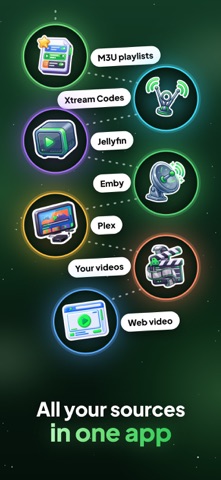
Your playlists, your videos, your route. One app. Dricast plays your own IPTV playlists, media servers and videos beautifully on iPhone, iPad, Mac and Apple TV. In the car it is also your navigation: search a place and drive with spoken turn-by-turn directions on your iPhone and car screen, with nearby charging stations when you need them. When you're parked, Park Mode brings your media to the car screen; video closes as soon as the car moves. YOUR IPTV AND MEDIA • M3U / M3U8 playlists and Xtream Codes • Jellyfin, Emby and Plex media servers • Groups, categories, search, favourites and a program guide (EPG) • Official live streams from broadcasters, curated for your region • Your videos from Photos, Files or your Mac (Finder) • Web video from the browser with "Send to Car", and screen mirroring (some sites and copy-protected content can't be shown) • Videos from other apps on your net…
App details
What you can learn from Dricast: Car TV & IPTV
Every shipping app on the App Store has gone through the same decisions you're working through right now: which screenshot goes first, what caption sits over it, which device frame to show, what color the background should be. The 12 screenshots above are Dricast: Car TV & IPTV's answers to those questions — they're public, they're real, and they made it through Apple's review.
What the numbers say: Dricast: Car TV & IPTV runs a dark set where the background shifts from screenshot to screenshot (first shot #040404) — each image has to stand on its own, so the captions carry more of the story. The accent colour we picked up, #2C5C34, is the one to reuse for badges, arrows and highlighted words if you borrow this look. Hit Use this style to open the editor with these exact colours and drop your own screenshot in.
Notice the first screenshot in particular. It's the one users see in search results and on the product page, and it's where most apps spend their best caption and tightest design. Look at the proportion of background to phone, where the text sits, what one thing the image is trying to communicate.
Want to see how other Utilities apps approach the same problem? Browse more Utilities apps in the showcase.
Take what works into your own screenshots
Open LaunchShots and design your App Store & Google Play screenshots — pick a device frame, drop captions, ship in minutes. Free, in your browser.
Open the screenshot editor →Apps with a similar look
Closest background + accent colours among the listings we've analysed — useful when you want to see the same palette handled by a different team.