Chart position — tracked daily by LaunchShots
Screenshot style breakdown
Sampled from 4 of LearningX Student (학습자 용)'s App Store screenshots — background, accent and theme, measured by LaunchShots (not something Apple publishes).
#F4F4F4 bg
#D6D6D6
#3474F4 accent
#111111 text
Screenshots
iPad screenshots

Icon palette
About this app
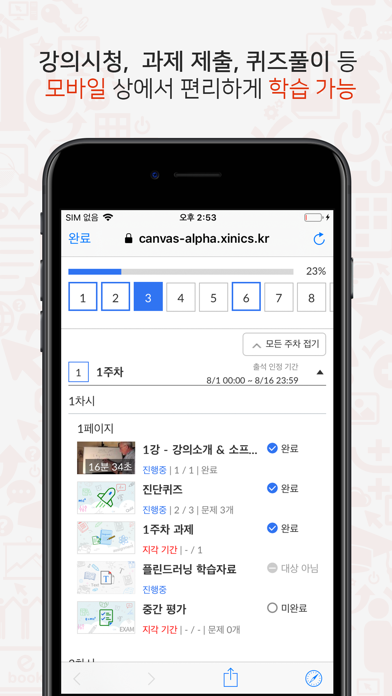
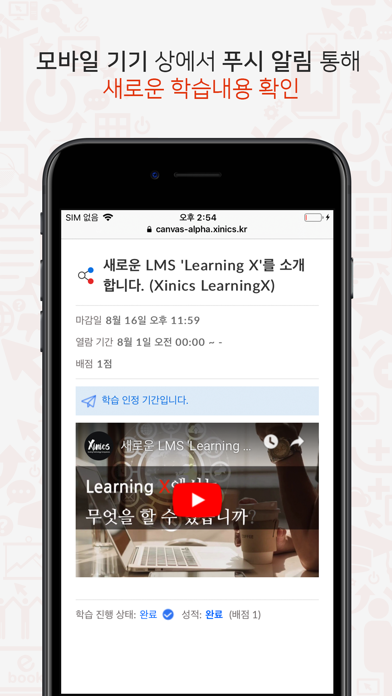
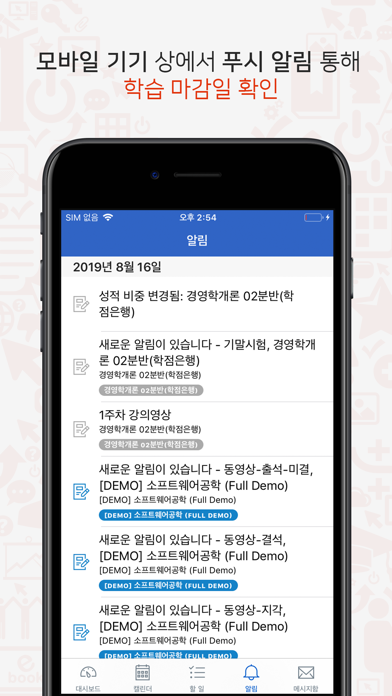
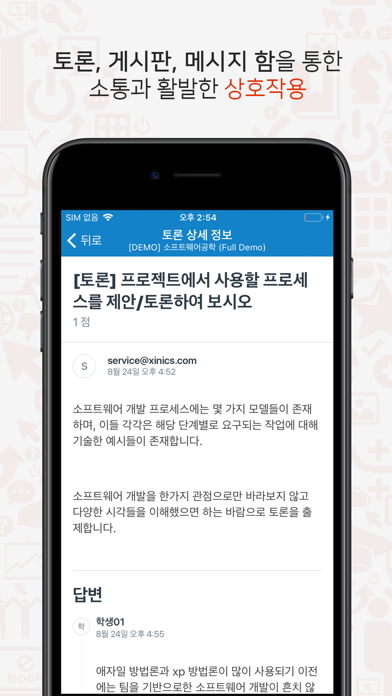
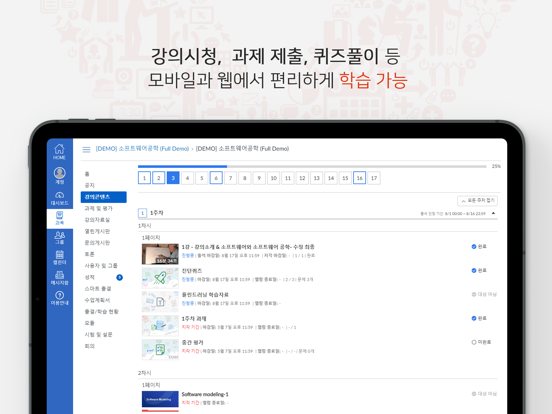
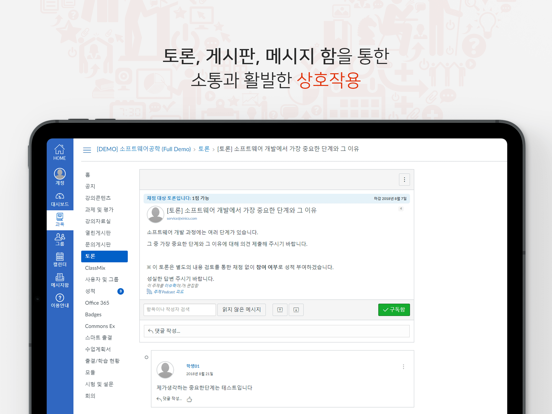
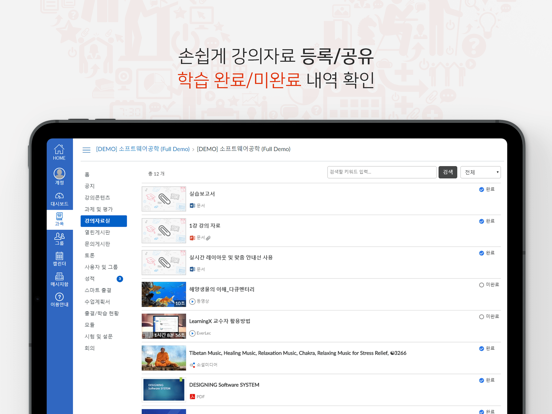
Xinics에서 제공하는 Extended Canvas LMS Platform - LearningX LearningX LMS에서는 이러닝 강의, 상호작용 학습, 강력한 커뮤니케이션, 학습활동 이 모든 것을 표준화된 안정적 플랫폼에서 이용할 수 있습니다. 모바일 기기 상에서도 학습 진행/상호작용/메시지와 댓글을 통한 소통 등 풍부한 기능을 편리하게 이용할 수 있습니다. [주요 특징] ● 모바일 기기 상에서 해야 할 학습 알림 확인 - 할 일 목록과 새로 등록된 글을 손쉽게 확인 - 모바일 푸시 알림- 새로 등록된 학습내용, 마감 임박 과제 등 필요한 정보를 푸시 알림으로 빠르게 확인 ● 모바일 학습 및 진도체크 - 모바일 상에서 동영상 학습 진도체크 및 출결 상태 확인 - 강의자료실 자료 열람 및 다운로드 - 과제 제출 및 피드백 확인 ● 메시지함, 게시판을 통한 소통과 활발한 상호작용 - 메시지함을 통한 교수/학습자간 소통 - 게시판 글 열람 및 댓글 작성
App details
What you can learn from LearningX Student (학습자 용)
Every shipping app on the App Store has gone through the same decisions you're working through right now: which screenshot goes first, what caption sits over it, which device frame to show, what color the background should be. The 8 screenshots above are LearningX Student (학습자 용)'s answers to those questions — they're public, they're real, and they made it through Apple's review.
What the numbers say: LearningX Student (학습자 용) runs a light set with one background colour (#F4F4F4) carried across every screenshot — the listing reads as a single poster when the shots sit side by side in search results. The accent colour we picked up, #3474F4, is the one to reuse for badges, arrows and highlighted words if you borrow this look. Hit Use this style to open the editor with these exact colours and drop your own screenshot in.
Notice the first screenshot in particular. It's the one users see in search results and on the product page, and it's where most apps spend their best caption and tightest design. Look at the proportion of background to phone, where the text sits, what one thing the image is trying to communicate.
Want to see how other Education apps approach the same problem? Browse more Education apps in the showcase.
Take what works into your own screenshots
Open LaunchShots and design your App Store & Google Play screenshots — pick a device frame, drop captions, ship in minutes. Free, in your browser.
Open the screenshot editor →Apps with a similar look
Closest background + accent colours among the listings we've analysed — useful when you want to see the same palette handled by a different team.