Chart position — tracked daily by LaunchShots
Screenshot style breakdown
Sampled from 5 of WorldPulse Earth Weather Clouds & Temperature's App Store screenshots — background, accent and theme, measured by LaunchShots (not something Apple publishes).
#343434 bg
#505050
#CC741C accent
#FFFFFF text
Reading the caption text from the screenshots in your browser…
Screenshots
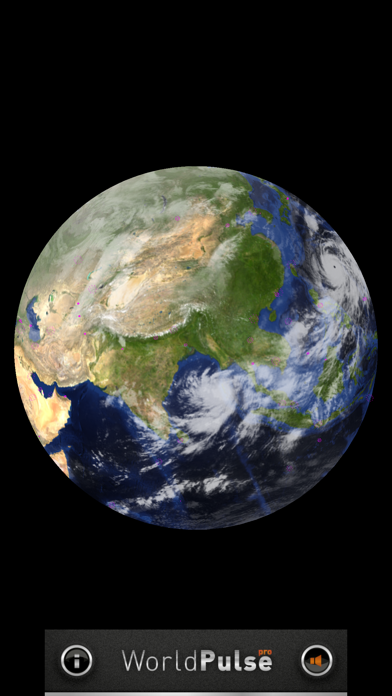
iPad screenshots
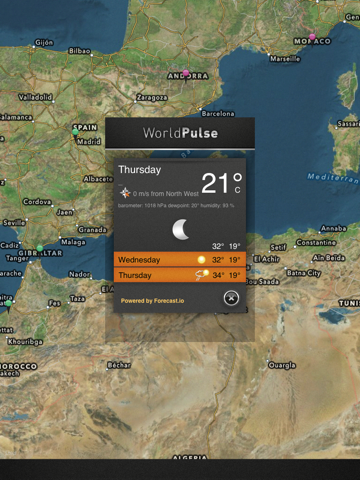
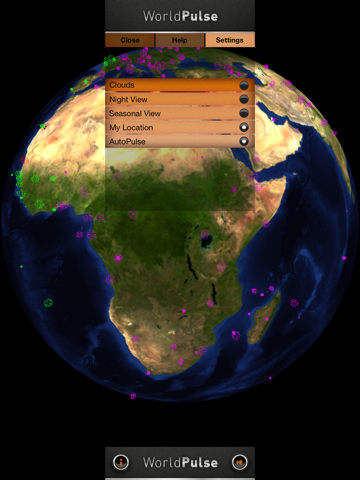
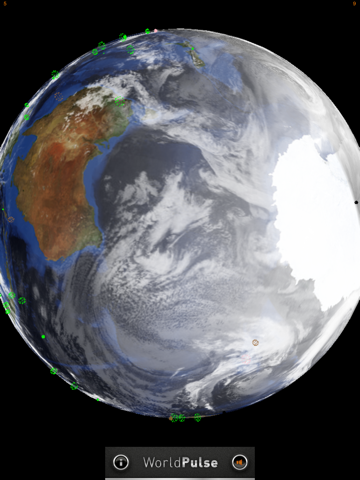
Icon palette
About this app
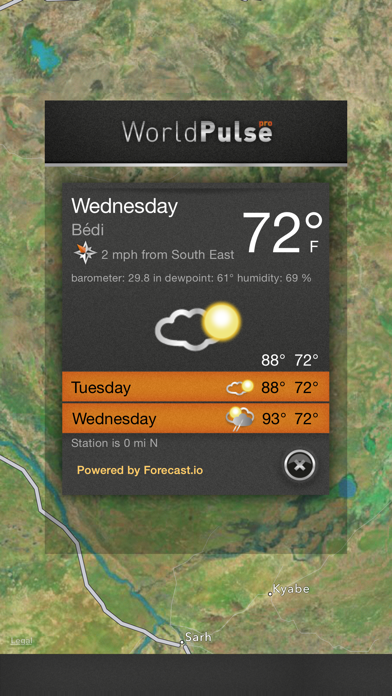
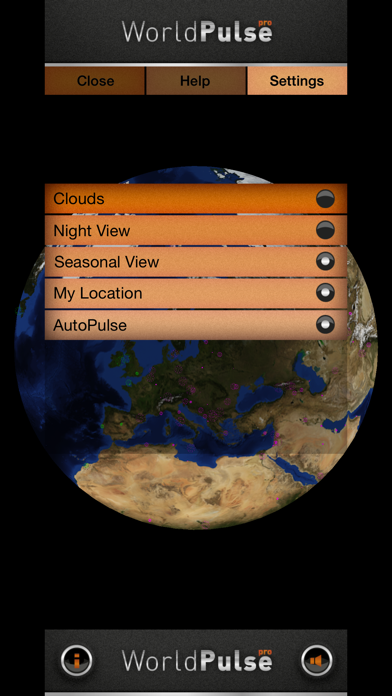
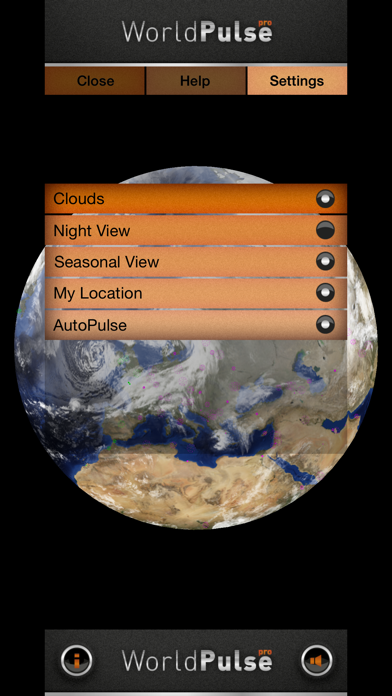
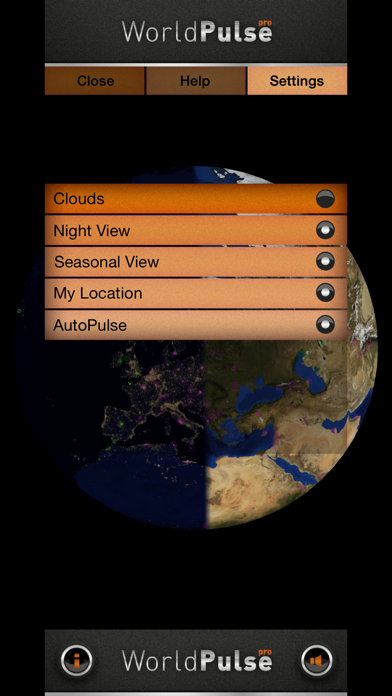
Reach out and tap every country world wide to test internet connectivity. Rotate the globe, zoom in, out, tap to see maps, see the real time cloud cover on our living planet, watch the day/night time line move. Now with FREE FREE FREE in-app ad-hoc weather purchase to remove iAds Reach out and tap and see how hot or cold your parents are, how chilly is the south pole, or warm is your last vacation spot. From your iOS device you can reach out and touch every country in the world with a connection request, then see how long it takes for them to respond. You'll never have to leave home, but you can touch them ten thousand kilometres away. When you send a packet to Gibraltar it arrives in Gibraltar, not at a server in the United Kingdom, or at a cloud computing centre in the USA. See how well your internet access provider is dealing with access to all the World's countries, plus as…
App details
What you can learn from WorldPulse Earth Weather Clouds & Temperature
Every shipping app on the App Store has gone through the same decisions you're working through right now: which screenshot goes first, what caption sits over it, which device frame to show, what color the background should be. The 8 screenshots above are WorldPulse Earth Weather Clouds & Temperature's answers to those questions — they're public, they're real, and they made it through Apple's review.
What the numbers say: WorldPulse Earth Weather Clouds & Temperature runs a dark set where the background shifts from screenshot to screenshot (first shot #343434) — each image has to stand on its own, so the captions carry more of the story. The accent colour we picked up, #CC741C, is the one to reuse for badges, arrows and highlighted words if you borrow this look. Hit Use this style to open the editor with these exact colours and drop your own screenshot in.
Notice the first screenshot in particular. It's the one users see in search results and on the product page, and it's where most apps spend their best caption and tightest design. Look at the proportion of background to phone, where the text sits, what one thing the image is trying to communicate.
Want to see how other Weather apps approach the same problem? Browse more Weather apps in the showcase.
Take what works into your own screenshots
Open LaunchShots and design your App Store & Google Play screenshots — pick a device frame, drop captions, ship in minutes. Free, in your browser.
Open the screenshot editor →Apps with a similar look
Closest background + accent colours among the listings we've analysed — useful when you want to see the same palette handled by a different team.