Chart position — tracked daily by LaunchShots
Screenshot style breakdown
Sampled from 6 of 乗換NAVITIME(電車乗り換え・バス乗り換え・時刻表)'s App Store screenshots — background, accent and theme, measured by LaunchShots (not something Apple publishes).
#DCEC9C bg
#C1CF89
#046404 accent
#111111 text
Screenshots
iPad screenshots



Icon palette
About this app
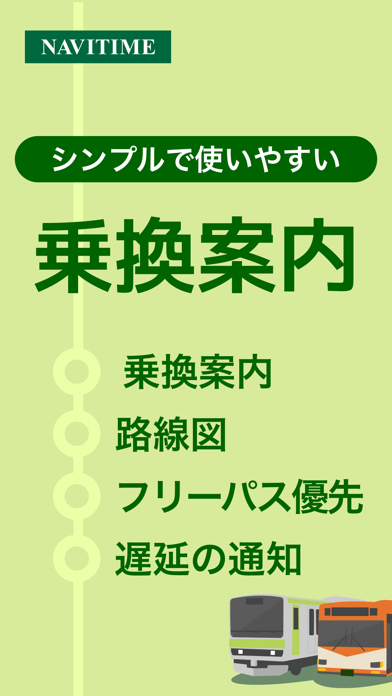
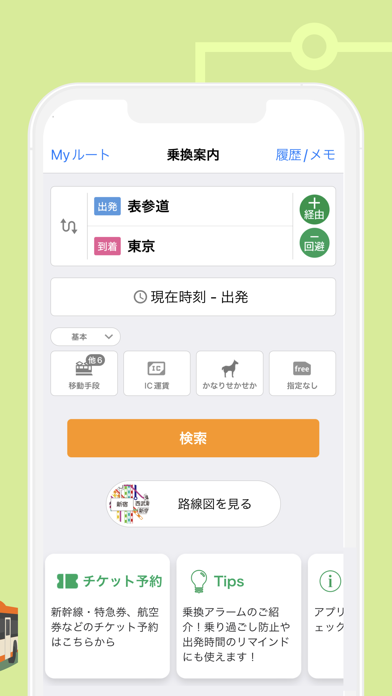
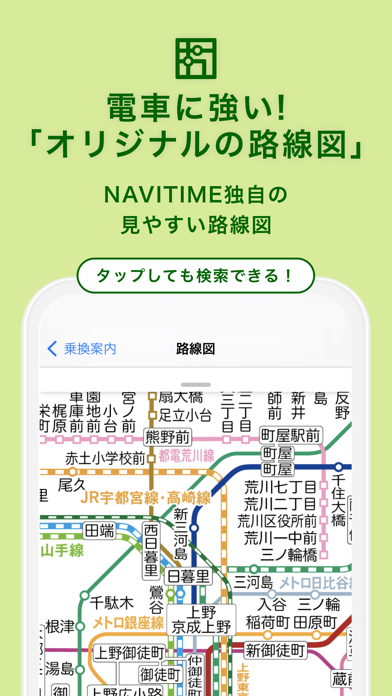
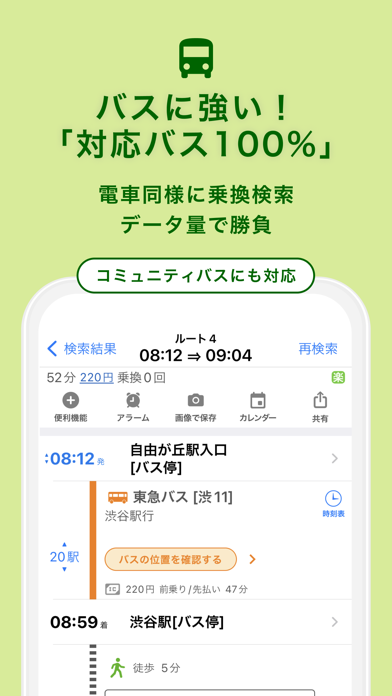
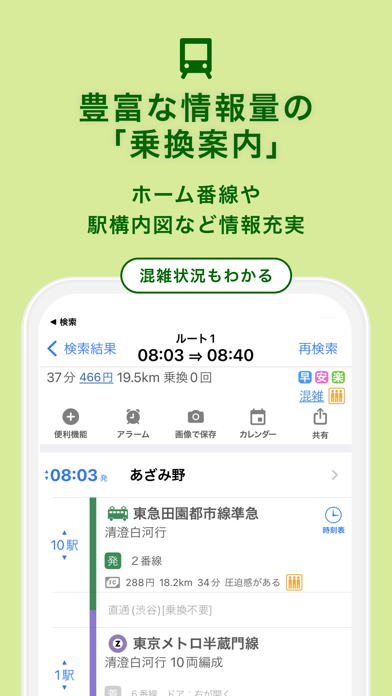
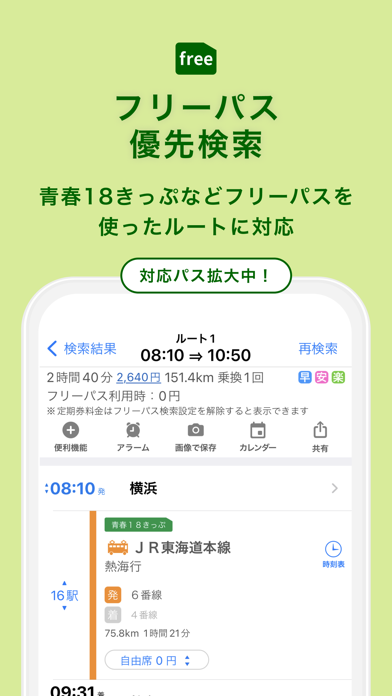
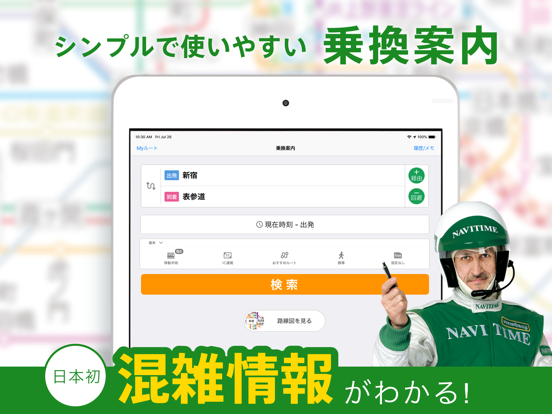
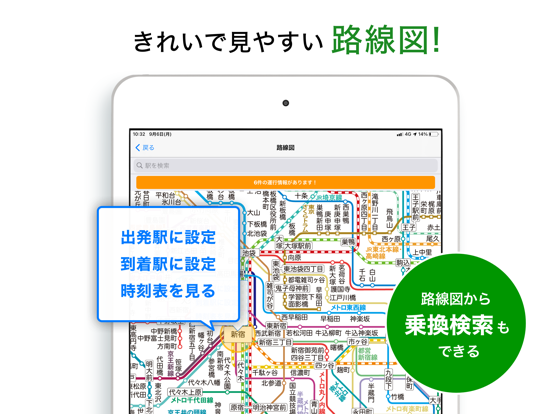
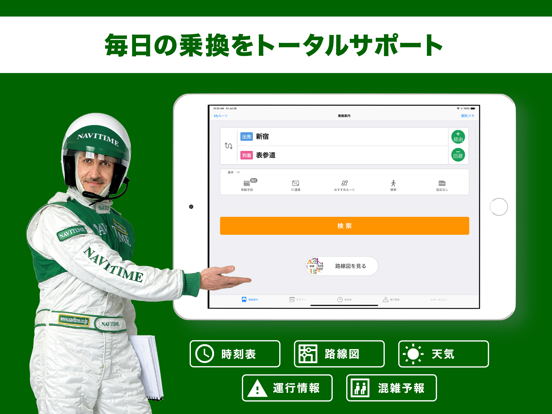
■主な機能(すべて無料) 【乗換検索】 ・出発駅から到着駅までのルートを検索。運賃の表示や到着時刻の指定はもちろん「経由駅」も設定できます。 ・「1本後」検索で乗り遅れた場合も安心です。 ・「ルート履歴」からは最近検索したルートをかんたん表示。 ・青春18きっぷ、大阪周遊パスなどのフリーパスを優先したルート検索ができます。 【乗換検索の人気機能】 ・検索結果を画像保存できます!撮った画像はそのままLINEで共有もできます。 ・「3番ホーム」など乗車する駅の「ホーム番号」を表示!* ・「前から4両目」や「後方車両」など、乗換に最適な「乗車位置」をお知らせ。どの車両に乗れば乗り換えがスムーズかわかります。 * ・「早い」「安い」「乗換に楽」な経路をアイコンでわかりやすく表示。 ・iPhoneのカレンダー/リマインダーに検索結果を直接スケジュール登録できます。 ・アラーム機能で到着○分前などにお知らせ。乗り過ごし防止に役立ちます。 * ホーム番号、乗換位置は対応路線のみ表示されます。 【おすすめ検索条件】 ・「バス」や…
App details
What you can learn from 乗換NAVITIME(電車乗り換え・バス乗り換え・時刻表)
Every shipping app on the App Store has gone through the same decisions you're working through right now: which screenshot goes first, what caption sits over it, which device frame to show, what color the background should be. The 15 screenshots above are 乗換NAVITIME(電車乗り換え・バス乗り換え・時刻表)'s answers to those questions — they're public, they're real, and they made it through Apple's review.
What the numbers say: 乗換NAVITIME(電車乗り換え・バス乗り換え・時刻表) runs a light set with one background colour (#DCEC9C) carried across every screenshot — the listing reads as a single poster when the shots sit side by side in search results. The accent colour we picked up, #046404, is the one to reuse for badges, arrows and highlighted words if you borrow this look. Hit Use this style to open the editor with these exact colours and drop your own screenshot in.
Notice the first screenshot in particular. It's the one users see in search results and on the product page, and it's where most apps spend their best caption and tightest design. Look at the proportion of background to phone, where the text sits, what one thing the image is trying to communicate.
Want to see how other Navigation apps approach the same problem? Browse more Navigation apps in the showcase.
Take what works into your own screenshots
Open LaunchShots and design your App Store & Google Play screenshots — pick a device frame, drop captions, ship in minutes. Free, in your browser.
Open the screenshot editor →Apps with a similar look
Closest background + accent colours among the listings we've analysed — useful when you want to see the same palette handled by a different team.