Chart position — tracked daily by LaunchShots
Screenshot style breakdown
Sampled from 3 of Synergy Student's App Store screenshots — background, accent and theme, measured by LaunchShots (not something Apple publishes).
#040404 bg
#272727
#1CAC8C accent
#FFFFFF text
Screenshots


iPad screenshots



Icon palette
About this app
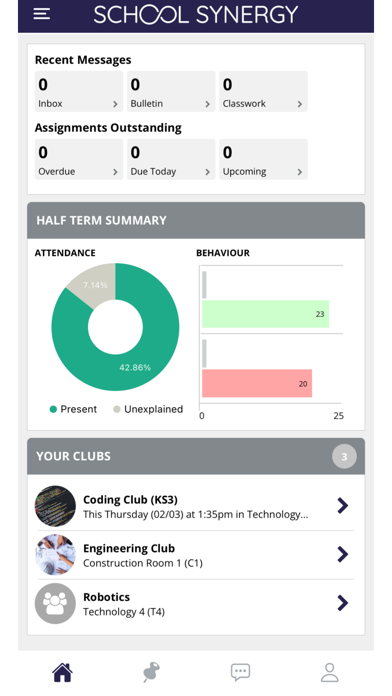
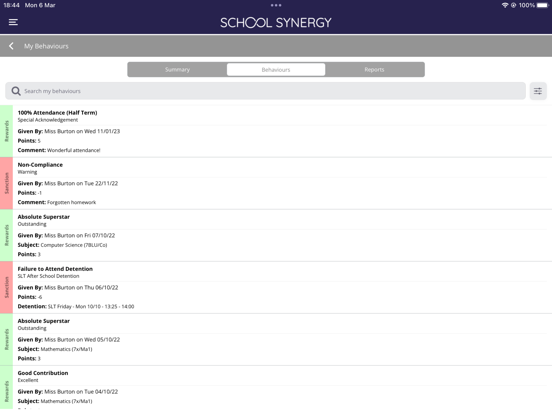
Your Student Portal App features a dashboard with clear notifications on what needs to be read, viewed or completed. There's an overview of important information and reminders such as unread messages and bulletins, and your assignments. Your inbox contains messages to and from your teachers, with unread messages highlighted. You can also send a message to your tutor or a class teacher. School may share notices with you via the Bulletin. Mark notices as read to remove them from your notifications. Assignments and Homework are organised by due date. Mark your task as 'done' when you have completed it. You can also see your attendance and behaviour points. Please note: Your school may not have yet enabled the Student App for you to log in. If not yet enabled, you won't be able to register or log into your Student Portal account. Your school will let you know when it is available.
App details
What you can learn from Synergy Student
Every shipping app on the App Store has gone through the same decisions you're working through right now: which screenshot goes first, what caption sits over it, which device frame to show, what color the background should be. The 8 screenshots above are Synergy Student's answers to those questions — they're public, they're real, and they made it through Apple's review.
What the numbers say: Synergy Student runs a mixed light-and-dark set where the background shifts from screenshot to screenshot (first shot #040404) — each image has to stand on its own, so the captions carry more of the story. The accent colour we picked up, #1CAC8C, is the one to reuse for badges, arrows and highlighted words if you borrow this look. Hit Use this style to open the editor with these exact colours and drop your own screenshot in.
Notice the first screenshot in particular. It's the one users see in search results and on the product page, and it's where most apps spend their best caption and tightest design. Look at the proportion of background to phone, where the text sits, what one thing the image is trying to communicate.
Want to see how other Education apps approach the same problem? Browse more Education apps in the showcase.
Take what works into your own screenshots
Open LaunchShots and design your App Store & Google Play screenshots — pick a device frame, drop captions, ship in minutes. Free, in your browser.
Open the screenshot editor →Apps with a similar look
Closest background + accent colours among the listings we've analysed — useful when you want to see the same palette handled by a different team.