Chart position — tracked daily by LaunchShots
Screenshot style breakdown
Sampled from 4 of Welo E-bike's App Store screenshots — background, accent and theme, measured by LaunchShots (not something Apple publishes).
#FCFCFC bg
#DDDDDD
#044C74 accent
#111111 text
Screenshots



Icon palette
About this app
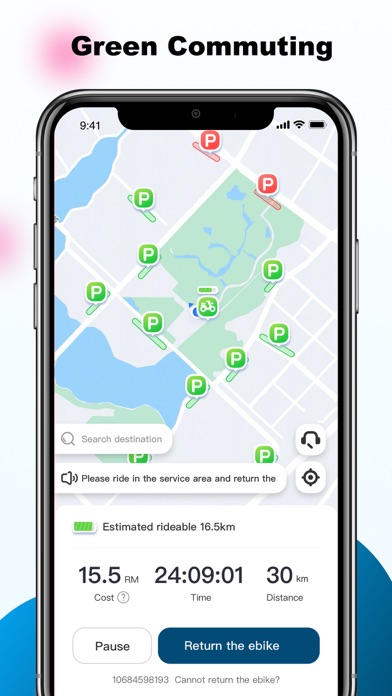
Welo Ebike is an electric bike-sharing platform that is easily accessible via a mobile application. Here are the instructions: 1. **Usage Instructions** - **Finding a Bike:** Discover nearby bikes by clicking on the bike icon to view information. - **Unlocking:** Scan the QR code on the bike, display the unlocking interface, tap the unlock button, and the bike will unlock automatically. - **Starting:** Gently twist the right handle inward to start riding. - **Ending the Ride:** Tap the "End Ride" button, and the bike will automatically lock, ending the billing. 2. **Locking Failure** - If locking fails, check if the network is functioning properly. You can also try unlocking via Bluetooth. Multiple attempts might lead to successful locking. If repeated attempts fail, provide timely feedback through the "Online Customer Service." 3. **How to Unlock** - Hello, open th…
App details
What you can learn from Welo E-bike
Every shipping app on the App Store has gone through the same decisions you're working through right now: which screenshot goes first, what caption sits over it, which device frame to show, what color the background should be. The 4 screenshots above are Welo E-bike's answers to those questions — they're public, they're real, and they made it through Apple's review.
What the numbers say: Welo E-bike runs a light set with one background colour (#FCFCFC) carried across every screenshot — the listing reads as a single poster when the shots sit side by side in search results. The accent colour we picked up, #044C74, is the one to reuse for badges, arrows and highlighted words if you borrow this look. Hit Use this style to open the editor with these exact colours and drop your own screenshot in.
Notice the first screenshot in particular. It's the one users see in search results and on the product page, and it's where most apps spend their best caption and tightest design. Look at the proportion of background to phone, where the text sits, what one thing the image is trying to communicate.
Want to see how other Navigation apps approach the same problem? Browse more Navigation apps in the showcase.
Take what works into your own screenshots
Open LaunchShots and design your App Store & Google Play screenshots — pick a device frame, drop captions, ship in minutes. Free, in your browser.
Open the screenshot editor →Apps with a similar look
Closest background + accent colours among the listings we've analysed — useful when you want to see the same palette handled by a different team.