Chart position — tracked daily by LaunchShots
Screenshot style breakdown
Sampled from 6 of Reverse Audio – Voice Reverser's App Store screenshots — background, accent and theme, measured by LaunchShots (not something Apple publishes).
#DC5C6C bg
#E07280
#FCA49C accent
#FFFFFF text
Screenshots

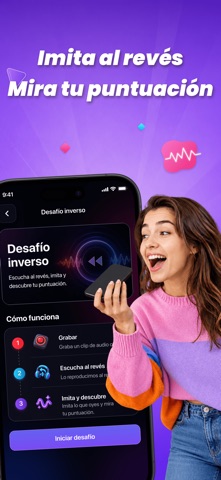

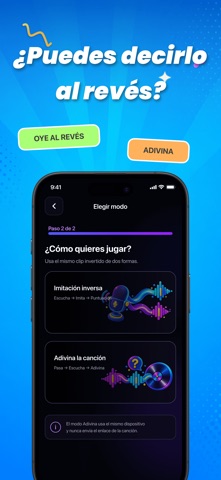


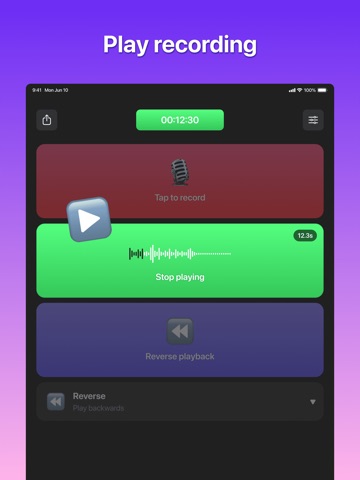
iPad screenshots



Icon palette
About this app
¿Alguna vez te has preguntado cómo suena tu voz al revés? Reverse Audio convierte los sonidos cotidianos en retos divertidos. Graba una frase e inviértela al instante, imita lo que escuchas y vuelve a invertir tu intento para descubrir cuánto se parece al original. También puedes importar audio o video, probar divertidos efectos de voz y usar canciones guardadas en tu dispositivo para retar a tus amigos a adivinar la canción. GRABA E INVIERTE Graba tu voz y reproduce el audio de forma normal o al revés. Crea mensajes secretos, conversaciones divertidas y clips de voz creativos en solo unos segundos. RETO DE IMITACIÓN INVERSA Escucha una frase invertida, intenta imitarla y procesa la grabación para comprobar el resultado. Consulta tu puntuación y las sugerencias, y vuelve a intentarlo para mejorar el ritmo, la pronunciación y la precisión. IMPORTA AUDIO Y VIDEO Importa archivos de audio …
App details
What you can learn from Reverse Audio – Voice Reverser
Every shipping app on the App Store has gone through the same decisions you're working through right now: which screenshot goes first, what caption sits over it, which device frame to show, what color the background should be. The 11 screenshots above are Reverse Audio – Voice Reverser's answers to those questions — they're public, they're real, and they made it through Apple's review.
What the numbers say: Reverse Audio – Voice Reverser runs a mixed light-and-dark set where the background shifts from screenshot to screenshot (first shot #DC5C6C) — each image has to stand on its own, so the captions carry more of the story. The accent colour we picked up, #FCA49C, is the one to reuse for badges, arrows and highlighted words if you borrow this look. Hit Use this style to open the editor with these exact colours and drop your own screenshot in.
Notice the first screenshot in particular. It's the one users see in search results and on the product page, and it's where most apps spend their best caption and tightest design. Look at the proportion of background to phone, where the text sits, what one thing the image is trying to communicate.
Want to see how other Utilities apps approach the same problem? Browse more Utilities apps in the showcase.
Take what works into your own screenshots
Open LaunchShots and design your App Store & Google Play screenshots — pick a device frame, drop captions, ship in minutes. Free, in your browser.
Open the screenshot editor →Apps with a similar look
Closest background + accent colours among the listings we've analysed — useful when you want to see the same palette handled by a different team.