Chart position — tracked daily by LaunchShots
Screenshot changes — detected by LaunchShots
Screenshot style breakdown
Sampled from 6 of Vocapy - Learn Words by Images's App Store screenshots — background, accent and theme, measured by LaunchShots (not something Apple publishes).
#FCFCFC bg
#DDDDDD
#BCE444 accent
#111111 text
Screenshots

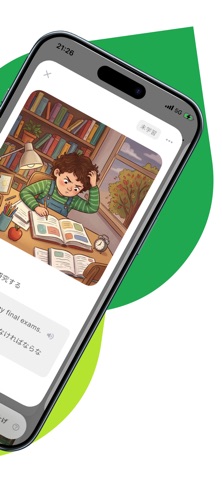


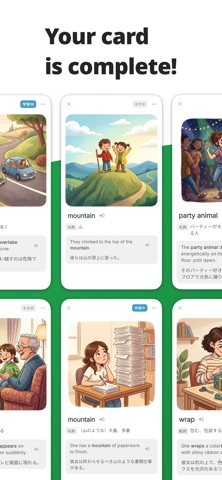
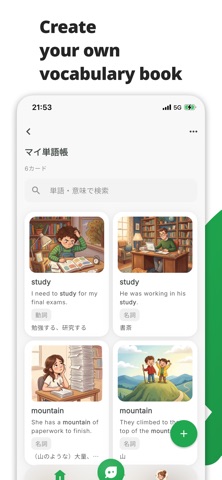
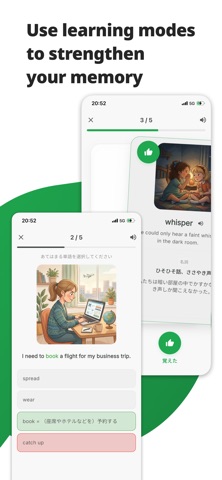

Icon palette
About this app
Vocapy — Learn English Words with Images Tired of buying English vocabulary books and never finishing them? Vocapy turns any English word into a personalized learning experience. Simply enter a word, and AI automatically generates its meanings, example sentences, visual images, and native pronunciation. Instead of memorizing boring Japanese translations, learn English words by seeing and hearing the situations in which they are actually used — helping them stick in your memory naturally. Perfect for • Learners preparing for the TOEIC or EIKEN • Anyone who has bought vocabulary books but struggled to keep studying • Anyone who finds memorization difficult • Learners who want to study phrases, phrasal verbs, and idioms as well as individual words Key Features ▷ AI-generated meanings, example sentences, images & audio Vocapy supports not only individual words, but also phrases, phr…
App details
What you can learn from Vocapy - Learn Words by Images
Every shipping app on the App Store has gone through the same decisions you're working through right now: which screenshot goes first, what caption sits over it, which device frame to show, what color the background should be. The 8 screenshots above are Vocapy - Learn Words by Images's answers to those questions — they're public, they're real, and they made it through Apple's review.
What the numbers say: Vocapy - Learn Words by Images runs a light set with one background colour (#FCFCFC) carried across every screenshot — the listing reads as a single poster when the shots sit side by side in search results. The accent colour we picked up, #BCE444, is the one to reuse for badges, arrows and highlighted words if you borrow this look. Hit Use this style to open the editor with these exact colours and drop your own screenshot in.
Notice the first screenshot in particular. It's the one users see in search results and on the product page, and it's where most apps spend their best caption and tightest design. Look at the proportion of background to phone, where the text sits, what one thing the image is trying to communicate.
Want to see how other Education apps approach the same problem? Browse more Education apps in the showcase.
Take what works into your own screenshots
Open LaunchShots and design your App Store & Google Play screenshots — pick a device frame, drop captions, ship in minutes. Free, in your browser.
Open the screenshot editor →Apps with a similar look
Closest background + accent colours among the listings we've analysed — useful when you want to see the same palette handled by a different team.