Chart position — tracked daily by LaunchShots
Screenshot style breakdown
Sampled from 6 of MaxStudy: Plugga smartare's App Store screenshots — background, accent and theme, measured by LaunchShots (not something Apple publishes).
#04449C bg
#275EA9
#6C8CB4 accent
#FFFFFF text
Screenshots


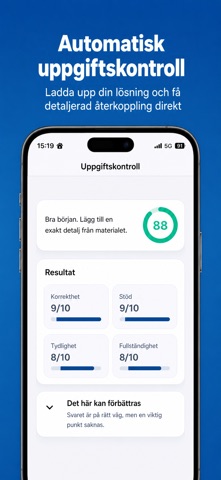

iPad screenshots


Icon palette
About this app
Plugga smartare med MaxStudy. Spela in en föreläsning eller ladda upp en inspelning, PDF, presentation, bild eller annat studiematerial. MaxStudy omvandlar innehållet till en tydlig sammanfattning som är enkel att repetera. MED MAXSTUDY KAN DU • skapa strukturerade sammanfattningar från ditt eget studiematerial • få en fullständig transkribering av inspelningar • repetera med automatiskt skapade flashcards • testa dina kunskaper med quiz baserade på materialet • ställa följdfrågor till en AI-studieassistent som utgår från dina källor • ladda upp egna lösningar och få privat återkoppling på övningsuppgifter • samla och ordna ditt studiematerial på ett ställe FRÅN FÖRELÄSNING TILL STUDIEMATERIAL Starta en inspelning i appen eller välj en fil du redan har. När bearbetningen är klar får du material som hjälper dig att förstå, repetera och öva inför nästa tenta. TYDLIG SVENSKA Välj sv…
App details
What you can learn from MaxStudy: Plugga smartare
Every shipping app on the App Store has gone through the same decisions you're working through right now: which screenshot goes first, what caption sits over it, which device frame to show, what color the background should be. The 12 screenshots above are MaxStudy: Plugga smartare's answers to those questions — they're public, they're real, and they made it through Apple's review.
What the numbers say: MaxStudy: Plugga smartare runs a mixed light-and-dark set where the background shifts from screenshot to screenshot (first shot #04449C) — each image has to stand on its own, so the captions carry more of the story. The accent colour we picked up, #6C8CB4, is the one to reuse for badges, arrows and highlighted words if you borrow this look. Hit Use this style to open the editor with these exact colours and drop your own screenshot in.
Notice the first screenshot in particular. It's the one users see in search results and on the product page, and it's where most apps spend their best caption and tightest design. Look at the proportion of background to phone, where the text sits, what one thing the image is trying to communicate.
Want to see how other Education apps approach the same problem? Browse more Education apps in the showcase.
Take what works into your own screenshots
Open LaunchShots and design your App Store & Google Play screenshots — pick a device frame, drop captions, ship in minutes. Free, in your browser.
Open the screenshot editor →Apps with a similar look
Closest background + accent colours among the listings we've analysed — useful when you want to see the same palette handled by a different team.