Chart position — tracked daily by LaunchShots
Screenshot style breakdown
Sampled from 4 of TuaTueng (ตัวตึง): ติวสอบ TGAT's App Store screenshots — background, accent and theme, measured by LaunchShots (not something Apple publishes).
#8C7CEC bg
#9C8EEE
#F4DC7C accent
#FFFFFF text
Screenshots
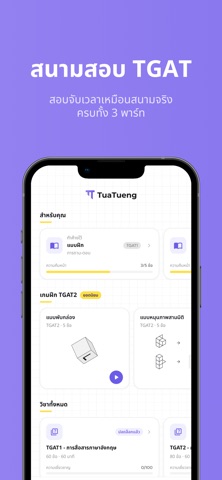

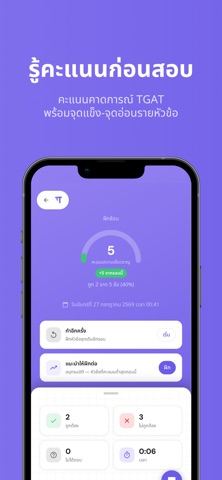

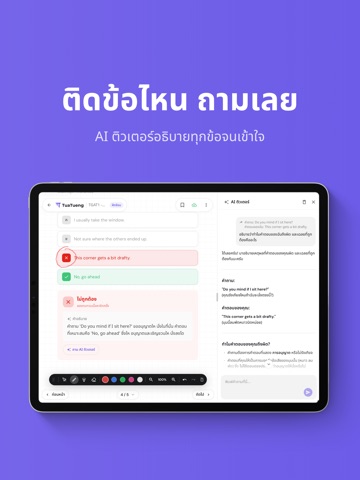
iPad screenshots


Icon palette
About this app
TuaTueng คือสนามสอบ TGAT จำลองในมือถือของคุณ — ฝึกจริง เห็นผลจริง พร้อม AI ที่ช่วยติวจนเข้าใจ เลือกพาร์ทที่จะพิชิต แล้วลงสนามสอบจำลองแบบจับเวลาเหมือนวันสอบจริง ทุกครั้งที่ส่งคำตอบ TuaTueng จะวิเคราะห์ผลรายหัวข้อ อัปเดตคะแนนคาดการณ์ และชี้จุดที่ควรเก็บเพิ่ม — ไม่ต้องเดาอีกต่อไปว่าตัวเองพร้อมแค่ไหน ทำไมตัวตึงถึงเลือก TuaTueng - สอบจำลองเหมือนจริง — ข้อสอบตามโครงสร้าง TGAT พร้อมจับเวลาแบบสนามจริง - ฝึกซ้อมรายหัวข้อ — เลือกหัวข้อที่อยากเก็บ ตรวจคำตอบได้ทันทีพร้อมคำอธิบายละเอียด - คะแนนคาดการณ์ TGAT — รู้ระดับของตัวเองก่อนถึงวันสอบจริง - วิเคราะห์จุดแข็ง-จุดอ่อน — เจาะลึกรายหัวข้อ และติดตามพัฒนาการทุกครั้งที่ฝึก - AI ติวเตอร์ — สงสัยข้อไหน ถามได้ทันที อธิบายจนเข้าใจ เขียนบนข้อสอบได้เหมือนกระดาษจริง ขีดเส้น จดโน้ต ไฮไลต์โจทย์ ด้วยนิ้วหรือ Apple Pencil และวงล้อมตัวเลือกเพื่อเลือกคำตอบได้เลย เหมือนทำข้อสอบบนกระดาษจริง ครอบคลุม TGAT ทั้ง 3 พาร์ท - TGAT1 การสื่อสารภาษาอังกฤษ - TGAT2 การคิดอย่…
App details
What you can learn from TuaTueng (ตัวตึง): ติวสอบ TGAT
Every shipping app on the App Store has gone through the same decisions you're working through right now: which screenshot goes first, what caption sits over it, which device frame to show, what color the background should be. The 8 screenshots above are TuaTueng (ตัวตึง): ติวสอบ TGAT's answers to those questions — they're public, they're real, and they made it through Apple's review.
What the numbers say: TuaTueng (ตัวตึง): ติวสอบ TGAT runs a dark set with one background colour (#8C7CEC) carried across every screenshot — the listing reads as a single poster when the shots sit side by side in search results. The accent colour we picked up, #F4DC7C, is the one to reuse for badges, arrows and highlighted words if you borrow this look. Hit Use this style to open the editor with these exact colours and drop your own screenshot in.
Notice the first screenshot in particular. It's the one users see in search results and on the product page, and it's where most apps spend their best caption and tightest design. Look at the proportion of background to phone, where the text sits, what one thing the image is trying to communicate.
Want to see how other Education apps approach the same problem? Browse more Education apps in the showcase.
Take what works into your own screenshots
Open LaunchShots and design your App Store & Google Play screenshots — pick a device frame, drop captions, ship in minutes. Free, in your browser.
Open the screenshot editor →Apps with a similar look
Closest background + accent colours among the listings we've analysed — useful when you want to see the same palette handled by a different team.