Chart position — tracked daily by LaunchShots
Screenshot style breakdown
Sampled from 4 of Blur Photo Background's App Store screenshots — background, accent and theme, measured by LaunchShots (not something Apple publishes).
#FCFCFC bg
#DDDDDD
#5C9CF4 accent
#111111 text
Screenshots

iPad screenshots


Icon palette
About this app
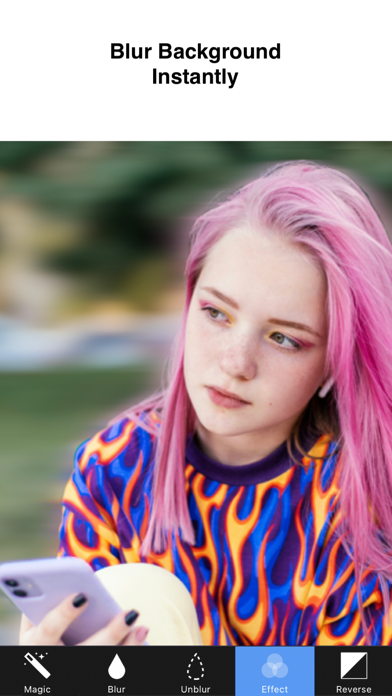
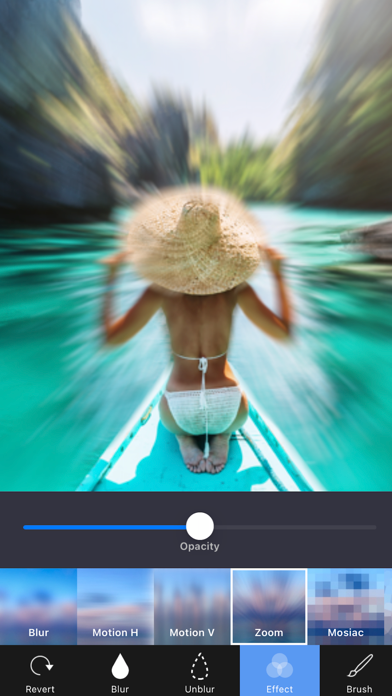
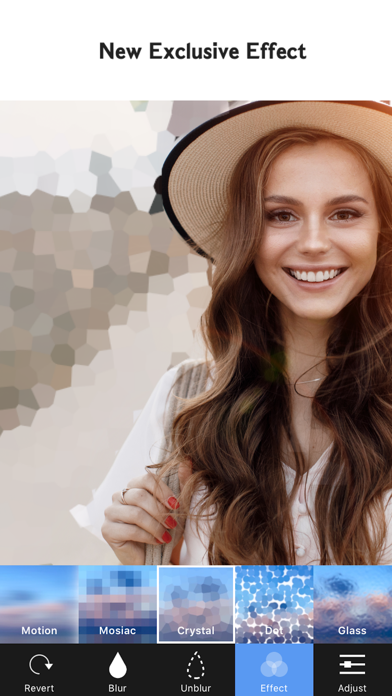
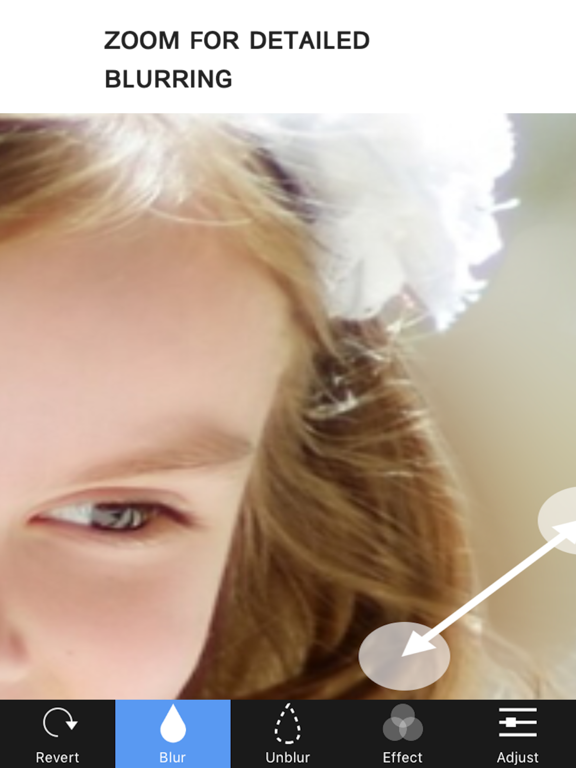
Blur Background instantly with the easiest blur photo editor for iPhone. Blur faces, portraits, and unwanted objects in seconds. Create beautiful DSLR-style background blur photos with simple touch editing. Main Features Blur Tool Quickly blur or unblur any part of your photo with simple touch controls. • Blur / UnBlur brush • Precise manual blur editing • Easy touch blur control Unique Blur Effects Create beautiful photo blur effects with professional filters. • Gaussian Blur • Zoom Blur • Motion Blur Mosaic Effects Hide faces, objects, or sensitive information easily. • Pixel Effect • Crystalize Effect • Dots Effect • Glass Effect Precision Editing Zoom and rotate your photo for detailed blur editing. • Zoom in for accurate editing • Rotate photos easily Full Resolution Export Save and export your edited photos in full quality. Easy Sharing Share your blurred photos …
App details
What you can learn from Blur Photo Background
Every shipping app on the App Store has gone through the same decisions you're working through right now: which screenshot goes first, what caption sits over it, which device frame to show, what color the background should be. The 8 screenshots above are Blur Photo Background's answers to those questions — they're public, they're real, and they made it through Apple's review.
What the numbers say: Blur Photo Background runs a mixed light-and-dark set where the background shifts from screenshot to screenshot (first shot #FCFCFC) — each image has to stand on its own, so the captions carry more of the story. The accent colour we picked up, #5C9CF4, is the one to reuse for badges, arrows and highlighted words if you borrow this look. Hit Use this style to open the editor with these exact colours and drop your own screenshot in.
Notice the first screenshot in particular. It's the one users see in search results and on the product page, and it's where most apps spend their best caption and tightest design. Look at the proportion of background to phone, where the text sits, what one thing the image is trying to communicate.
Want to see how other Photo & Video apps approach the same problem? Browse more Photo & Video apps in the showcase.
Take what works into your own screenshots
Open LaunchShots and design your App Store & Google Play screenshots — pick a device frame, drop captions, ship in minutes. Free, in your browser.
Open the screenshot editor →Apps with a similar look
Closest background + accent colours among the listings we've analysed — useful when you want to see the same palette handled by a different team.