Screenshot changes — detected by LaunchShots
Screenshot style breakdown
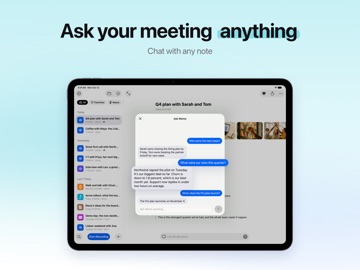
Sampled from 6 of Memo - AI Voice Note Taker's App Store screenshots — background, accent and theme, measured by LaunchShots (not something Apple publishes).
#D4ECFC bg
#BACFDD
#B48454 accent
#111111 text
Reading the caption text from the screenshots in your browser…
Screenshots


iPad screenshots


Icon palette
About this app
You talk, Memo takes the notes. Record any meeting, call or idea and get a word-for-word transcript you can tap to replay, a clear summary with a title, the to-dos you mentioned with the people involved, and answers to any question about it. Made for iOS 27. SIRI AI AND APPLE INTELLIGENCE, BUILT IN • Ask Siri AI about a note and hear Memo's answer right in Siri: "Ask Memo what we decided about the budget" • Siri AI works with your notes: open, play, search or translate one, add a to-do, rename it, favorite it or move it to a folder • Siri AI knows the note on screen: "email this to Anna", "what are the action items here" • Spotlight finds a note by anything that was said in it, from an index kept on your iPhone • Image Playground makes a picture for a note (on iPhones that support Apple Intelligence) APPLE WATCH • Record from your wrist and end it with a Double Tap • See the recording…
App details
What you can learn from Memo - AI Voice Note Taker
Every shipping app on the App Store has gone through the same decisions you're working through right now: which screenshot goes first, what caption sits over it, which device frame to show, what color the background should be. The 18 screenshots above are Memo - AI Voice Note Taker's answers to those questions — they're public, they're real, and they made it through Apple's review.
What the numbers say: Memo - AI Voice Note Taker runs a mixed light-and-dark set where the background shifts from screenshot to screenshot (first shot #D4ECFC) — each image has to stand on its own, so the captions carry more of the story. The accent colour we picked up, #B48454, is the one to reuse for badges, arrows and highlighted words if you borrow this look. Hit Use this style to open the editor with these exact colours and drop your own screenshot in.
Notice the first screenshot in particular. It's the one users see in search results and on the product page, and it's where most apps spend their best caption and tightest design. Look at the proportion of background to phone, where the text sits, what one thing the image is trying to communicate.
Want to see how other Productivity apps approach the same problem? Browse more Productivity apps in the showcase.
Take what works into your own screenshots
Open LaunchShots and design your App Store & Google Play screenshots — pick a device frame, drop captions, ship in minutes. Free, in your browser.
Open the screenshot editor →Apps with a similar look
Closest background + accent colours among the listings we've analysed — useful when you want to see the same palette handled by a different team.