Screenshot changes — detected by LaunchShots
Screenshot style breakdown
Sampled from 6 of Wildtier SOS's App Store screenshots — background, accent and theme, measured by LaunchShots (not something Apple publishes).
#F4F4F4 bg
#D6D6D6
#BC042C accent
#111111 text
Screenshots


iPad screenshots





Icon palette
About this app
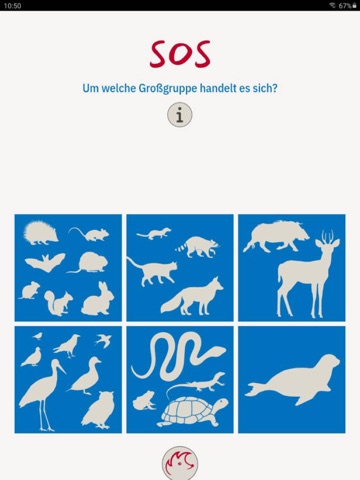
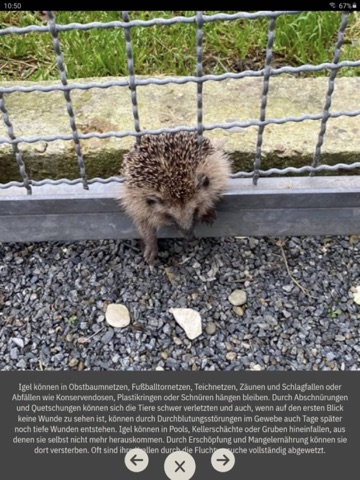
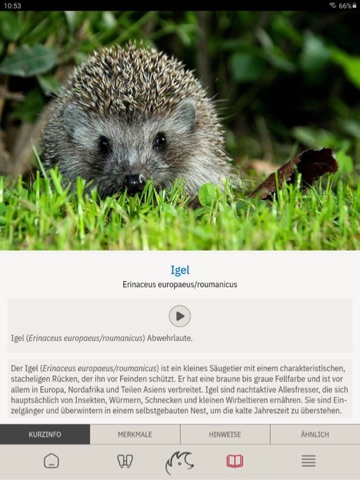
Du hast ein verletztes oder einsames Wildtier gefunden und weißt nicht, was zu tun ist? In einer solchen Situation zählt jede Sekunde – aber falsche Hilfe kann oft mehr schaden als nützen. Mit der Wildtier SOS App hast du den Experten für den Wildtierschutz immer in der Hosentasche. Wir führen dich ruhig und kompetent durch den Notfall. Deine Funktionen im Überblick: Interaktive Soforthilfe: Beantworte kurze Fragen (z.B. „Ist das Tier verletzt?“, „Ist es ein Jungtier?“) und erhalte sofort die richtige Handlungsanweisung. Experten-Verzeichnis: Finde blitzschnell Kontakt zu Wildtierstationen, Tierärzten und spezialisierten Pflegestellen in deiner direkten Umgebung. Richtiges Verhalten: Erfahre, wie du das Tier sicher sicherst, ohne dich selbst oder das Tier zu gefährden. Artbestimmung leicht gemacht: Lerne, wie du verschiedene Arten erkennst und ihre Körpersprache richtig deutes…
App details
What you can learn from Wildtier SOS
Every shipping app on the App Store has gone through the same decisions you're working through right now: which screenshot goes first, what caption sits over it, which device frame to show, what color the background should be. The 16 screenshots above are Wildtier SOS's answers to those questions — they're public, they're real, and they made it through Apple's review.
What the numbers say: Wildtier SOS runs a mixed light-and-dark set where the background shifts from screenshot to screenshot (first shot #F4F4F4) — each image has to stand on its own, so the captions carry more of the story. The accent colour we picked up, #BC042C, is the one to reuse for badges, arrows and highlighted words if you borrow this look. Hit Use this style to open the editor with these exact colours and drop your own screenshot in.
Notice the first screenshot in particular. It's the one users see in search results and on the product page, and it's where most apps spend their best caption and tightest design. Look at the proportion of background to phone, where the text sits, what one thing the image is trying to communicate.
Want to see how other Education apps approach the same problem? Browse more Education apps in the showcase.
Take what works into your own screenshots
Open LaunchShots and design your App Store & Google Play screenshots — pick a device frame, drop captions, ship in minutes. Free, in your browser.
Open the screenshot editor →Apps with a similar look
Closest background + accent colours among the listings we've analysed — useful when you want to see the same palette handled by a different team.