Screenshot changes — detected by LaunchShots
Screenshot style breakdown
Sampled from 6 of ChargeIndex: Route, Ladepreise's App Store screenshots — background, accent and theme, measured by LaunchShots (not something Apple publishes).
#2CECA4 bg
#26CF90
#A4E494 accent
#111111 text
Reading the caption text from the screenshots in your browser…
Screenshots





Icon palette
About this app
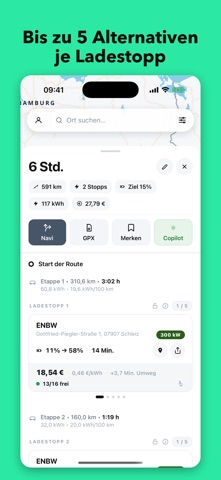
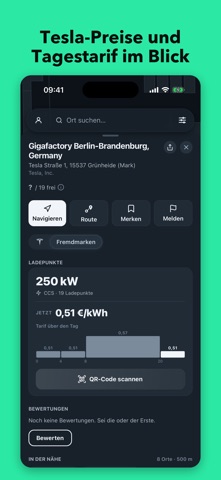
Was kostet Laden hier? ChargeIndex zeigt dir den Ad-hoc-Preis pro kWh für Ladestationen und Ladesäulen direkt auf der Karte, bevor du ankommst, und plant als Routenplaner fürs E-Auto deine Fahrt mit Ladestopps nach Preis, Umweg und Ladezeit. Günstig laden in Europa. Konto optional. LADEPREISE AUF DER KARTE An jeder Ladestation mit veröffentlichtem Preis siehst du den kWh-Preis fürs spontane Laden mit oder ohne Ladekarte. Die Farbe zeigt die Ladeleistung: Grün für AC, Blau für DC, Orange für HPC-Schnelllader. Filtere nach Höchstpreis und Leistung und vergleiche Ladesäulen in deiner Nähe. LADEKARTE AUSWÄHLEN Die gängigen Ladekarten sind hinterlegt, alle anderen trägst du selbst ein: je Land, für AC und DC, nach Leistung. Du siehst den günstigsten passenden Preis, ob Karte oder Ad-hoc, und was du an der Säule wirklich zahlst. So wird der Preisvergleich für dich einfach. ROUTENPLANER FÜR…
App details
What you can learn from ChargeIndex: Route, Ladepreise
Every shipping app on the App Store has gone through the same decisions you're working through right now: which screenshot goes first, what caption sits over it, which device frame to show, what color the background should be. The 7 screenshots above are ChargeIndex: Route, Ladepreise's answers to those questions — they're public, they're real, and they made it through Apple's review.
What the numbers say: ChargeIndex: Route, Ladepreise runs a light set with one background colour (#2CECA4) carried across every screenshot — the listing reads as a single poster when the shots sit side by side in search results. The accent colour we picked up, #A4E494, is the one to reuse for badges, arrows and highlighted words if you borrow this look. Hit Use this style to open the editor with these exact colours and drop your own screenshot in.
Notice the first screenshot in particular. It's the one users see in search results and on the product page, and it's where most apps spend their best caption and tightest design. Look at the proportion of background to phone, where the text sits, what one thing the image is trying to communicate.
Want to see how other Navigation apps approach the same problem? Browse more Navigation apps in the showcase.
Take what works into your own screenshots
Open LaunchShots and design your App Store & Google Play screenshots — pick a device frame, drop captions, ship in minutes. Free, in your browser.
Open the screenshot editor →Apps with a similar look
Closest background + accent colours among the listings we've analysed — useful when you want to see the same palette handled by a different team.