Chart position — tracked daily by LaunchShots
Screenshot style breakdown
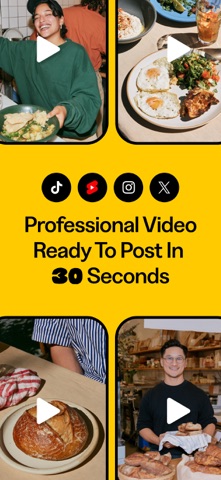
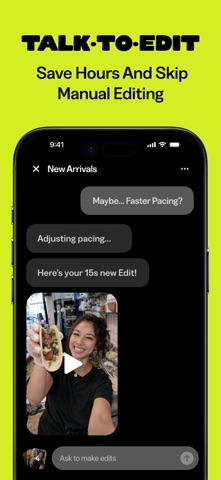
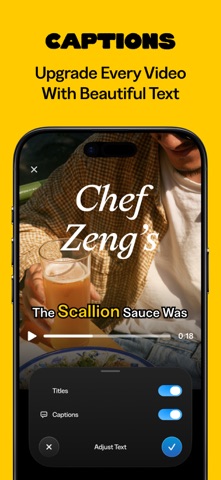
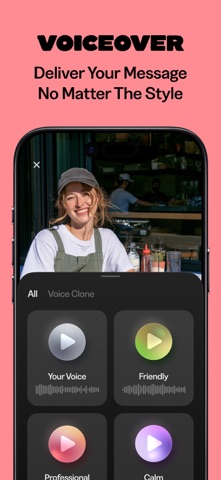
Sampled from 6 of PromoCut : AI Video Editor's App Store screenshots — background, accent and theme, measured by LaunchShots (not something Apple publishes).
#040C04 bg
#272E27
#7C5C2C accent
#FFFFFF text
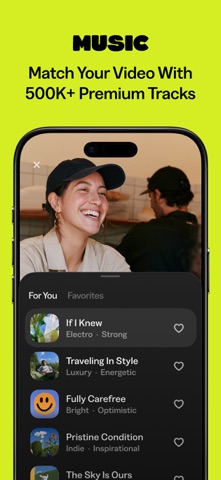
Screenshots



Icon palette
About this app
Transform raw footage into polished marketing videos in minutes. Say goodbye to tedious timeline editing and turn the content creation chore into a magic moment for your brand. Let PromoCut do the heavy lifting. Designed specifically for busy small business owners and creators, PromoCut puts a professional video marketing agency right in your hands. Our AI instantly analyzes your raw footage, auto-cuts the filler, and perfectly trims your clips to highlight your essential moments and promote your brand effortlessly. Features Built for Busy Business Owners: AUTO-TRIM & EDIT INSTANTLY Turn hours into minutes. Let our tool automatically find, trim, and stitch together your most impactful moments so you don't have to. Highlight the essentials with zero timeline frustration. AUTO-CAPTIONS & TEXT OVERLAYS Reach more customers, even when they're scrolling on mute. Instantly generate high…
App details
What you can learn from PromoCut : AI Video Editor
Every shipping app on the App Store has gone through the same decisions you're working through right now: which screenshot goes first, what caption sits over it, which device frame to show, what color the background should be. The 8 screenshots above are PromoCut : AI Video Editor's answers to those questions — they're public, they're real, and they made it through Apple's review.
What the numbers say: PromoCut : AI Video Editor runs a mixed light-and-dark set where the background shifts from screenshot to screenshot (first shot #040C04) — each image has to stand on its own, so the captions carry more of the story. The accent colour we picked up, #7C5C2C, is the one to reuse for badges, arrows and highlighted words if you borrow this look. Hit Use this style to open the editor with these exact colours and drop your own screenshot in.
Notice the first screenshot in particular. It's the one users see in search results and on the product page, and it's where most apps spend their best caption and tightest design. Look at the proportion of background to phone, where the text sits, what one thing the image is trying to communicate.
Want to see how other Photo & Video apps approach the same problem? Browse more Photo & Video apps in the showcase.
Take what works into your own screenshots
Open LaunchShots and design your App Store & Google Play screenshots — pick a device frame, drop captions, ship in minutes. Free, in your browser.
Open the screenshot editor →Apps with a similar look
Closest background + accent colours among the listings we've analysed — useful when you want to see the same palette handled by a different team.