Screenshot style breakdown
Sampled from 6 of Ra Maat: Trial's App Store screenshots — background, accent and theme, measured by LaunchShots (not something Apple publishes).
#440C1C bg
#5E2E3B
#C47C2C accent
#FFFFFF text
Screenshots

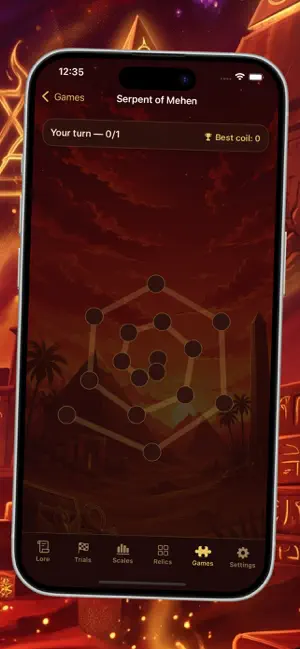
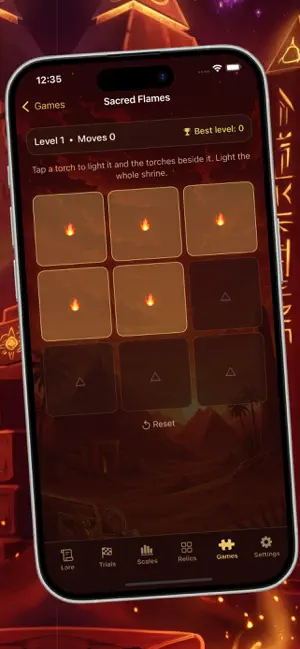
Icon palette
About this app
RaMaatTrial turns your curiosity about Ancient into a study you can actually keep up with. Instead of scattered articles, it gathers the gods, the great myths, the rites of the temples, and the beliefs about the afterlife into short illustrated lessons — then lets you test what stuck and play games that sharpen the mind. Start in the lesson archive, expand a card to read the detail, and when you feel ready, take a trial on that theme. Each round is ten questions, drawn from a bank of well over a hundred, with an explanation shown after every answer so a wrong guess still teaches you something. Choose your rank as you grow: Apprentice for a gentle pace, Scribe for a real test, High Priest for a timed round with no hand-holding. Here is what you can do inside: - Study lessons across six themes: the pantheon, the Osiris myth, the underworld, temple rites, sacred animals, and the journey…
App details
What you can learn from Ra Maat: Trial
Every shipping app on the App Store has gone through the same decisions you're working through right now: which screenshot goes first, what caption sits over it, which device frame to show, what color the background should be. The 6 screenshots above are Ra Maat: Trial's answers to those questions — they're public, they're real, and they made it through Apple's review.
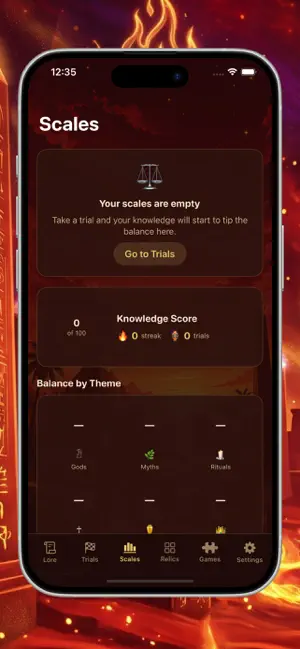
What the numbers say: Ra Maat: Trial runs a dark set where the background shifts from screenshot to screenshot (first shot #440C1C) — each image has to stand on its own, so the captions carry more of the story. The accent colour we picked up, #C47C2C, is the one to reuse for badges, arrows and highlighted words if you borrow this look. Hit Use this style to open the editor with these exact colours and drop your own screenshot in.
Notice the first screenshot in particular. It's the one users see in search results and on the product page, and it's where most apps spend their best caption and tightest design. Look at the proportion of background to phone, where the text sits, what one thing the image is trying to communicate.
Want to see how other Education apps approach the same problem? Browse more Education apps in the showcase.
Take what works into your own screenshots
Open LaunchShots and design your App Store & Google Play screenshots — pick a device frame, drop captions, ship in minutes. Free, in your browser.
Open the screenshot editor →Apps with a similar look
Closest background + accent colours among the listings we've analysed — useful when you want to see the same palette handled by a different team.