Chart position — tracked daily by LaunchShots
Screenshot style breakdown
Sampled from 6 of Holy Quran Offline: Read Daily's App Store screenshots — background, accent and theme, measured by LaunchShots (not something Apple publishes).
#147C6C bg
#348E80
#6CACA4 accent
#FFFFFF text
Reading the caption text from the screenshots in your browser…
Screenshots




iPad screenshots


Icon palette
About this app
Read the entire Quran, one calm portion a day, even offline. Quran in a Year gives you a plan instead of a decision. Each day it opens on today's passage: the Uthmani Arabic text, a trusted translation in your language and recitation you can play with a tap. About twenty minutes. No hunting for where you left off, no wondering what to read next. A PLAN FOR EVERY PACE • Quran in a Year: the whole Quran in 365 balanced daily portions • Ramadan Khatm: one juz a day, a complete khatam in a single Ramadan • 60-Day Khatm: half a juz a day for a focused two months • Juz Amma in 30 Days: the short final surahs, the gentlest place to begin • Chronological: the Quran in the order it was revealed • 40 Essential Passages: Ayat al-Kursi, Yasin, Ar-Rahman, Al-Mulk, Al-Kahf and more • Deep Dive: the same journey at half pace, with room to reflect TRACK EVERY KHATAM A streak that rewards showing up,…
App details
What you can learn from Holy Quran Offline: Read Daily
Every shipping app on the App Store has gone through the same decisions you're working through right now: which screenshot goes first, what caption sits over it, which device frame to show, what color the background should be. The 16 screenshots above are Holy Quran Offline: Read Daily's answers to those questions — they're public, they're real, and they made it through Apple's review.
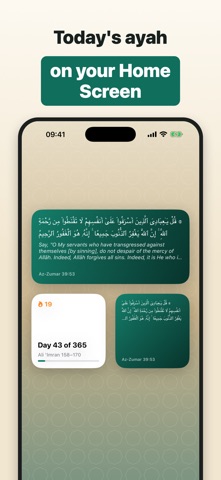
What the numbers say: Holy Quran Offline: Read Daily runs a mixed light-and-dark set where the background shifts from screenshot to screenshot (first shot #147C6C) — each image has to stand on its own, so the captions carry more of the story. The accent colour we picked up, #6CACA4, is the one to reuse for badges, arrows and highlighted words if you borrow this look. Hit Use this style to open the editor with these exact colours and drop your own screenshot in.
Notice the first screenshot in particular. It's the one users see in search results and on the product page, and it's where most apps spend their best caption and tightest design. Look at the proportion of background to phone, where the text sits, what one thing the image is trying to communicate.
Want to see how other Reference apps approach the same problem? Browse more Reference apps in the showcase.
Take what works into your own screenshots
Open LaunchShots and design your App Store & Google Play screenshots — pick a device frame, drop captions, ship in minutes. Free, in your browser.
Open the screenshot editor →Apps with a similar look
Closest background + accent colours among the listings we've analysed — useful when you want to see the same palette handled by a different team.