Chart position — tracked daily by LaunchShots
Screenshot style breakdown
Sampled from 6 of Zoobr: изучай любые темы's App Store screenshots — background, accent and theme, measured by LaunchShots (not something Apple publishes).
#041404 bg
#273427
#049404 accent
#FFFFFF text
Reading the caption text from the screenshots in your browser…
Screenshots




Icon palette
About this app
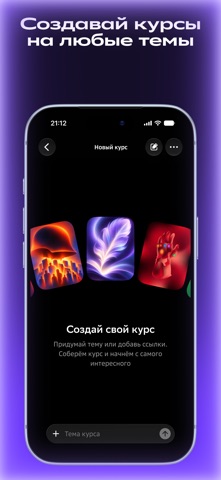
Zoobr — твой личный курс из любой темы. Короткие уроки, лента вопросов и умный чат помогают разобраться в том, что давно было интересно Выбери готовый курс или расскажи Зубру, что хочешь изучить Что внутри: • Курсы. История, физика, математика и другие темы. Проходи уроки и проверяй знания в тестах • Свои курсы. Расскажи, что хочешь узнать, и обсуди план с Зубром. Начинай учиться по мере готовности уроков • Лента вопросов. Отвечай на вопросы, отличай факты от фейков и узнавай объяснения. Открой подсказку или продолжи обсуждение в чате • Умный чат. Задавай вопросы, прикрепляй фото задач и проси объяснить подробнее. Возвращайся к прошлым обсуждениям в истории чатов • Озвучка. Слушай уроки и ответы Зубра, когда удобнее учиться на слух • Прогресс. Продолжай сохранённые курсы и следи за пройденными уроками и днями учёбы Интерфейс доступен на русском и английском. Язык можно изменить…
App details
What you can learn from Zoobr: изучай любые темы
Every shipping app on the App Store has gone through the same decisions you're working through right now: which screenshot goes first, what caption sits over it, which device frame to show, what color the background should be. The 8 screenshots above are Zoobr: изучай любые темы's answers to those questions — they're public, they're real, and they made it through Apple's review.
What the numbers say: Zoobr: изучай любые темы runs a mixed light-and-dark set where the background shifts from screenshot to screenshot (first shot #041404) — each image has to stand on its own, so the captions carry more of the story. The accent colour we picked up, #049404, is the one to reuse for badges, arrows and highlighted words if you borrow this look. Hit Use this style to open the editor with these exact colours and drop your own screenshot in.
Notice the first screenshot in particular. It's the one users see in search results and on the product page, and it's where most apps spend their best caption and tightest design. Look at the proportion of background to phone, where the text sits, what one thing the image is trying to communicate.
Want to see how other Education apps approach the same problem? Browse more Education apps in the showcase.
Take what works into your own screenshots
Open LaunchShots and design your App Store & Google Play screenshots — pick a device frame, drop captions, ship in minutes. Free, in your browser.
Open the screenshot editor →Apps with a similar look
Closest background + accent colours among the listings we've analysed — useful when you want to see the same palette handled by a different team.