Chart position — tracked daily by LaunchShots
Screenshot style breakdown
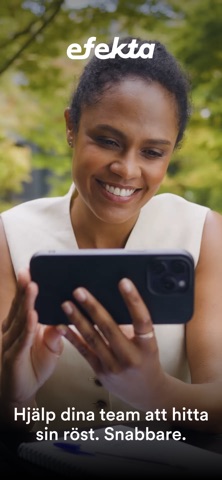
Sampled from 5 of EF Corporate Learning's App Store screenshots — background, accent and theme, measured by LaunchShots (not something Apple publishes).
#040404 bg
#272727
#5C5C1C accent
#FFFFFF text
Reading the caption text from the screenshots in your browser…
Screenshots


Icon palette
About this app
Lär dig genom att prata i en konversationsbaserad och interaktiv virtuell lärmiljö som kombinerar lärare med EF Corporate Learnings prisbelönta teknik. Simulera interaktiva verkliga situationer – från arbetsplatsen till vardagliga samtal – med hyperpersonlig feedback för snabbare framsteg. Vi gör inlärning mer engagerande, effektiv och rolig genom att kombinera beprövade undervisningsmetoder med avancerad teknik. Den nya EF Corporate Learning-appen – vår mest engagerande och personliga inlärningsupplevelse hittills! • Helt ny appdesign för en modern, användarvänlig och intuitiv upplevelse • Engagerande inlärningsupplevelser med fokus på muntliga färdigheter • Effektiva inlärningsvanor från start för att bibehålla motivationen EF Corporate Learning-appen erbjuder: • Lär dig var som helst, på vilken enhet som helst • Offlineläge för studenter med begränsad internetåtkomst • AI-lärarassi…
App details
What you can learn from EF Corporate Learning
Every shipping app on the App Store has gone through the same decisions you're working through right now: which screenshot goes first, what caption sits over it, which device frame to show, what color the background should be. The 5 screenshots above are EF Corporate Learning's answers to those questions — they're public, they're real, and they made it through Apple's review.
What the numbers say: EF Corporate Learning runs a mixed light-and-dark set where the background shifts from screenshot to screenshot (first shot #040404) — each image has to stand on its own, so the captions carry more of the story. The accent colour we picked up, #5C5C1C, is the one to reuse for badges, arrows and highlighted words if you borrow this look. Hit Use this style to open the editor with these exact colours and drop your own screenshot in.
Notice the first screenshot in particular. It's the one users see in search results and on the product page, and it's where most apps spend their best caption and tightest design. Look at the proportion of background to phone, where the text sits, what one thing the image is trying to communicate.
Want to see how other Education apps approach the same problem? Browse more Education apps in the showcase.
Take what works into your own screenshots
Open LaunchShots and design your App Store & Google Play screenshots — pick a device frame, drop captions, ship in minutes. Free, in your browser.
Open the screenshot editor →Apps with a similar look
Closest background + accent colours among the listings we've analysed — useful when you want to see the same palette handled by a different team.