Chart position — tracked daily by LaunchShots
Screenshot style breakdown
Sampled from 5 of MeDaCa - 自分の健康を収納するアプリ's App Store screenshots — background, accent and theme, measured by LaunchShots (not something Apple publishes).
#049CE4 bg
#27A9E7
#3C849C accent
#FFFFFF text
Screenshots

iPad screenshots
Icon palette
About this app
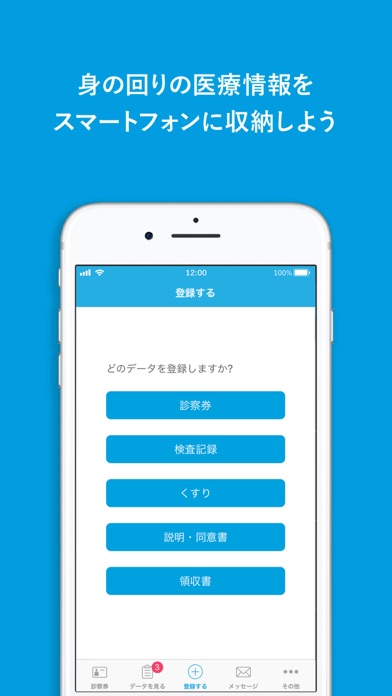
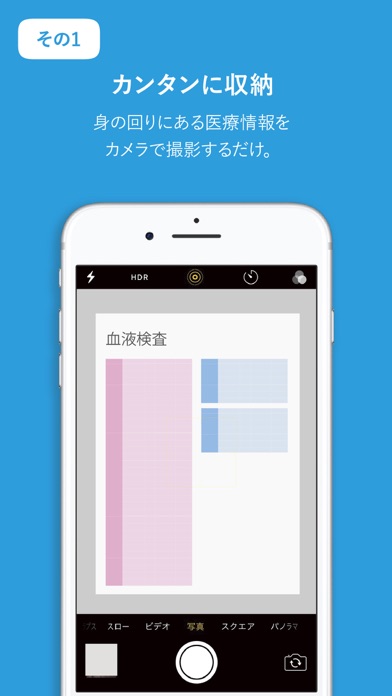
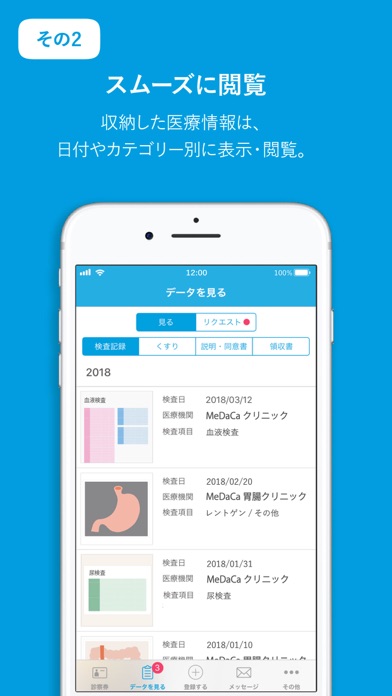
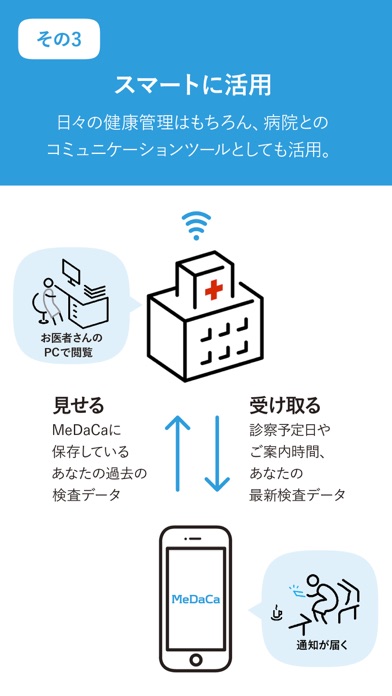
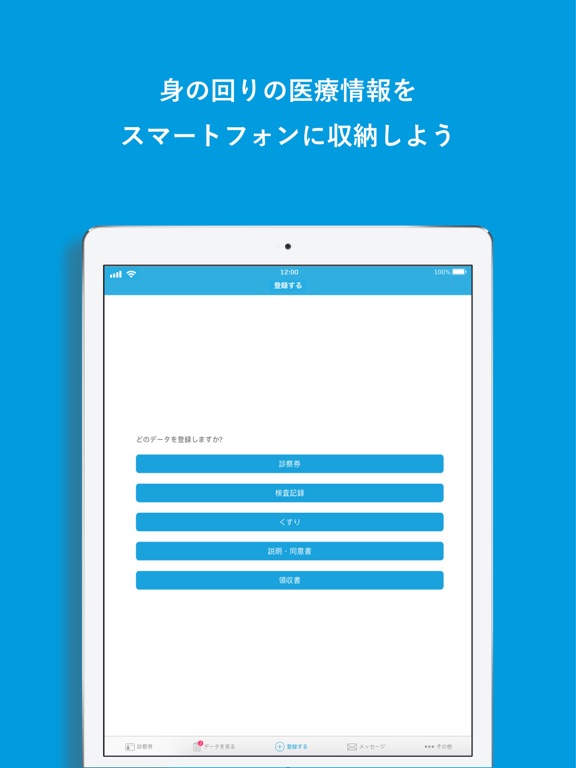
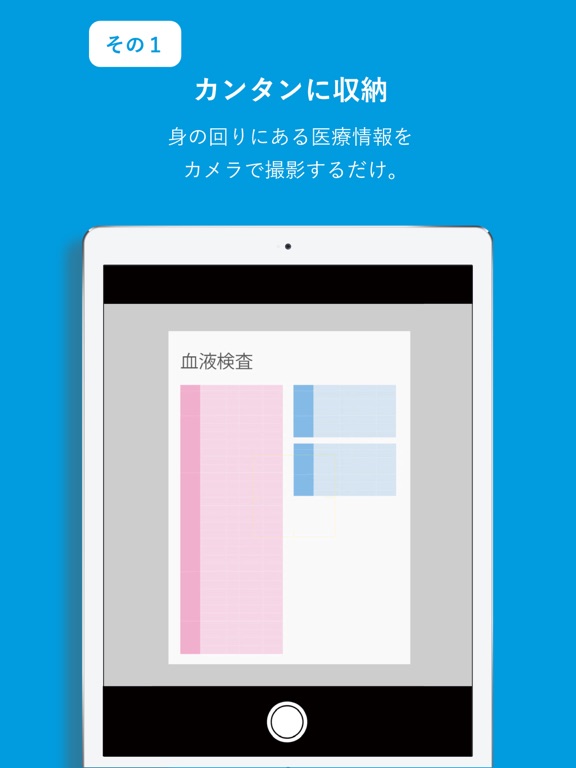
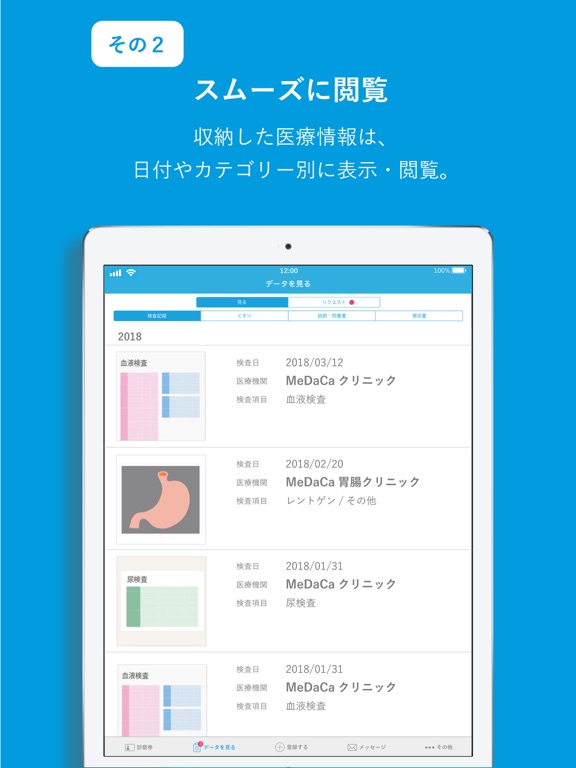
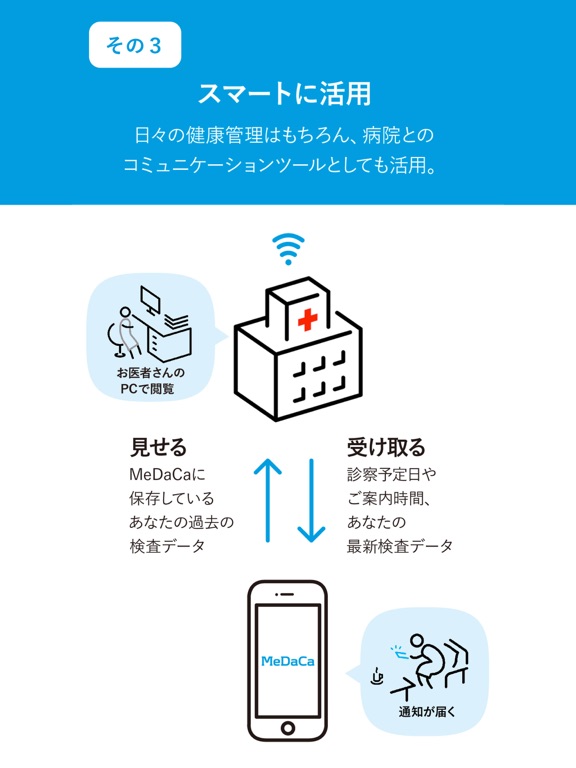
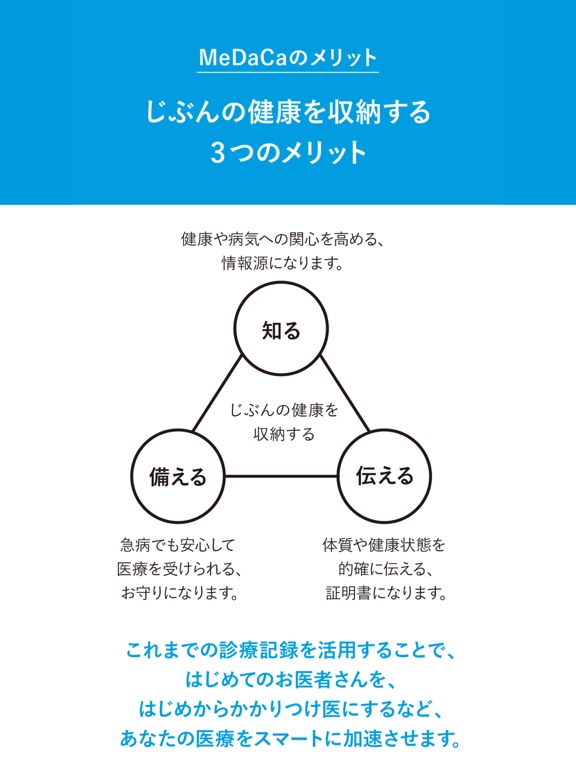
◯ MeDaCaは、ご自分の様々な医療情報を写真で管理できるアプリです。診察券や検査データ、薬の説明書、健康診断書など、身の回りにあるたくさんの医療情報を、なんでも写真に撮って自分のスマートフォンに収納します。また、収納された医療情報は、日付・カテゴリー別に表示・閲覧することができます。 ----- ◯ 通院中の医療機関がMeDaCaサービスを導入している場合は、MeDaCaを介して医療機関と連携でき、メッセージや検査データを受け取ることができます。また、待合・外来呼び出しをアプリで受け取ることもできます。(※医療機関により提供しているサービスは異なります) ----- ◯ 次回の診察予約日をMeDaCaのカレンダーに登録しておくと、予約日の前日と当日にリマインダー通知が届くので、うっかり忘れを防止できます。 ----- ● MeDaCaアプリ 3つのポイント — 知る 健康や病気についてよく知ることができます。 医療データを自ら管理することで、病気への関心が高まり、健康意識も向上。自分の検査結果を深く知ることで、余分な診察や検査、投薬を減らす…
App details
What you can learn from MeDaCa - 自分の健康を収納するアプリ
Every shipping app on the App Store has gone through the same decisions you're working through right now: which screenshot goes first, what caption sits over it, which device frame to show, what color the background should be. The 10 screenshots above are MeDaCa - 自分の健康を収納するアプリ's answers to those questions — they're public, they're real, and they made it through Apple's review.
What the numbers say: MeDaCa - 自分の健康を収納するアプリ runs a mixed light-and-dark set where the background shifts from screenshot to screenshot (first shot #049CE4) — each image has to stand on its own, so the captions carry more of the story. The accent colour we picked up, #3C849C, is the one to reuse for badges, arrows and highlighted words if you borrow this look. Hit Use this style to open the editor with these exact colours and drop your own screenshot in.
Notice the first screenshot in particular. It's the one users see in search results and on the product page, and it's where most apps spend their best caption and tightest design. Look at the proportion of background to phone, where the text sits, what one thing the image is trying to communicate.
Want to see how other Medical apps approach the same problem? Browse more Medical apps in the showcase.
Take what works into your own screenshots
Open LaunchShots and design your App Store & Google Play screenshots — pick a device frame, drop captions, ship in minutes. Free, in your browser.
Open the screenshot editor →Apps with a similar look
Closest background + accent colours among the listings we've analysed — useful when you want to see the same palette handled by a different team.