Chart position — tracked daily by LaunchShots
Screenshot changes — detected by LaunchShots
Screenshot style breakdown
Sampled from 6 of geotrainer: Geografie-Quiz's App Store screenshots — background, accent and theme, measured by LaunchShots (not something Apple publishes).
#04243C bg
#274257
#049CDC accent
#FFFFFF text
Reading the caption text from the screenshots in your browser…
Screenshots


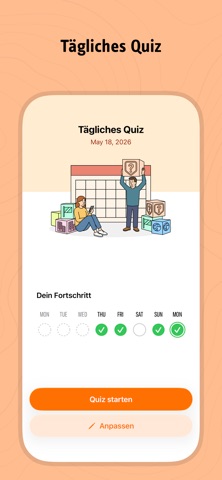

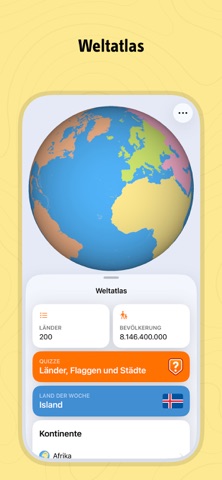


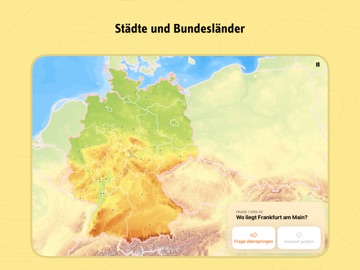
iPad screenshots




Icon palette
About this app
Lerne die ganze Welt kennen – Quiz für Quiz. Entdecke Länder, Hauptstädte, Flaggen, Regionen und Städte in abwechslungsreichen Quizzen. Entdecke die Welt von Amman in Jordanien bis Quito in Ecuador. Lerne in deinem eigenen Tempo und erweitere dein Geografiewissen Schritt für Schritt. Schon ein paar freie Minuten im Zug, beim Warten oder zwischen zwei Terminen reichen aus, um etwas Neues zu entdecken. „Mein neuer Lieblingszeitvertreib. So viel besser, als endlos durch Social Media zu scrollen.“ „Mit Abstand die beste Geografie-App, die ich ausprobiert habe. Man entdeckt neue Orte und merkt sich ganz nebenbei, wo sie liegen.“ ▶ Sofort loslegen Öffne die App und starte sofort mit einem Quiz. Keine Registrierung. Keine Werbung. ▶ Maßgeschneiderte Quizze für dich Entscheide selbst, wie du antworten möchtest: per Multiple-Choice, durch Texteingabe, indem du die Antwort aussprichst oder de…
App details
What you can learn from geotrainer: Geografie-Quiz
Every shipping app on the App Store has gone through the same decisions you're working through right now: which screenshot goes first, what caption sits over it, which device frame to show, what color the background should be. The 20 screenshots above are geotrainer: Geografie-Quiz's answers to those questions — they're public, they're real, and they made it through Apple's review.
What the numbers say: geotrainer: Geografie-Quiz runs a mixed light-and-dark set where the background shifts from screenshot to screenshot (first shot #04243C) — each image has to stand on its own, so the captions carry more of the story. The accent colour we picked up, #049CDC, is the one to reuse for badges, arrows and highlighted words if you borrow this look. Hit Use this style to open the editor with these exact colours and drop your own screenshot in.
Notice the first screenshot in particular. It's the one users see in search results and on the product page, and it's where most apps spend their best caption and tightest design. Look at the proportion of background to phone, where the text sits, what one thing the image is trying to communicate.
Want to see how other Education apps approach the same problem? Browse more Education apps in the showcase.
Take what works into your own screenshots
Open LaunchShots and design your App Store & Google Play screenshots — pick a device frame, drop captions, ship in minutes. Free, in your browser.
Open the screenshot editor →Apps with a similar look
Closest background + accent colours among the listings we've analysed — useful when you want to see the same palette handled by a different team.