Chart position — tracked daily by LaunchShots
Screenshot style breakdown
Sampled from 5 of AI Notebook - Quiz LM y Notas's App Store screenshots — background, accent and theme, measured by LaunchShots (not something Apple publishes).
#C44C34 bg
#CC6550
#5444E4 accent
#FFFFFF text
Screenshots


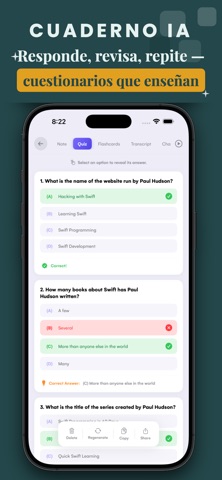

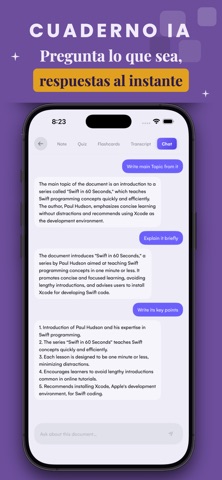
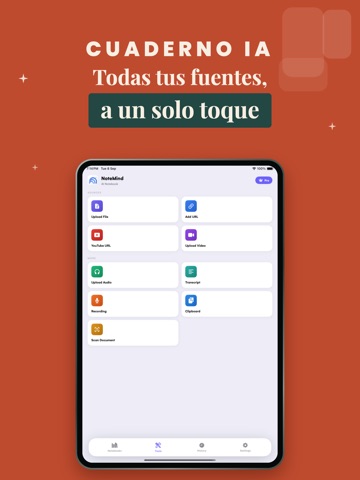
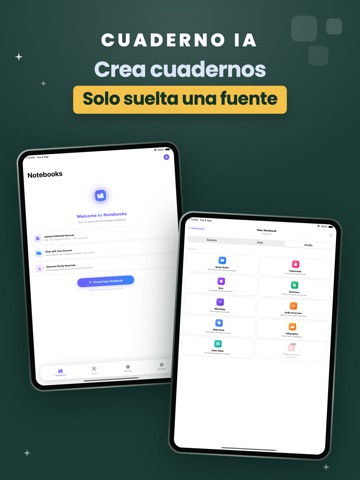
iPad screenshots
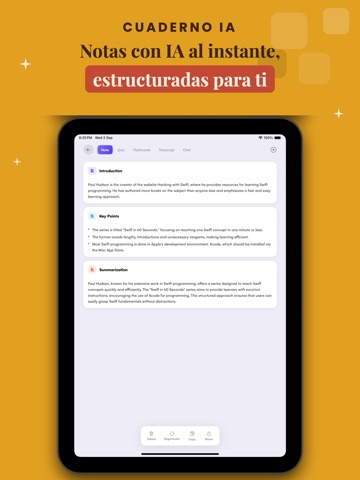

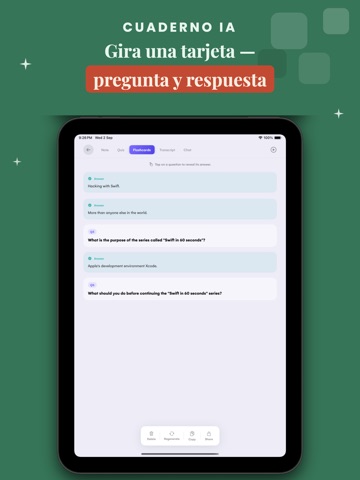

Icon palette
About this app
Convierte cualquier cosa en notas inteligentes, cuestionarios, tarjetas de memoria y más. Chatea con cualquier archivo o documento — al instante. — Genera en el idioma que quieras — Sube un archivo, pega un enlace, graba tu voz, sube audio o escanea un documento — AI Notebook lo convierte al instante en notas estructuradas, tarjetas de memoria, cuestionarios, una transcripción completa y un chat en el que puedes seguir haciendo preguntas. Notebooks — Tu espacio de trabajo inteligente con IA Organiza tus fuentes en Notebooks y desbloquea la experiencia completa de Studio. Sube archivos, audio y URLs, chatea con tus fuentes y genera resultados potentes con un solo toque: Guía de estudio — Material de aprendizaje profundo y estructurado Tarjetas de memoria — Tarjetas listas para estudiar tu contenido Cuestionario — Pon a prueba tu conocimiento automáticamente Resumen — Visión general conc…
App details
What you can learn from AI Notebook - Quiz LM y Notas
Every shipping app on the App Store has gone through the same decisions you're working through right now: which screenshot goes first, what caption sits over it, which device frame to show, what color the background should be. The 11 screenshots above are AI Notebook - Quiz LM y Notas's answers to those questions — they're public, they're real, and they made it through Apple's review.
What the numbers say: AI Notebook - Quiz LM y Notas runs a mixed light-and-dark set where the background shifts from screenshot to screenshot (first shot #C44C34) — each image has to stand on its own, so the captions carry more of the story. The accent colour we picked up, #5444E4, is the one to reuse for badges, arrows and highlighted words if you borrow this look. Hit Use this style to open the editor with these exact colours and drop your own screenshot in.
Notice the first screenshot in particular. It's the one users see in search results and on the product page, and it's where most apps spend their best caption and tightest design. Look at the proportion of background to phone, where the text sits, what one thing the image is trying to communicate.
Want to see how other Education apps approach the same problem? Browse more Education apps in the showcase.
Take what works into your own screenshots
Open LaunchShots and design your App Store & Google Play screenshots — pick a device frame, drop captions, ship in minutes. Free, in your browser.
Open the screenshot editor →Apps with a similar look
Closest background + accent colours among the listings we've analysed — useful when you want to see the same palette handled by a different team.