Chart position — tracked daily by LaunchShots
Screenshot style breakdown
Sampled from 5 of Shade Tracker - Sun Simulator's App Store screenshots — background, accent and theme, measured by LaunchShots (not something Apple publishes).
#ECF4F4 bg
#CFD6D6
#ECBC74 accent
#111111 text
Screenshots
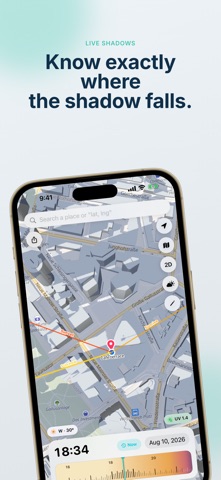
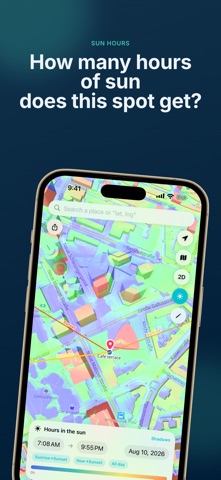
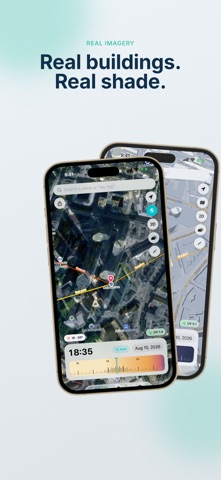
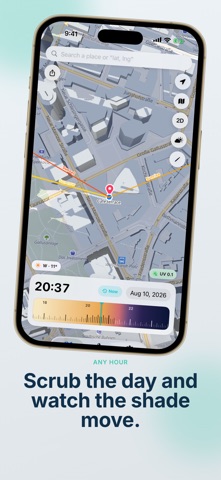

iPad screenshots


Icon palette
About this app
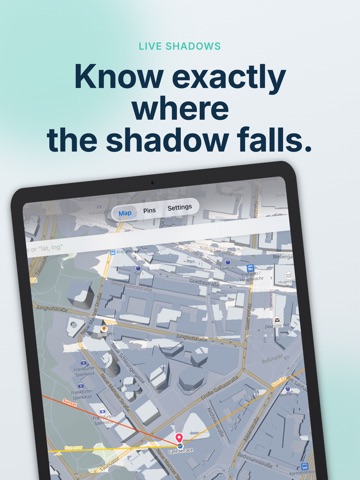
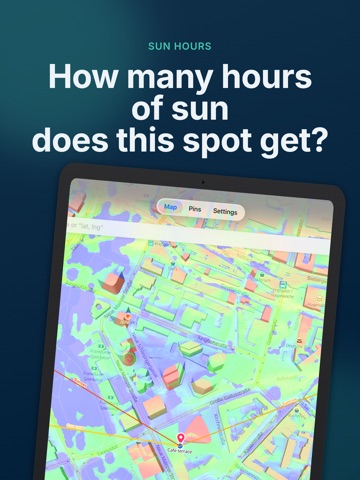
Will your balcony get sun at 4pm? Where should you park so the car is still shaded in three hours? Does that table stay in the sun through dinner? Shade Tracker answers those questions on a live map. Drag the timeline and watch the shadows of buildings and trees move in real time. The sun's position comes from actual astronomical calculation. LIVE SHADOW MAP • Building and tree shadows drawn directly onto the map • Tree heights come from a global canopy model, so shade under trees counts too • 2D, tilted 3D, and satellite views THE TIMELINE • Scrub with your finger and the shadows follow instantly • One pixel is one minute, with about six hours of context on screen • The colour of the timeline is the real solar elevation for that minute, so night, twilight, golden hour, and full day are visible at a glance • Scroll as far into the past or future as you want, or jump to any date • One…
App details
What you can learn from Shade Tracker - Sun Simulator
Every shipping app on the App Store has gone through the same decisions you're working through right now: which screenshot goes first, what caption sits over it, which device frame to show, what color the background should be. The 10 screenshots above are Shade Tracker - Sun Simulator's answers to those questions — they're public, they're real, and they made it through Apple's review.
What the numbers say: Shade Tracker - Sun Simulator runs a mixed light-and-dark set where the background shifts from screenshot to screenshot (first shot #ECF4F4) — each image has to stand on its own, so the captions carry more of the story. The accent colour we picked up, #ECBC74, is the one to reuse for badges, arrows and highlighted words if you borrow this look. Hit Use this style to open the editor with these exact colours and drop your own screenshot in.
Notice the first screenshot in particular. It's the one users see in search results and on the product page, and it's where most apps spend their best caption and tightest design. Look at the proportion of background to phone, where the text sits, what one thing the image is trying to communicate.
Want to see how other Weather apps approach the same problem? Browse more Weather apps in the showcase.
Take what works into your own screenshots
Open LaunchShots and design your App Store & Google Play screenshots — pick a device frame, drop captions, ship in minutes. Free, in your browser.
Open the screenshot editor →Apps with a similar look
Closest background + accent colours among the listings we've analysed — useful when you want to see the same palette handled by a different team.