Chart position — tracked daily by LaunchShots
Screenshot style breakdown
Sampled from 5 of 模様あつめ - パターン画像作成's App Store screenshots — background, accent and theme, measured by LaunchShots (not something Apple publishes).
#FCF4EC bg
#DDD6CF
#547484 accent
#111111 text
Screenshots


Icon palette
About this app
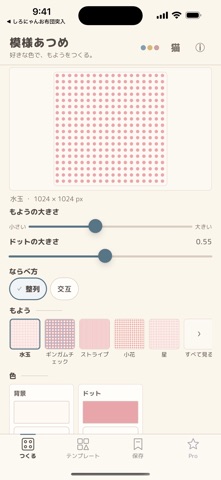
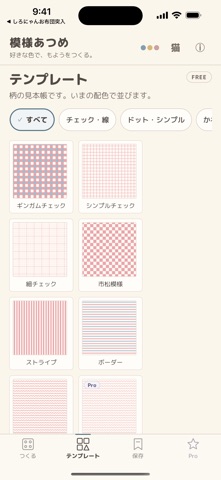
好きな色で、もようをつくる。 「模様あつめ」は、好きな柄と色を組み合わせて、オリジナルのパターン画像を作れるアプリです。 水玉、チェック、ストライプ、小花、星、ハート、タータンチェックなど、いろいろな模様を収録。色を自由に選んだり、「やさしい」「くすみ」「レトロ」「春」「夜」「喫茶店」などの配色セットから選んだりしながら、自分好みの一枚を作れます。 作った模様はPNG画像として保存できます。 こんなときに ・SNSの背景や投稿画像に ・イラストや漫画の背景に ・配信や動画の素材に ・カードやおたより、印刷物に ・ハンドメイドや同人制作に ・自分だけの壁紙やデザイン素材に できること ・25種類の模様から選んで作成 ・好きな色を自由に指定 ・HEXコードで色を入力 ・テーマ別の配色セット ・模様の大きさや並び方を調整 ・作った模様を保存してあとから再編集 ・PNGで端末に保存 ・画像をそのまま共有 Freeでもしっかり使えます 基本17柄、PNG保存、SNS向け画像サイズ、模様の保存など、基本機能は無料で利用できます。 Proでは…
App details
What you can learn from 模様あつめ - パターン画像作成
Every shipping app on the App Store has gone through the same decisions you're working through right now: which screenshot goes first, what caption sits over it, which device frame to show, what color the background should be. The 5 screenshots above are 模様あつめ - パターン画像作成's answers to those questions — they're public, they're real, and they made it through Apple's review.
What the numbers say: 模様あつめ - パターン画像作成 runs a light set with one background colour (#FCF4EC) carried across every screenshot — the listing reads as a single poster when the shots sit side by side in search results. The accent colour we picked up, #547484, is the one to reuse for badges, arrows and highlighted words if you borrow this look. Hit Use this style to open the editor with these exact colours and drop your own screenshot in.
Notice the first screenshot in particular. It's the one users see in search results and on the product page, and it's where most apps spend their best caption and tightest design. Look at the proportion of background to phone, where the text sits, what one thing the image is trying to communicate.
Want to see how other Graphics & Design apps approach the same problem? Browse more Graphics & Design apps in the showcase.
Take what works into your own screenshots
Open LaunchShots and design your App Store & Google Play screenshots — pick a device frame, drop captions, ship in minutes. Free, in your browser.
Open the screenshot editor →Apps with a similar look
Closest background + accent colours among the listings we've analysed — useful when you want to see the same palette handled by a different team.