App Store Keywords: The 100-Character Guide (2026)
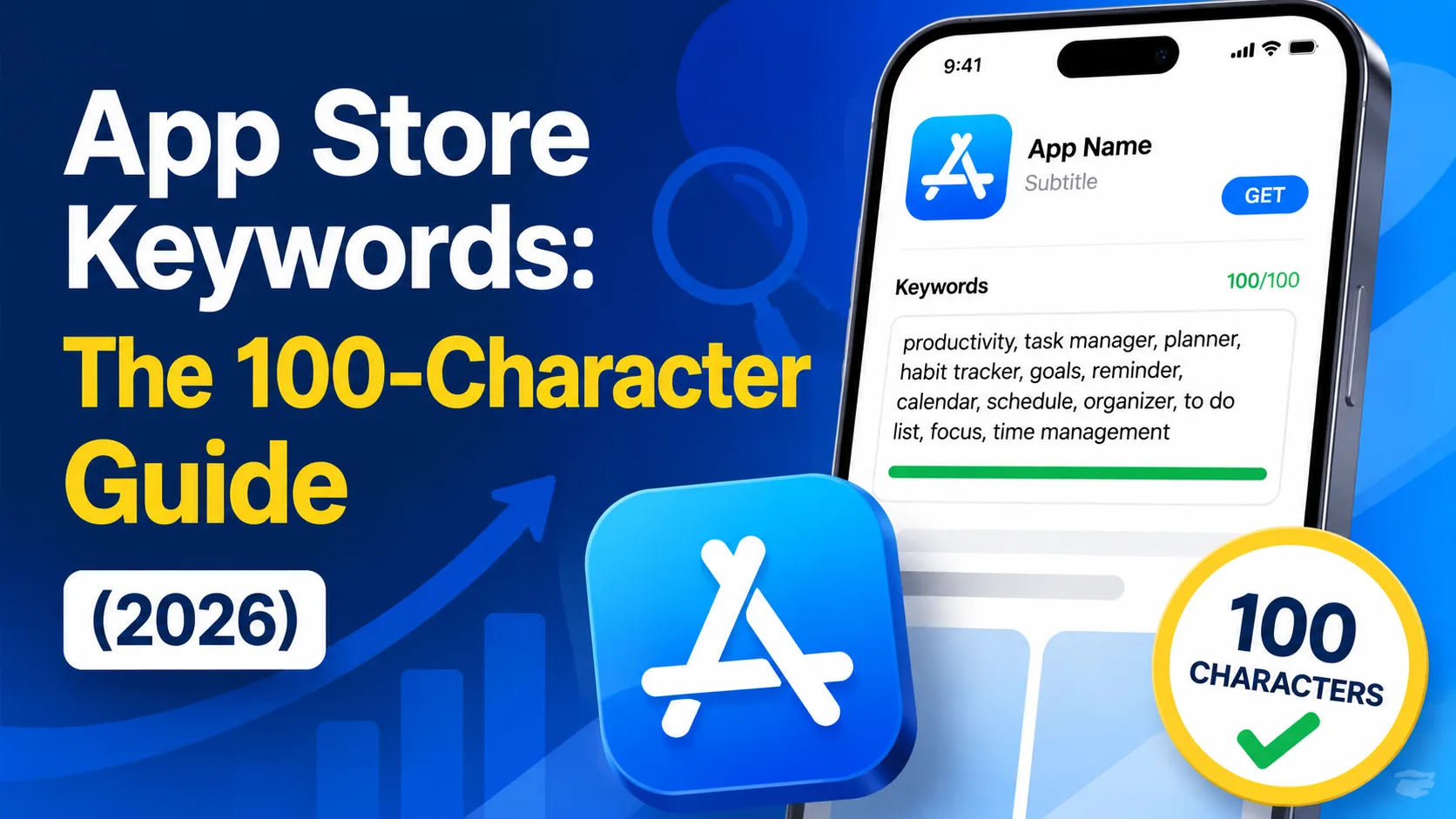
Apple gives you exactly 100 characters to tell its search algorithm which queries should surface your app. Most indie developers waste a third of them on duplicates, plurals, and accidental spaces — and never rank for the searches their app was built for. The 100-character keyword field is the single highest-leverage, lowest-effort ASO optimization you can make, and once you understand the rules, you can squeeze 30–50% more keyword coverage out of the same space. This is the complete operator-level guide to the App Store keyword field in 2026: every rule, every common mistake, and the exact step-by-step process to fill it without wasting a single character.
What the keyword field actually is (and isn't)
The keyword field is a 100-character hidden text input in App Store Connect that Apple's search algorithm uses to determine which queries your app is eligible to rank for. It sits alongside two other indexed fields:
- App name (30 characters): Highest search weight. Users see it everywhere.
- Subtitle (30 characters): High search weight, visible in search results and on the product page.
- Keyword field (100 characters): Strong search weight, never shown to users — pure algorithmic input.
That's 160 total indexed characters that decide your search visibility. The app description, however long it is, does not count for keyword ranking on iOS — it's for conversion copy after a user lands on your listing, not for what queries surface you. This is the most common ASO misconception among indie developers: stuffing keywords into the description does nothing for App Store search.
The hard rules Apple enforces
The keyword field has strict formatting rules. Some are documented; some come from reverse-engineering Apple's behavior. All of them affect whether your characters actually produce search visibility:
- Maximum 100 characters total. Including commas. Apple rejects submissions that exceed this — not silently, but with a rejection on review.
- Separate keywords with commas, no spaces. Apple's official guidance is explicit: write
fitness,workout,exercisenotfitness, workout, exercise. Every space after a comma is a character you can't use for a keyword. - Spaces inside multi-word phrases are okay. If you want to target a phrase like "real estate," you can write it as
real estatewithin one comma-separated entry. The space inside the phrase is fine; the space after the comma is what you avoid. - Only commas as separators. Don't use semicolons, slashes, pipes, or any other character. Apple parses commas only.
- Lowercase only. Apple's algorithm is case-insensitive for search, so capitalizing keywords wastes nothing technically — but the convention is lowercase, and consistency makes your field easier to audit.
- No competitor brand names or trademarks. Including a competitor's name (or any trademark you don't own) violates Apple's guidelines and can get your app rejected or removed entirely. Don't try it.
The mistakes that quietly waste your characters
The harder rules to learn aren't in the documentation — they come from understanding how Apple's search algorithm combines your fields. The patterns that consistently waste characters:
- Repeating words from your title or subtitle. Apple already indexes those fields. If your app is "BudgetPal — Money Tracker" and your subtitle is "Daily expenses, simplified," you should never write "budget," "money," "tracker," "daily," "expenses," or "simplified" in the keyword field. Every duplicated word is a wasted character with zero added ranking benefit.
- Including the word "app." Apple adds this implicitly to every search. "Photo editor app" and "photo editor" produce the same results. Don't put "app" anywhere in your keyword field.
- Including your category name. Apple already associates your app with its category. If you're in Photo & Video, don't write "photo" or "video" as standalone keywords — they're already linked to you.
- Using both singular and plural. Apple's algorithm automatically matches both forms from a single root in English. Writing "tracker" covers "trackers." Writing both wastes the "s" character for no additional eligibility. (Note: this is less reliable in non-English locales — French, German, and others sometimes do require both forms.)
- Stop words. Apple ignores common words like "the," "and," "for," "with," "a," "an," "to," "of." Never include them in your keyword field; they consume characters without doing anything.
- Punctuation other than commas. Periods, apostrophes, hyphens, and special characters waste characters. Strip them.
The combined effect of these mistakes is dramatic. A keyword field that's "tracker, habit, daily, goal, routine, the, app, fitness, exercise" (real example, 67 characters) actually delivers far fewer ranking opportunities than "tracker,habit,goal,routine,fitness,journal,wellness,streak" (61 characters) because the second version dropped duplicates, stop words, and the wasted "app."
How Apple actually combines your fields
The single most important piece of ASO knowledge that changes how you fill the field: Apple automatically creates multi-word search phrases by combining individual words from your title, subtitle, and keyword field. You don't need to write the multi-word phrases yourself.
If your app name is "Tempo," your subtitle is "Workout tracker," and your keyword field contains habit,daily,streak,goal, Apple automatically generates eligibility for:
- "workout tracker" (from subtitle)
- "daily workout" (subtitle + keyword)
- "workout habit" (subtitle + keyword)
- "daily habit tracker" (subtitle + keyword)
- "daily streak" (keywords only)
- "workout goal tracker" (subtitle + keywords)
- "habit streak" (keywords only)
- ...and dozens more permutations.
This is why duplicating words across fields is so wasteful. Writing "workout" in the keyword field when it's already in the subtitle doesn't add any new eligibility — Apple's already going to generate "workout" phrases from the subtitle. But writing "habit" in the keyword field unlocks every "habit" combination with every other word across all three fields.
The step-by-step process to fill the field
Here's the workflow that consistently produces the strongest keyword field for an indie app:
- Step 1: List every word that describes your app. Brainstorm 30–50 candidate keywords: features, use cases, problems solved, target audiences, synonyms. Don't filter yet.
- Step 2: Identify what's in your title and subtitle. Write out exactly what's in those two fields. Cross out any keyword candidates that appear there — they're already indexed.
- Step 3: Drop stop words, plurals, and category terms. Cross out anything Apple ignores, every plural of a root word you've kept, and anything redundant with your category.
- Step 4: Prioritize by search volume and relevance. Rank the remaining keywords by which ones your buyers actually search. Use Apple's search autocomplete (open the App Store, type your candidate keywords, see what suggestions Apple shows — those suggestions are real search demand). Free tools like AppFollow, ASOTools, or Apptweak's free tier can give you volume estimates.
- Step 5: Draft with character counting. Write your draft as comma-separated lowercase keywords with no spaces. Count characters as you go (most text editors show count in the status bar). Aim to fill 95–99 characters, not exactly 100 — Apple counts commas, and being one character over rejects the submission.
- Step 6: Test with predicted permutations. Sanity-check: based on your three fields together, what searches will Apple consider your app eligible for? Write out the top 10 phrases. If they all look like queries real users would type, you've done it right. If they look like keyword salad, restructure.
- Step 7: Submit, wait, measure. Metadata changes apply on your next version submission only — not instantly. After release, track your rank for each target keyword weekly for the first month. Anything that doesn't move within 4 weeks gets dropped in the next update, and you reallocate those characters.
A real example: before and after
Take a hypothetical habit tracker app called "Streak — Habit Tracker" with the subtitle "Build daily routines."
Before (poorly optimized — 91 characters, lots of waste):
habit, tracker, daily, routine, app, the, build, fitness, productivity, planner
Wasted: spaces after commas (9 chars), duplicates of title/subtitle words "habit, tracker, daily, routine" (28 chars), stop words "the, build" (8 chars), the word "app" (3 chars). Real productive keywords: "fitness, productivity, planner."
After (properly optimized — 99 characters, fully productive):
journal,goal,streak,wellness,mindfulness,morning,evening,water,sleep,meditation,workout,calendar
Twelve productive keywords, every one of them unique relative to the title and subtitle. Apple will combine these with "habit," "tracker," "daily," and "routine" from the indexed title and subtitle to produce dozens of multi-word eligibility combinations.
The after version doesn't just fit more keywords — it produces vastly more ranking eligibility per character.
Screenshots also feed the search algorithm
An underappreciated detail: Apple uses OCR to extract text from your screenshot captions, and that text is indexed for search at approximately 50–70% of the weight of the keyword field. This means your full keyword footprint isn't just the 100 characters in the keyword field — it's:
- App name (30 characters)
- Subtitle (30 characters)
- Keyword field (100 characters)
- Screenshot caption text (variable, OCR-extracted)
When you design your screenshots, the caption headlines you write are doing double duty: they sell to users and they expand your search eligibility. Use them deliberately. The same word doesn't need to appear in both the keyword field and screenshot captions — the captions are an extension of your keyword footprint, not a duplicate of it.
How often to update your keyword field
The App Store isn't static, and neither is competition for any given search. The cadence that works for indie apps:
- Initial submission: Take time. The first version's keywords matter most because they shape early search visibility.
- Every 90 days after launch: Review which keywords actually drove installs (App Store Connect's "Sources" report shows search rank and installs per keyword) and reallocate underperformers.
- After major competitor changes: If a competitor updates their metadata or a new entrant takes a keyword you depended on, consider repositioning.
- After major iOS releases: Apple sometimes tweaks search behavior with new iOS versions. Re-check rankings within 2–4 weeks of a major release.
Metadata changes only apply when you push a new version of your app, so plan keyword updates alongside feature releases or bug-fix versions.
Localization: 40+ versions of this same field
iOS supports up to 40+ language localizations, and each one has its own 30/30/100 character allocation. If your app is available in English, Spanish, and German, you have three separate keyword fields to optimize — and the keywords that work in English often don't translate literally.
Localization-specific tips:
- Don't machine-translate keywords. Direct translation often misses what locals actually search. Use Apple's autocomplete in each locale's App Store, or work with a native speaker, to find real search terms.
- Singular/plural rules vary by language. The "singular covers plural" rule that works in English doesn't reliably work in French, German, or Spanish. You may need both forms in some locales.
- Prioritize languages by traffic potential. Localizing keywords for 40 languages with no native speakers is busywork. Start with the 3–5 languages that represent the biggest opportunity for your app's category.
Frequently asked questions
Can I see my actual keyword field in App Store Connect after submission?
Yes. App Store Connect → your app → App Information → the field is visible per locale. You can copy what you submitted to audit it.
Do keywords help my Google Play ranking?
No. Google Play has no dedicated keyword field. Its algorithm indexes your app title (50 characters), short description (80 characters), and long description (4,000 characters) instead. The strategies are different — write naturally for Google Play, not in comma-separated lists.
What happens if I go over 100 characters?
App Store Connect will reject your submission. The validation is automatic; you can't push the limit. Apple counts every character including commas.
Can I use numbers in the keyword field?
Yes. Numbers are valid keywords if they relate to your app — "2026," "365," "100," and so on can be searched and ranked.
Should I include misspellings?
Generally no. Apple's algorithm increasingly handles common misspellings automatically, and dedicating characters to misspellings wastes space that proper terms would use better.
Does keyword density matter?
No. Apple doesn't weight keywords by how often they appear — each unique keyword counts once regardless of repetition. This is the opposite of older web SEO and trips up developers coming from that background.
Can I include my developer name in the keyword field?
No need. Apple indexes your developer name separately for search. Adding it to the keyword field wastes characters.
How do I find which keywords my competitors rank for?
Open the App Store, search for your competitor's app, then search for variations of words in their description. Tools like Apptweak, ASOTools, or AppFollow expose competitor keyword data with paid tiers; free alternatives exist but offer limited data.
If my app is in multiple categories, can I include both category terms?
Your primary and secondary categories are indexed automatically. Don't waste keyword field characters on them.
The bottom line
The 100-character keyword field is where most indie iOS apps win or lose their search visibility. The mechanics aren't complicated — comma-separated, no spaces, no duplicates, no stop words, no category names, no "app" — but they're unforgiving. Every wasted character is a search query your app could have appeared for and didn't. Audit your field today using the rules above; you'll almost certainly find 20–40 characters of waste that could be reallocated to genuine ranking opportunities.
Once your keyword field is optimized, the next ASO lever is everything around it. If writing the rest of your listing copy is the part you're dreading, our ASO description generator handles the title, subtitle, and description in seconds — free, no signup. And once visitors land on your listing, screenshots do the conversion work; our guide on App Store screenshots that convert covers what makes a listing actually install.
Related posts

Make your App Store screenshots free
LaunchShots is a free, in-browser screenshot maker. No signup, no watermark.
Open the app →
Comments (0)