App Store Preview Video: The 15-30 Second Guide (2026)
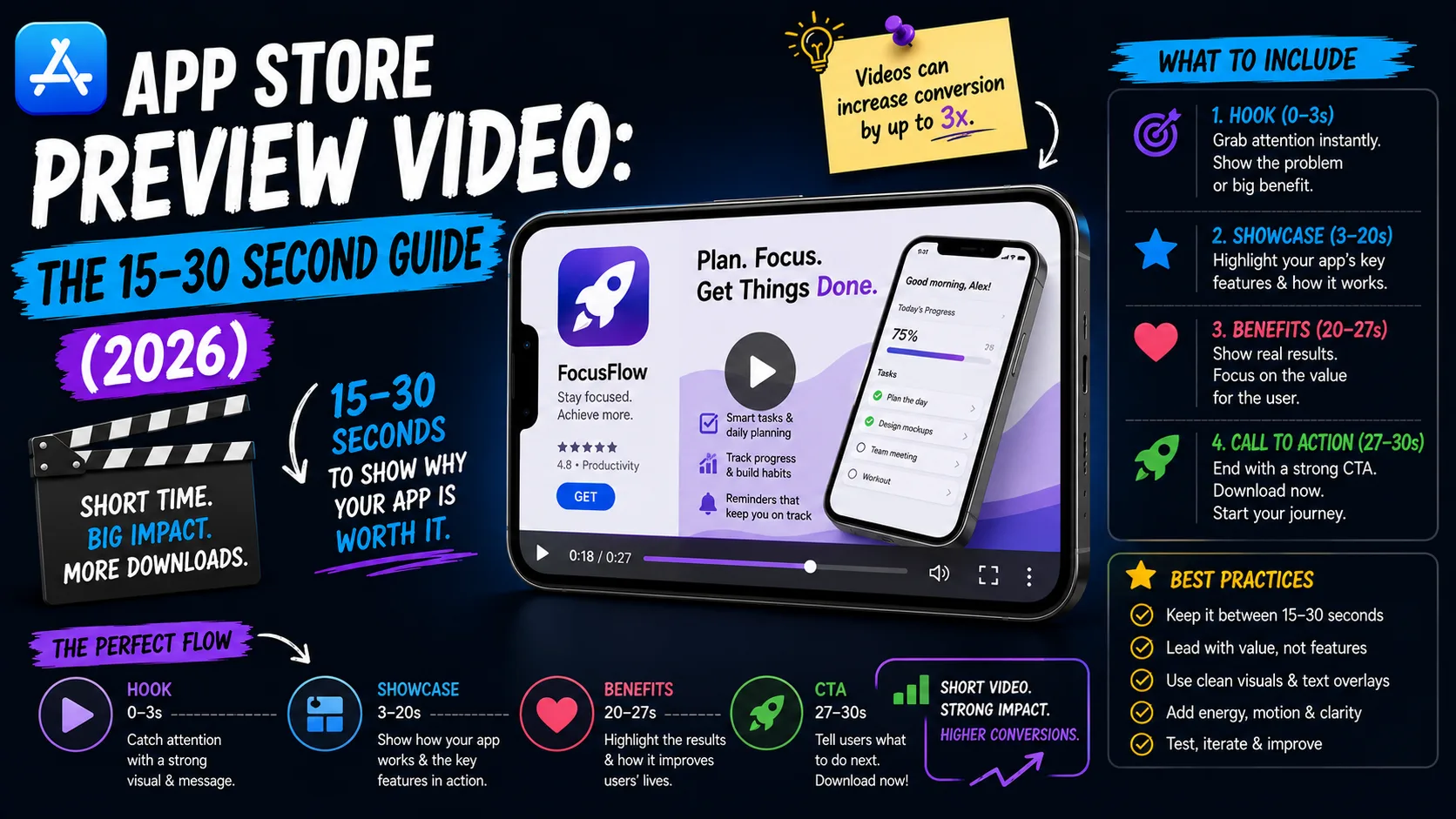
App Store preview videos are the highest-converting asset on your product page — and the most-skipped checkbox in indie iOS launches. Apple plays them automatically (muted) in search results and at the top of your listing, which means a well-made preview is the first thing most visitors actually see. Done right, it can lift install conversion by 25% or more over screenshots alone. Done wrong — or skipped entirely — and you're leaving your highest-leverage conversion lever sitting on the shelf. This is the operator-level guide to App Store preview videos in 2026: every spec Apple enforces, the timing rules that quietly trigger rejections, and the structure that actually converts in 15–30 seconds.
What an App Store preview video actually is
The preview video is a 15–30 second video clip that appears above your screenshots on the App Store product page. It autoplays muted in search results when users scroll past your listing on Wi-Fi, and plays with sound when tapped on the product page itself. Apple displays it before any screenshot, which makes its first frame and first three seconds disproportionately important.
The properties that make it different from your other listing assets:
- Autoplay in search. On Wi-Fi, your preview plays automatically as users scroll past your listing in search results. Most users don't tap into your full product page; the muted autoplay is what they see.
- Up to 3 previews per device class. You can submit up to three videos for iPhone, three for iPad, three for Mac, and three for Apple TV. Each version of your app's preview is locale-specific.
- 15–30 seconds, strictly enforced. Apple rejects anything shorter than 15.0 seconds or longer than 30.0 seconds. There's no tolerance — 30.1 seconds fails.
- Only real in-app footage. Apple's content rules require actual screen recordings from the device. No live-action footage, no hands operating a phone, no marketing animations of logos or feature lists. Pure app captures.
Most indie apps skip the preview entirely, which is a missed opportunity. Apps with preview videos consistently see higher tap-to-install rates than identical apps without them — especially in categories where motion explains the value better than static screens (games, video editors, AR apps, anything with animation).
The hard specs Apple enforces in 2026
Apple's App Store Connect validation is unforgiving on preview video specs. A single mismatch — wrong frame rate, wrong codec, wrong dimensions — triggers immediate rejection. The full spec for 2026:
- Duration: 15.0 to 30.0 seconds. Inclusive on both ends. Apple's encoder reads the duration to two decimal places.
- File size: Maximum 500 MB per video. Most properly encoded previews are 30–100 MB; if yours is approaching 500 MB, you're over-bitrating it.
- Format: .mov, .mp4, or .m4v containers only. No .avi, no .mkv, no .webm.
- Video codec: H.264 (High Profile up to Level 4.0) or ProRes 422 HQ. HEVC/H.265 is accepted on some submission paths but H.264 is universally safe. AV1, VP9, and H.264 Baseline/Main profile are all rejected.
- Frame rate: 24, 25, 29.97, or 30 fps, constant. Variable frame rate (common output from screen recorders) is rejected. 60 fps is rejected.
- Audio codec: AAC stereo, 256 kbps or higher. Linear PCM is also accepted. Audio track must be present — if you have a silent video, include a silent stereo AAC track. Mono and surround audio are rejected.
- Color space: YUV 4:2:0 (yuv420p). Not yuv444p, not RGB.
- Dimensions: Must match the target device slot exactly. iPhone 6.9" portrait is 886×1920 (not 1320×2868 — preview dimensions are different from screenshot dimensions). iPhone 6.5" landscape is 1920×886. iPad Pro 13" is 1200×1600 or 1600×1200.
- Orientation: Portrait or landscape. macOS and tvOS previews must be landscape only.
- Faststart flag: The moov atom should be at the beginning of the file (for streaming). Standard export from Final Cut, Premiere, or ffmpeg with proper settings handles this automatically.
The single most common rejection reason: uploading at screenshot dimensions instead of preview dimensions. iPhone 6.9" screenshots are 1320×2868; iPhone 6.9" preview videos are 886×1920. Different rules for different assets.
The first three seconds carry the conversion
App Store previews autoplay muted in search results. Users decide whether to keep watching — or scroll past — within the first three seconds, and they do it without sound. That changes everything about how you structure the video:
- Lead with the most visually striking moment. Not your logo. Not a title card. The single image or motion that says what your app does. If your app is a photo editor, the first frame should show a before/after, not a splash screen.
- Skip the intro. A 3-second logo reveal eats 10% of your total video duration on something users would scroll past. Open mid-action.
- Use motion in the first frame. Static openings get scrolled past faster than ones with movement. A gesture, an animation, a transition — anything that signals "things are happening."
- Don't rely on audio. Captions, text overlays, and visual cues do the explaining. Most users will never hear the audio at all.
The structure that consistently wins: hook in 3 seconds → core value demonstration in 12–20 seconds → call to action in the final 3–5 seconds. Total: 18–28 seconds, comfortably inside the 15–30 window.
The poster frame: a separate decision
Apple uses the frame at the 5-second mark of your video as the default poster frame — the still image that appears before the user plays the video on the product page. You can override this in App Store Connect.
Treat the poster frame as a separate conversion asset:
- Pick a frame that works as a standalone image. If a user never plays the video, the poster frame is what they see. Choose something compelling and self-explanatory.
- Avoid mid-motion blur. Frames captured during fast UI transitions can look unclear. Pause-frame moments work better.
- Match the screenshots beneath it. If your screenshots have captions and the poster frame doesn't, the listing feels visually disconnected. Choose a poster frame with similar density and styling.
If your default 5-second frame happens to be perfect, fine. Most aren't. Spend 5 minutes selecting the override.
What converts (and what doesn't)
Across categories, the patterns that consistently lift conversion in app preview videos:
- Show real use, not "marketing." Apple's content rules require this anyway, but it's also what converts. A 20-second clip of someone editing a photo in your app outperforms a 20-second tour of UI screens.
- Demonstrate the outcome, not just the feature. Don't just show "tap the export button." Show what the user gets after they tap — the finished poster, the completed run, the organized inbox. The outcome is what they're buying.
- Use text overlays sparingly. Two or three captions across 20 seconds is plenty. A wall of text on every frame makes the video feel desperate and hard to read at small sizes.
- Match the energy to your category. Productivity apps benefit from calm, clear demos. Games benefit from kinetic montages. Photo apps need before/after reveals. The right energy is category-specific; the wrong energy reads as off-brand.
What consistently hurts conversion:
- Long brand intros. Anything over 1–2 seconds at the open is wasted.
- Showing the sign-up flow. Users will scroll past your account creation screens; show what they get after signing up.
- Listing features as text. "✓ Track habits ✓ Set goals ✓ Build streaks" is a slide, not a preview. Show, don't tell.
- Pricing in the video. Prices vary by region and over time. Putting "$4.99" on screen makes the video wrong everywhere except the locale you priced for.
- Generic stock music. Most users mute previews; if they unmute, generic music sounds cheaper than your app probably is. Either invest in custom audio or leave it silent (with a silent AAC track for the validation requirement).
Recording the footage: what works
You have three main ways to capture the source footage for a preview video:
- iOS Simulator screen recording. Fast, free, runs on a Mac. Use QuickTime's screen recording with the simulator. Quality is high; downside is the simulator doesn't always render every visual identically to a real device.
- Real device screen recording. Connect your iPhone or iPad to a Mac via cable, open QuickTime, select the device as the camera source, and screen-record. Highest fidelity; downside is you have to actually operate the device while recording.
- Designed mockups. Tools like Rotato, ScreenKit, or Matte let you record real footage and overlay it inside a designed device frame with motion graphics. Apple's content rules require actual in-app footage, so any tool that lets you composite your real recording is fine — just don't fabricate UI.
Important: Apple doesn't want you adding fake device frames around your recording — Apple adds its own frame in the store listing automatically. If you record at the correct preview dimensions (886×1920 for iPhone 6.9"), the system frames it for you. Adding your own device border on top means the in-store result has a frame inside a frame, which looks amateurish.
Localizing previews: 40+ versions of the same video
Like every other listing asset, preview videos can be localized per App Store region. You can upload up to 3 previews per device class per locale, which means a fully localized listing in 10 locales is 30 video files to manage.
Practical advice:
- Use a base video without text overlays. The same source recording can be exported with locale-specific captions overlaid, keeping the underlying footage identical across markets.
- Localize captions, not the entire video. The actual app footage usually doesn't need to change between locales (unless your app's UI text is the entire selling point).
- Prioritize the top 3–5 markets. Localizing 30+ videos is busywork unless you have the install volume to justify it. Start with English, your largest non-English market, and 1–3 strategic additions. Default the rest to English.
- Mind the cultural fit. Energy levels, color palettes, and pacing that work in the US may feel off in Japan or Germany. If you can, get a native speaker to review.
How often to update preview videos
Unlike promotional text, preview videos are tied to your app submission flow — you typically update them alongside an app version release. The cadence that works:
- Major feature releases: If the new feature changes your app's core flow, the preview should show it. Update the preview the same release.
- Visual redesigns: If your app got a UI overhaul, every preview frame showing old UI is now a misrepresentation. Re-record before publishing the redesign.
- Quarterly review: Watch your preview as a regular user would. If anything looks dated, confusing, or off-brand, fix it in the next release.
- After significant rating changes: If your installs are dropping, the preview is one of the levers. A/B test variants using Custom Product Pages if your volume justifies it.
Frequently asked questions
Is an App Store preview video required?
No. Preview videos are optional on the App Store. You can publish without one, but you're leaving a significant conversion lever unused. Apps with previews consistently outperform identical apps without them.
What happens if my video is 14 or 31 seconds?
App Store Connect rejects videos shorter than 15.0 seconds or longer than 30.0 seconds. There's no tolerance band. Always export to a duration safely inside the range — 18–28 seconds is the practical sweet spot.
Can I use external footage or stock video?
No. Apple's content guidelines require actual in-app screen captures. Live-action footage, stock video, hands operating a phone, fake mockups, and marketing animations of logos or feature lists are all grounds for rejection.
What's the difference between preview video dimensions and screenshot dimensions?
They're different. iPhone 6.9" screenshots are 1320×2868 pixels; iPhone 6.9" preview videos are 886×1920 pixels. Apple uses standardized lower resolutions for preview videos. Submitting at screenshot dimensions is the single most common rejection reason for previews.
Do I need separate previews for iPad?
If your app supports iPad — yes. iPhone previews don't scale to iPad. iPad Pro 13" previews are 1200×1600 (portrait) or 1600×1200 (landscape).
How important is audio in the preview?
Audio is required as a track (silent stereo AAC satisfies the requirement), but most users watch muted. Design for muted viewing first; treat audio as a bonus for users who tap to play with sound.
Can I show competitor names or brand logos?
No. Trademarked competitor names, copyrighted music, brand logos that aren't yours — all grounds for rejection. Stick to your own UI, your own assets, and licensed or original audio.
Will the preview play on Apple Search Ads?
Sometimes. Apple Search Ads uses Custom Product Pages and creative sets that may include preview videos. The same content rules apply — submit a preview that works as a standalone explainer, and it can do double duty in search ads.
How long does it take to make a preview video?
Practical estimate: 4–8 hours from first recording to final export for a developer doing it themselves. Most of the time goes into the script and the editing — recording itself takes 30–60 minutes.
The bottom line
App Store preview videos are the most-skipped high-leverage conversion asset in indie iOS launches. Apple gives you 15–30 seconds of autoplay video above your screenshots, free, with no review beyond the technical specs. The teams that take the time to ship one consistently outperform identical apps without one. Spend a focused afternoon recording, edit it down to 20–25 seconds with the first three seconds doing the conversion work, hit the technical specs exactly, and you've added the single biggest free conversion lever Apple offers.
Once your preview is shipped, screenshots and listing copy do the rest of the work. Our guide on App Store screenshots that convert covers what makes a static listing actually install, and the 4,000-character description guide covers the conversion copy beneath the visuals. If you're at the asset-gathering stage of launch, the complete visual assets checklist covers every required asset for both stores in 2026.
Related posts
Make your App Store screenshots free
LaunchShots is a free, in-browser screenshot maker. No signup, no watermark.
Open the app →
Comments (0)