How to make a QR code for your app (App Store & Google Play)
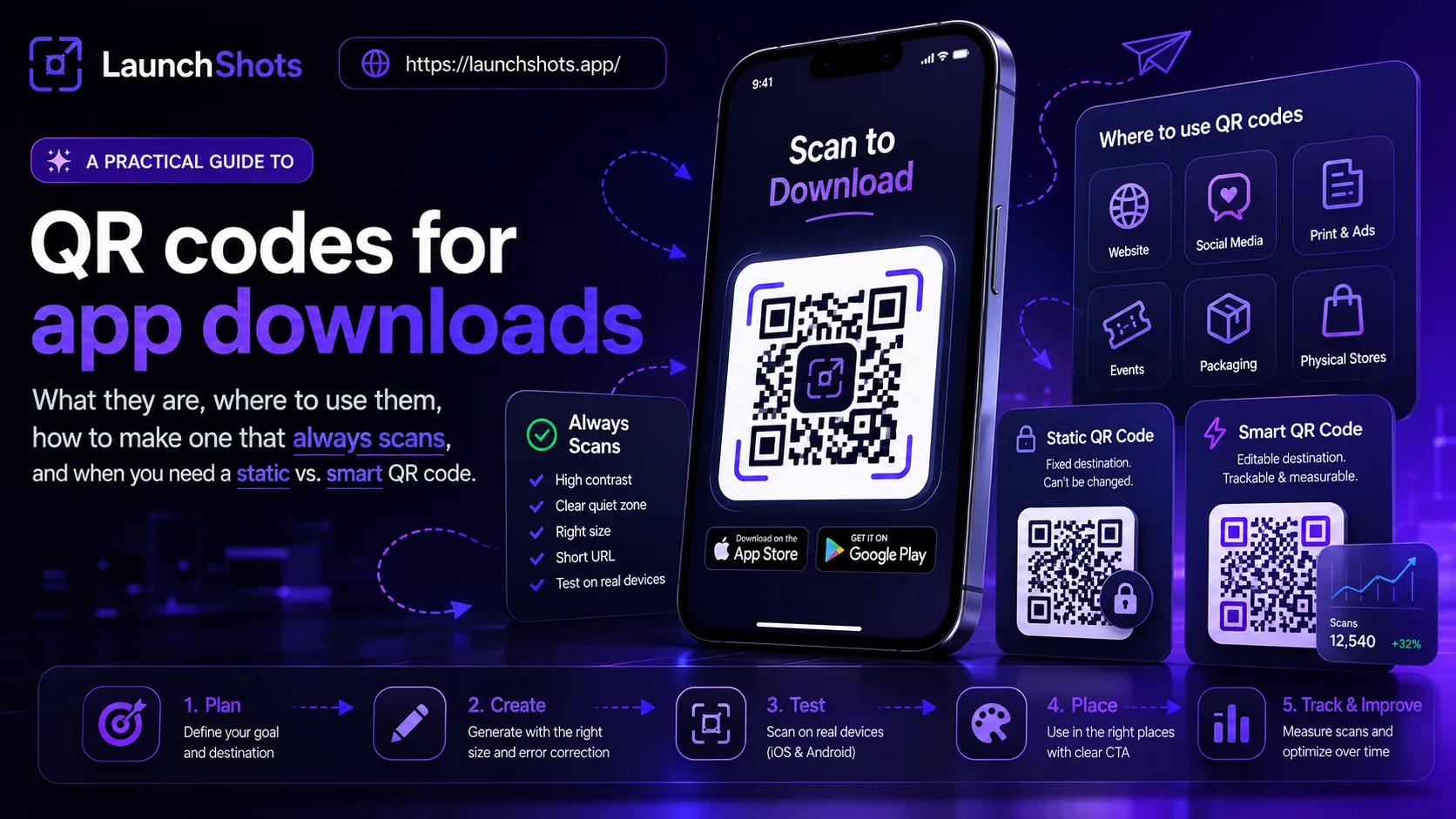
Telling someone to install your app out loud is awkward. "Search for us on the App Store — no, it's one word — look for the icon with the…" By the time you've finished, they've lost interest. A QR code removes that whole dance: one scan, and they're on your store page, ready to tap Install. Here's how QR codes work for app downloads, where to use them, and how to make one that always scans.
What an app QR code actually is
A QR code is just a picture of a link. When someone points their phone camera at it, the phone reads the link encoded in the pattern and opens it — exactly as if they'd typed it. For an app, that link is your App Store or Google Play listing. So an "app QR code" is simply a QR code whose link points to your store page. Scan it, and the store opens straight to your app.
That's the whole trick. There's nothing magic inside the square — it's a scannable shortcut to a URL you already have.
Where app developers use them
Once you have one, the uses add up fast. The common ones:
- Launch posters and flyers. "Scan to download" at an event, on campus, or in a shop window.
- Pitch decks and demos. Drop one on a slide so investors or testers can install on the spot, mid-meeting.
- Business cards and stickers. A permanent, physical link to your app that lives in someone's pocket.
- Your website and social posts. A scannable alternative to store badges, especially for desktop visitors who'll continue on their phone.
- Packaging, receipts, table tents. Anywhere a tappable link isn't possible but a camera is.
The thread running through all of these: a QR code turns a physical or visual touchpoint into a tappable one. Wherever your audience can't click, they can scan.
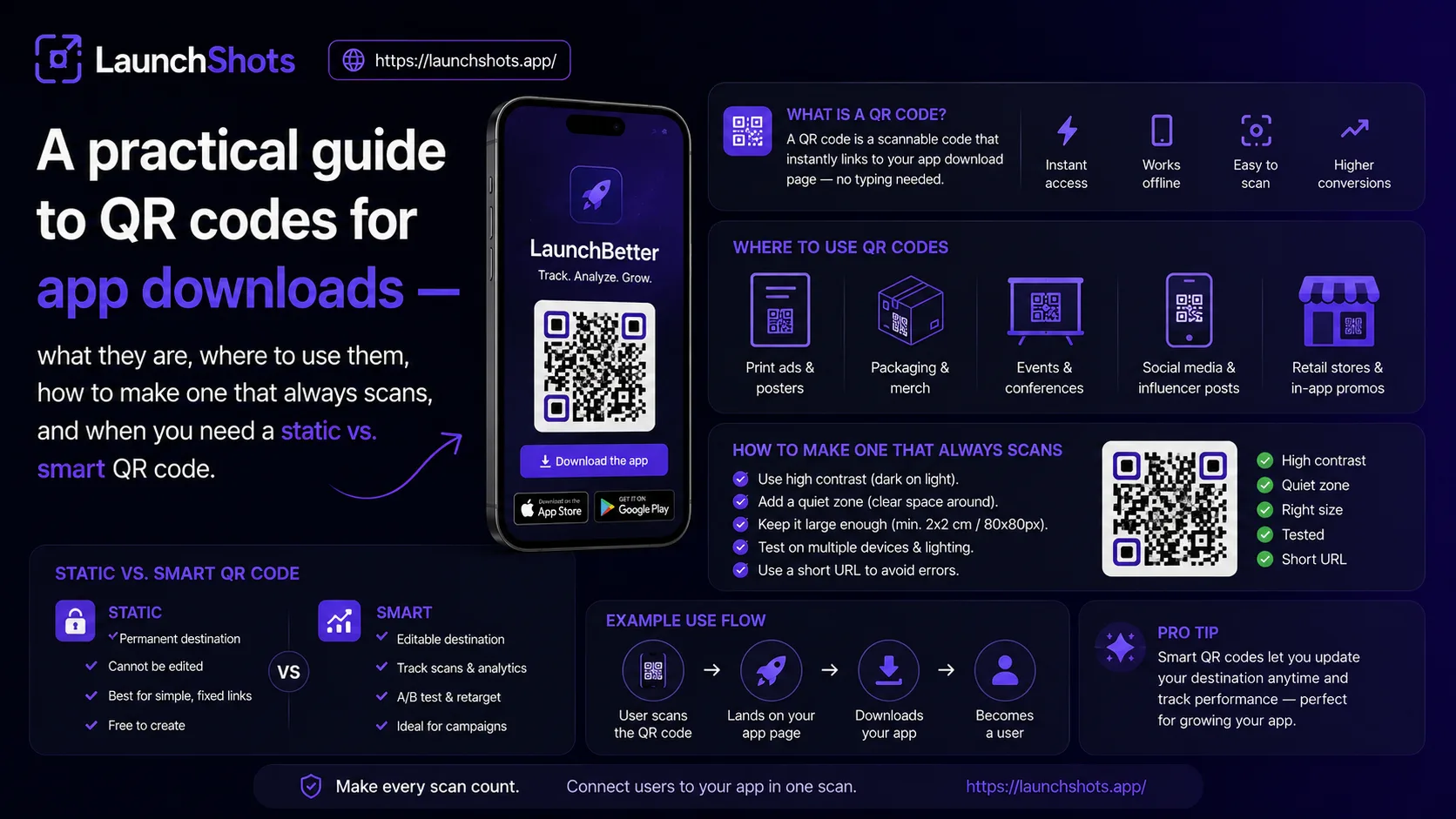
How to create one
The process is genuinely quick:
- Get your store link. On the App Store, it looks like apps.apple.com/app/id…; on Google Play, play.google.com/store/apps/details?id=….
- Paste it into a QR code generator.
- Pick a size and colors, then download as PNG (for screens) or SVG (for print, since it scales to any size without blurring).
Our free QR code generator does exactly this — paste your link, tweak the look, and download. It runs entirely in your browser, with no signup and no watermark, and your link is never sent to a server.
Making a QR code that always scans
A QR code that doesn't scan is worse than no QR code — it makes your app look broken before anyone even sees it. A few rules keep yours reliable:
- Keep strong contrast. Dark code on a light background scans most reliably. Low-contrast color pairs (light gray on white, two similar tones) are the number-one reason codes fail.
- Give it quiet space. Leave a clear margin around the code — don't crowd it with text or graphics right up to the edge. Scanners need that breathing room to find the pattern.
- Export big enough for the medium. A code on a billboard needs far more resolution than one in an email. For print, use SVG or a large PNG (1024px or more) so it stays crisp when scaled up.
- Use higher error correction if you'll add a logo. Error correction lets a code still scan when part of it is covered or damaged. If you want your app icon in the middle, a higher level keeps it readable.
- Always test before you print. Scan your final code with a couple of different phones — iOS and Android — before committing it to 500 printed flyers. This one habit saves the most pain.
Static vs. "smart" QR codes
One thing worth understanding so you choose the right approach. A static QR code encodes one fixed link. It's free, it never expires, it works forever, and nobody can track or change it. For most indie developers — a launch poster, a pitch deck, a sticker — that's exactly what you want.
A dynamic or "smart" QR code is different: it points to a redirect service that can detect the visitor's device (sending iPhone users to the App Store and Android users to Google Play from one code), let you change the destination later without reprinting, and track scans. The trade-off is that these rely on a third-party service, often cost money, and can stop working if that service shuts down.
If you only ship on one platform, or you're happy with separate iOS and Android codes, a static code is simpler and lasts forever. If you need one code for both stores with device detection, you'll want a dynamic QR service. Our generator makes clean static codes — perfect for the most common case, where you're pointing to a single store link.
The takeaway
An app QR code is just a scannable version of your store link — but it removes real friction between "I want to try that" and "it's installing." Make it high-contrast, give it space, export it large enough for where it'll live, and always test it before it goes out. Then put it everywhere your audience meets your app in the physical world.
Ready to make one? Open the QR code generator — paste your store link, pick your colors, and download. Free, no signup, runs in your browser.
Related posts

Make your App Store screenshots free
LaunchShots is a free, in-browser screenshot maker. No signup, no watermark.
Open the app →
Comments (0)