Figma Templates vs LaunchShots Editor: 2026 Honest Comparison
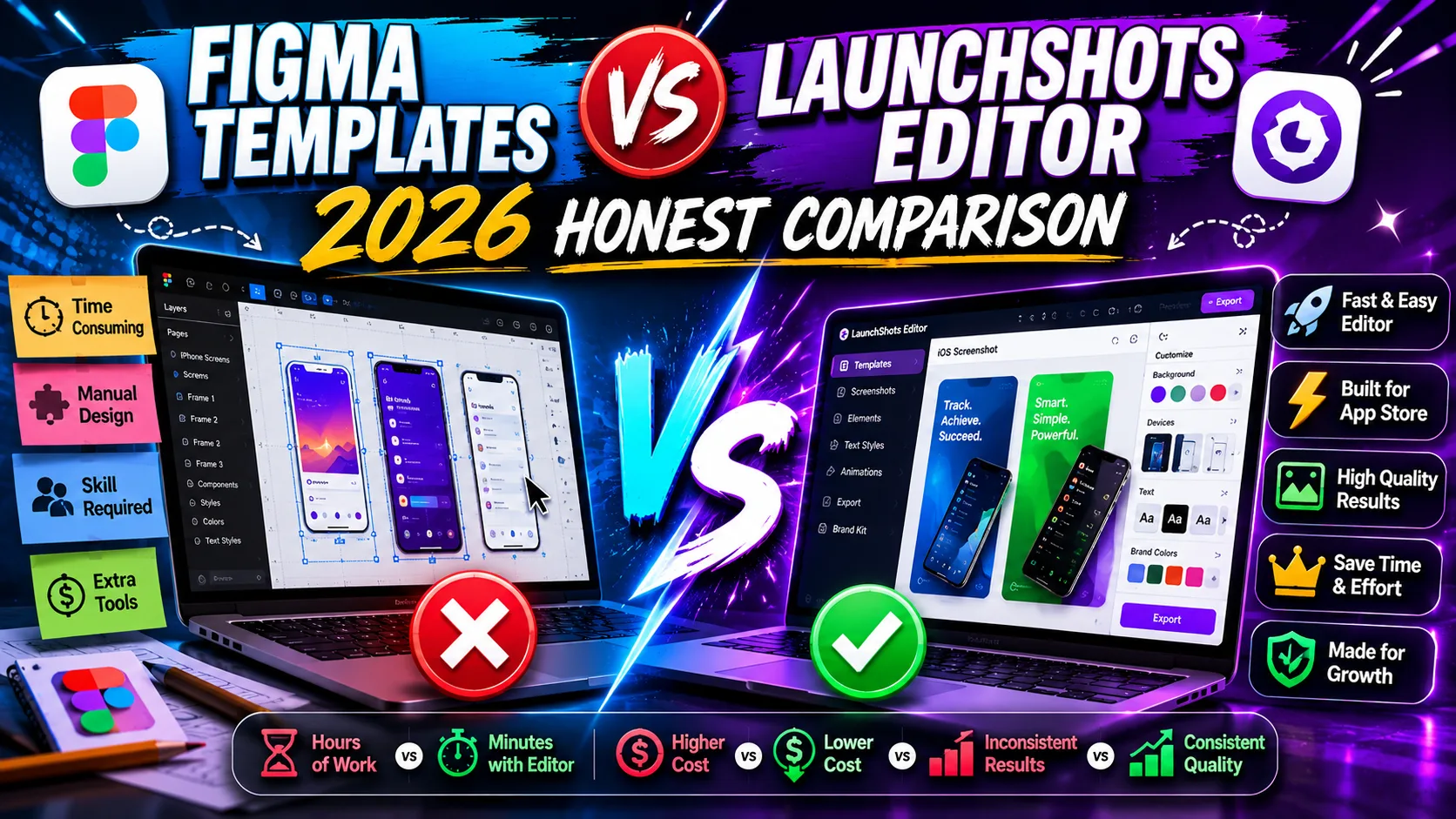
If you already use Figma, the question isn't whether you can design App Store screenshots in it — you obviously can. The question is whether you should. Figma's Community has hundreds of free App Store screenshot templates, from Median.co's 500+ template kit to Max Rudberg's iOS/iPadOS/visionOS template to ASO.dev's open-source creator file. They're genuinely good templates. They're also templates — which means you're still doing the work of resizing for every device, exporting per locale, and updating each frame when Apple bumps the required dimensions (as they did in 2026 from 1290×2796 to 1320×2868 for iPhone 6.9″). LaunchShots takes a different approach: a purpose-built editor that produces App Store and Google Play screenshots at exact required dimensions, no design tool overhead, no template wrangling, no resizing. Both work. The right choice depends on whether you want design control or shipping speed — and this is the honest comparison for 2026 to help you decide.
What each option actually is
Figma and LaunchShots solve overlapping problems with very different philosophies:
- Figma + Community templates: A general-purpose design tool with free community-contributed App Store screenshot templates. You import a template into your Figma file, swap in your app screens via a mockup plugin, edit text, and manually export at each required size. Free for individual use; $15/editor/month for paid tiers if you exceed free file limits.
- LaunchShots editor: A purpose-built browser-based screenshot editor that produces App Store and Google Play screenshots at exact required dimensions (including the 2026 iPhone 6.9″ requirement of 1320×2868). No account, no template hunting, no manual resizing. Fully free, no watermarks.
The shorthand: Figma is a design tool that can make screenshots; LaunchShots is a screenshot tool that only makes screenshots. Picking between them is mostly picking between control and speed.
The Figma Community ecosystem: what's actually available in 2026
If you go the Figma route, you're not starting from scratch. The Community has a strong template ecosystem worth knowing:
- Median.co's 500+ App Store Screenshot Templates: The largest single template kit. Covers iPhone, iPad, Android smartphone, and Android tablet device frames. Strong if you want hundreds of styles to choose from.
- Max Rudberg's iOS / iPadOS / visionOS App Store Template: Curated, well-designed template covering all current Apple platforms. CC BY 4.0 licensed. Strong if you value craft over template count.
- ASO.dev's App Store Screenshot Creator: Free template designed for ASO optimization, includes attribution requirement. Companion to their ASO automation platform.
- AppMockup AI-Powered Plugin: A Figma plugin (not a template) that generates screenshots inside Figma. Faster than starting from a template, but routes through their backend.
- App Store Screenshot Template (Figma official feature): Figma's own demo template with mockup plugin integration.
- Generic device mockup files: Useful for inspiration but not optimized for App Store dimensions. Use these for visual direction, then build the actual screenshot in something purpose-built.
The strongest Figma workflow is: import Median.co's template (or Max Rudberg's), use a mockup plugin to insert real app screens, customize text, and export. That gets you a designer-quality screenshot in 2–3 hours for the first version, then 30 minutes per language afterward.
Pricing: free vs free, with caveats
Both options have free paths, but the cost shows up in different places:
- Figma Free tier: Free for individual use with up to 3 Figma files. App Store screenshot work typically fits in a single file, so most indie developers can stay on the free tier indefinitely.
- Figma Professional ($15/editor/month): Unlimited files, team libraries, version history. Required if you exceed 3 active files or work with collaborators on shared screenshot work.
- Templates: Most quality App Store screenshot templates on Figma Community are free. Some premium template marketplaces charge $20–80 for curated packs, but you rarely need to pay.
- LaunchShots: Free. No tier, no upgrade prompt, no watermark, no asset count limit. Pay-what-you-want tip jar exists but no feature is gated.
The financial cost is essentially the same (zero, for most indie developers). The real cost is time and complexity — and that's where they diverge dramatically.
The time cost: what each workflow actually takes
This is where the two approaches differ most. Concrete numbers for a typical indie launch (6 screenshots, English only, 1 device size):
Figma + Community template workflow:
- Find and import template: 15–30 minutes (browsing options, choosing one).
- Install mockup plugin and learn its quirks: 15–20 minutes if you haven't used it.
- Insert your app screens into the template: 20–40 minutes.
- Customize text, colors, and fonts to match your brand: 30–90 minutes (depends on how much you tweak).
- Export at correct dimensions for each device size: 15–30 minutes (one export per size, named correctly).
- Total first-time: 2–4 hours for one device size.
- Adding a second device size (iPhone 6.5″ alongside 6.9″): another 30–60 minutes of resizing.
- Adding a second language: 30–45 minutes per language after the first.
LaunchShots workflow:
- Open the editor (no signup): 5 seconds.
- Upload your app screens: 1–2 minutes.
- Customize captions: 5–10 minutes.
- Export at correct dimensions for all required sizes: automatic, 30 seconds.
- Total first-time: 10–20 minutes for all required device sizes.
- Adding a second language: covered by the 23-language built-in workflow.
The math: Figma is roughly 6–12× slower for first-time screenshot production. The gap widens as you add languages and device sizes. The trade-off is design control — Figma lets you do anything visually; LaunchShots constrains you to the patterns that work.
The 2026 dimension change: a real example of why this matters
In 2026 Apple introduced a new required screenshot size: iPhone 6.9″ at 1320×2868 pixels. Previously, the 6.7″ size at 1290×2796 was acceptable for the largest device. Apps that don't include the new size get rejected.
The two workflows responded very differently to this change:
- Figma Community templates: Most existing templates were built for 1290×2796. After Apple's announcement, template authors updated their files — but not all of them, and not at the same time. Users who downloaded a template in late 2025 had to either find an updated version, manually resize their template frames, or rebuild from scratch. Some popular templates still ship with the older dimensions in mid-2026.
- LaunchShots: The 1320×2868 dimension was added as soon as Apple announced it. Users designing in the editor automatically get the current required size; no template hunting, no manual resizing. The same design exports at whichever dimensions are currently required.
This isn't a one-time event. Apple has changed required screenshot dimensions roughly every 18–24 months for the past decade. Every change creates the same workflow problem for template-based approaches. Purpose-built tools absorb the change; templates require manual updating.
Localization: where the gap gets dramatic
App Store and Google Play both support up to 40+ language localizations per app, each with its own set of screenshots. If you're serious about international markets, you'll localize at least 3–5 languages. The two workflows handle this very differently:
Figma localization workflow:
- Duplicate your template frames per language (or use Figma's component variants).
- Manually replace caption text in each language version.
- Adjust font sizes and line breaks per language (German captions are longer, Japanese shorter).
- Export each language at each device size as separate files.
- Manually name files with language codes (en_6_7_inch, ja_6_7_inch).
- Realistic time: 30–45 minutes per additional language after the first.
LaunchShots localization workflow:
- 23 languages built into the single-design workflow.
- Change once, export the full localized set automatically.
- Realistic time: covered by the initial 10–20 minute investment.
For an indie shipping in 5 languages, Figma's workflow is roughly 2.5–4 hours of additional manual work. LaunchShots' workflow is included. The gap compounds with every additional language.
Where Figma genuinely wins
Despite the speed disadvantage, Figma is the right choice in real situations:
- You already live in Figma daily. If your app's entire design system is in Figma — components, color tokens, type styles — designing screenshots in the same file keeps the brand consistent. Switching to a different tool means redoing brand setup.
- You want pixel-perfect art direction. If your screenshots need custom illustrations, complex composition, brand-specific visual treatments, or anything beyond what a purpose-built editor exposes, Figma's full design capabilities are unmatched.
- You're a design agency producing client work. The 2–4 hour investment per launch is small relative to billable hours, and Figma's collaboration features (comments, version history, shared libraries) matter for client workflows.
- You're shipping multiple apps with a shared design system. A reusable Figma template you've customized once pays dividends across launches. The first investment is high; subsequent launches use the same file.
- You want to A/B test substantially different visual approaches. Figma's flexibility makes it easier to produce dramatically different design variants for testing. LaunchShots is faster but more opinionated.
- You're already paying for Figma anyway. If you have a Pro/Org seat for other work, the marginal cost of using it for screenshots is zero.
Where LaunchShots genuinely wins
And the situations where LaunchShots is the better choice:
- You want to ship today, not next week. 10–20 minutes vs 2–4 hours is a meaningful difference when you're launching this weekend.
- You don't already use Figma for other work. Learning Figma just to make screenshots is overkill. The tool's learning curve is real (a few hours to feel productive), and you're paying that cost to produce 6 images.
- You ship multiple languages. 23-language built-in workflow vs manual per-language work. The gap compounds.
- You hate the manual resizing dance. Apple changes required dimensions every 18–24 months. Templates require updating; purpose-built tools absorb the change automatically.
- You want a free toolkit, not just screenshots. LaunchShots ships with app icon generator, ASO description writer, feature graphic maker, privacy policy generator, app-ads.txt generator, and QR code generator — all free, all no-signup. Figma covers screenshots; you need other tools for the rest.
- You're a developer, not a designer. Figma rewards design judgment. LaunchShots is opinionated about what works for App Store conversion, which lowers the floor for developers without strong design intuition.
- You prioritize friction-free workflow. No signup, no account, no email. Open the site, make screenshots, leave.
The hybrid approach that actually works
For developers who already use Figma but want LaunchShots' speed, there's a practical middle path:
- Design your app's screen mockups in Figma. Your actual app screens — the UI states you'll feature — can live in Figma where your design system lives.
- Export those screens as PNG images. Standard Figma export at 2x or 3x resolution gives you clean assets.
- Import the exported screens into LaunchShots. Drop them into the editor, add captions, export at all required dimensions.
- Get Figma's design control for the in-app UI, plus LaunchShots' speed for the screenshot composition.
This workflow is common in practice. The app UI itself benefits from Figma's flexibility; the screenshot composition (device frame, caption, background, layout) doesn't. Splitting the work across the two tools gets the best of both.
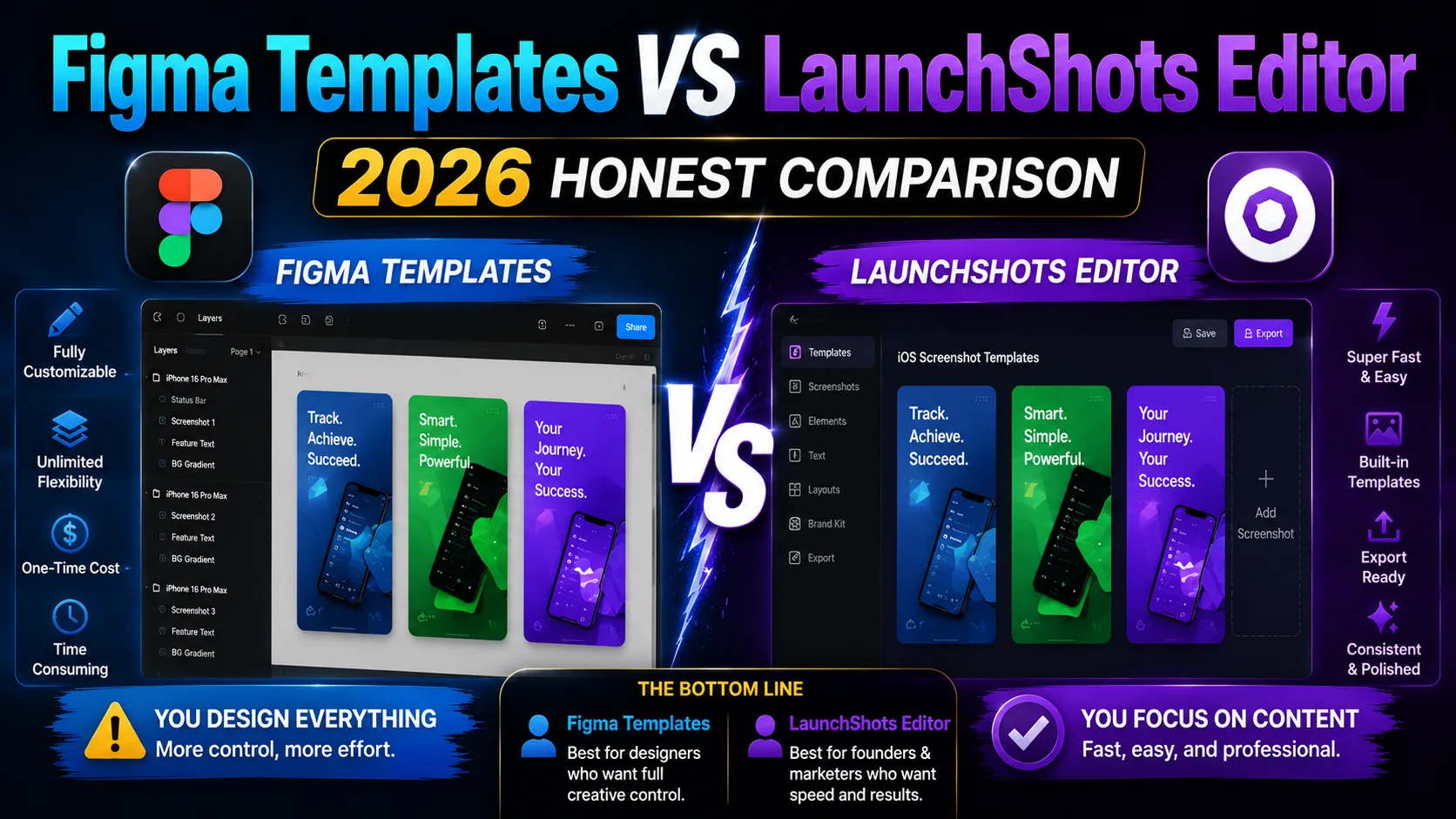
The decision framework
Rather than "which is better," ask yourself five questions:
- 1. Do I already use Figma daily for other work? Yes → Figma's marginal cost is low. No → LaunchShots is the shorter path.
- 2. How much do I value pixel-perfect art direction vs shipping speed? Art direction → Figma. Speed → LaunchShots.
- 3. Will I localize into multiple languages? Yes → LaunchShots' 23-language workflow saves serious time. English only → either works.
- 4. Am I a designer or a developer? Designer → Figma rewards your judgment. Developer → LaunchShots is opinionated in your favor.
- 5. Will I ship multiple apps with the same design system? Yes → Figma template you build once pays dividends. One-off launch → LaunchShots is faster.
If you answered "Figma" to most: pick Figma. If you answered "LaunchShots" to most: pick LaunchShots. The hybrid approach (Figma for UI, LaunchShots for screenshot composition) works for many indie developers who fall in the middle.
Common scenarios — which approach fits
To make this concrete, here's which approach actually fits for different profiles:
- Solo indie developer launching their first app, no Figma experience: LaunchShots. Learning Figma to ship 6 images is overkill.
- Solo indie developer who already uses Figma for app UI: Hybrid. Design screens in Figma; compose screenshots in LaunchShots.
- Indie developer shipping in 5+ languages: LaunchShots. The localization workflow gap is dramatic.
- Design agency producing client app launches: Figma. Billable hours absorb the time cost; design control matters for client work.
- Studio shipping multiple apps with a shared design system: Figma. The reusable template pays back across launches.
- Indie developer racing a launch deadline this weekend: LaunchShots. The 6–12× speed advantage is decisive.
- Developer who wants screenshots, icon, ASO copy, and privacy policy all from one place: LaunchShots' ecosystem covers all four. Figma covers screenshots only.
- Developer who wants to A/B test radically different visual styles: Figma. The flexibility helps; LaunchShots is more opinionated.
What neither approach does for you
Both tools produce the pixels; neither makes the strategic decisions that actually drive App Store conversion:
- What goes in your screenshot captions. The caption text — what value you communicate across screens — matters more than which tool generates the pixels.
- Which features to highlight. The first two screenshots carry 80% of the conversion. Choosing what they show is product judgment.
- How many screenshots to use. 5–7 is the sweet spot; both approaches let you do up to 10. The question is which 5–7 best sell your app.
- Whether to use device frames or full-bleed designs. Both work; both approaches support either. The right call depends on your category.
For the strategic side, our guide on App Store screenshots that convert covers the patterns that drive installs — independent of which tool produces the pixels.
Frequently asked questions
Can I use a Figma template and then finish in LaunchShots?
Yes. Export the relevant screens from Figma as PNG, then import them into LaunchShots and compose your screenshots there. Common workflow for indie developers who want Figma's flexibility for in-app UI but LaunchShots' speed for screenshot composition.
Which Figma template is the best for App Store screenshots in 2026?
Depends on your needs. Median.co's 500+ template kit has the most variety. Max Rudberg's iOS/iPadOS/visionOS template is more curated. ASO.dev's creator file is good for ASO-focused launches. All three are free on Figma Community.
Does LaunchShots support the 2026 iPhone 6.9″ (1320×2868) requirement?
Yes. The dimension was added when Apple announced it, and any design in the editor exports at the current required size automatically. No manual resizing.
Do I need Figma's paid plan for App Store screenshots?
No. The free tier (3 files) is enough for most indie developers' screenshot work. Paid plans matter for unlimited files and collaboration, not for screenshot output quality.
How much faster is LaunchShots than Figma for screenshot production?
Roughly 6–12× faster for first-time production (10–20 minutes vs 2–4 hours). The gap widens dramatically when adding languages or device sizes, where LaunchShots' built-in workflow absorbs what Figma requires as manual repetition.
Can Figma plugins like AppMockup speed up the workflow?
Yes, somewhat. Plugins like AppMockup or device frame plugins can reduce the time per screenshot from 30–45 minutes to 10–15 minutes. Still slower than LaunchShots but more flexible.
Which approach produces better-looking screenshots?
Figma has higher ceiling — a skilled designer can do more in Figma. LaunchShots has higher floor — non-designers produce decent results faster. For most indie developers, the floor matters more than the ceiling.
What about AI-powered Figma plugins?
AppMockup's AI plugin and similar tools accelerate template-driven workflows inside Figma. They're improving fast but still produce template-feel results. For unique design direction, manual work in Figma still wins; for speed, dedicated tools still beat AI-in-Figma.
If I switch from Figma to LaunchShots, can I import my designs?
You can't import Figma project files directly, but you can export your designed screens from Figma as PNG and use them as base images in LaunchShots. This is the standard hybrid workflow.
What happens when Apple changes dimensions again?
LaunchShots updates automatically. Figma templates require updating by their authors (or by you, if you want to skip the wait). Historical pattern: Apple changes dimensions every 18–24 months. Plan accordingly.
The bottom line
Figma is a phenomenal design tool, and its Community has genuinely good App Store screenshot templates from Median.co, Max Rudberg, ASO.dev, and others. If you already use Figma daily, the marginal cost of using it for screenshots is low and the design control is unmatched. LaunchShots is a purpose-built editor that's 6–12× faster than Figma for first-time production, absorbs Apple's dimension changes automatically, includes 23-language localization in the base workflow, and ships alongside a free toolkit for the rest of the launch (icon, ASO copy, feature graphic, privacy policy). The right choice isn't about which tool is "better" — it's about whether you want design control or shipping speed, and whether you'll spend the next two hours art-directing screenshots or shipping them and moving on to growth.
Whichever approach you pick, the strategic decisions still matter more than the tool. Our guide on screenshots that convert covers the patterns that drive installs, and the complete visual assets checklist covers every required asset for both stores in 2026. If you're weighing other dedicated screenshot tools, our AppLaunchpad vs LaunchShots comparison covers the most established commercial alternative.
Related posts
Make your App Store screenshots free
LaunchShots is a free, in-browser screenshot maker. No signup, no watermark.
Open the app →
Comments (0)