From Figma to App Store screenshots: the fast way
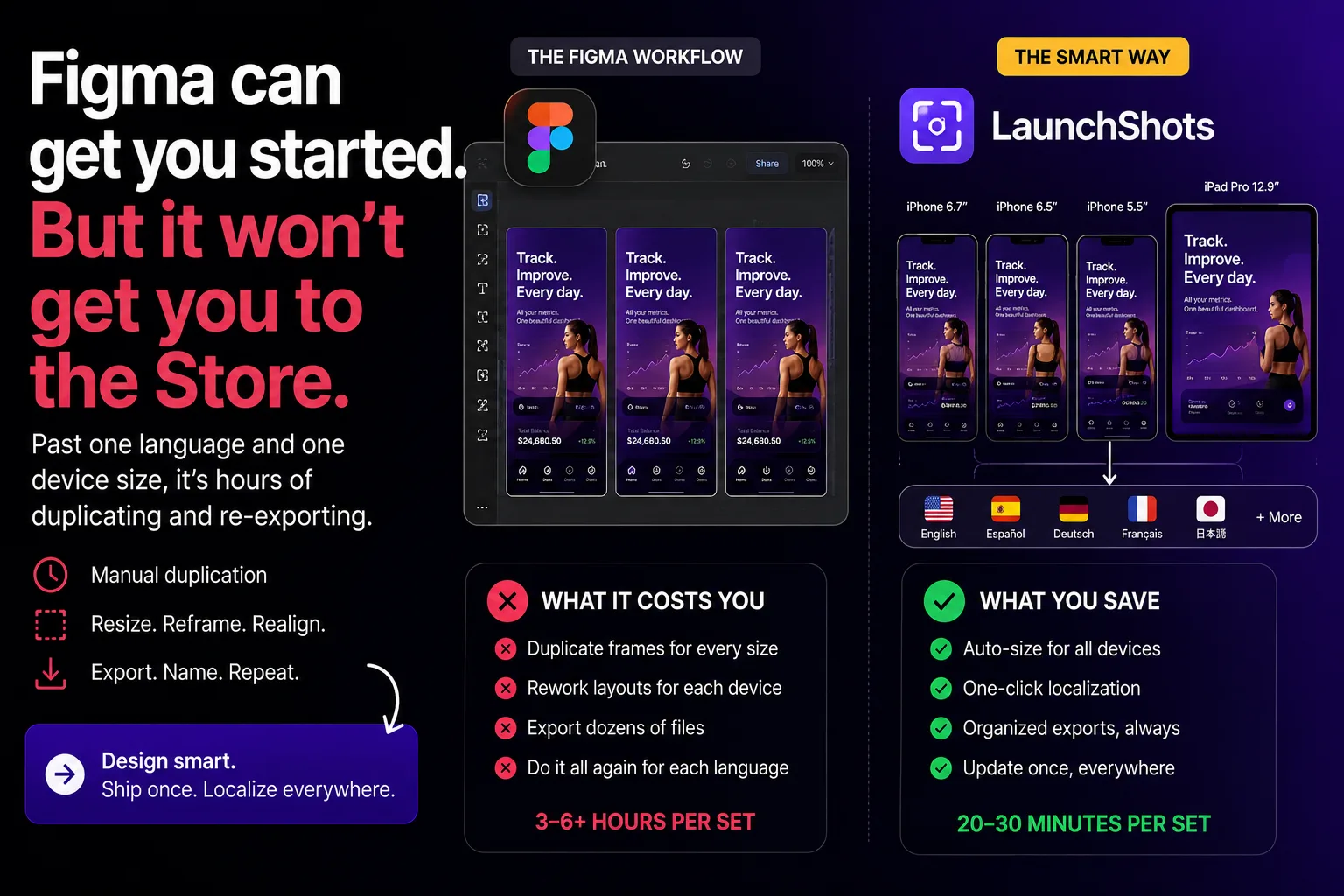
If you design your app's UI in Figma, it's tempting to build your App Store and Google Play screenshots there too — it's already open, you know the tools, why switch? You can absolutely do it, and for some workflows it's the right call. But there's a point where Figma stops being the fast path and starts being the slow one. This guide covers how to go from Figma to store-ready screenshots, when Figma is the right tool, and when it's worth handing the last step to something built for it.
The Figma approach: how it works
The basic workflow is straightforward. You export your app's UI screens from Figma (or wherever your designs live), then build screenshot frames around them:
- Export your screens. Select each screen frame and export at 2x or 3x PNG so the UI stays crisp inside a device mockup.
- Drop them into device frames. Most people use a community plugin — Apple Devices, Angle, Clay, or similar — to wrap each screen in an iPhone or Android frame.
- Add captions and backgrounds. Build a layout with a headline, a background color or gradient, and the framed screen, sized to the store's required dimensions.
- Export each one. Slice every frame to the exact App Store and Play Store sizes and export the set.
For a single language and one device size, this is fine. Figma gives you total creative control over every pixel, which is exactly what you want for a custom marketing hero with angled devices and branded illustrations.
Where the Figma workflow gets painful
The trouble starts when you multiply. App stores don't ask for one screenshot — they ask for a set, across device sizes, ideally in several languages. In Figma that means duplicating every frame, resizing, re-pasting translated captions, and re-exporting — per device, per language. What should take minutes turns into hours, and the manual repetition is where errors creep in: a caption that overflows, a frame at the wrong size, a screen that didn't get updated.
It gets worse over time. Every time your app's UI changes, you have to go back into Figma and revisit every frame to swap the screens. Managing multiple variants for A/B tests or seasonal updates turns a tidy file into a sprawling mess. Figma is a general-purpose design tool — incredibly powerful, but not optimized for the repetitive, size-and-language-heavy work that store screenshots actually are. And Figma's paid tiers start at $15/editor/month, which is a lot to pay for what is, in the end, a fairly narrow task.
When to stay in Figma — and when to switch
It's not all-or-nothing. A simple rule of thumb:
- Stay in Figma when you're crafting a one-off, highly custom marketing image — a landing-page hero with 3D-angled devices, custom illustrations, and pixel-level art direction.
- Switch to a dedicated tool when you need a full store set, fast, in the exact required sizes, across multiple languages, and you expect to update it as your app evolves.
The smartest workflow for most indie developers is a hybrid: design your UI screens in Figma, then build the actual store screenshots in a purpose-built tool. You keep Figma for what it's great at — designing the app — and skip the tedious frame-by-frame, size-by-size, language-by-language grind for the store assets.
From Figma to store-ready in minutes
That's exactly the handoff our screenshot editor is built for. Export your app screens from Figma as PNGs, drop them in, and you get device frames, backgrounds, captions, and every required App Store and Google Play size without rebuilding a thing per device. When you're ready for other markets, it handles multiple languages and exports a ZIP organized for App Store Connect and Play Console — no cloning frames by hand. It runs entirely in your browser, with no signup and no watermark, so the last mile of your launch stops being the slowest.
Design the app in Figma. Let a tool that's built for it handle the store. If you want the principles behind a screenshot set that actually converts once you've exported it, read our guide on screenshots that convert.
Related posts

Make your App Store screenshots free
LaunchShots is a free, in-browser screenshot maker. No signup, no watermark.
Open the app →
Comments (0)